
Why Sharing Posts to Your Story is a Smart Move

Before we get into the "how," let's talk about the "why." This isn't just about reposting for the sake of it. It’s a savvy way to navigate the main feed algorithm and reconnect with your audience. Think of your feed as your polished, curated gallery and your Stories as the lively, behind-the-scenes tour.
Get Your Content Seen by More People
Let's be real: when you publish a new post, only a fraction of your followers will see it right away. The algorithm has its own ideas about who sees what. Sharing that same post to your Story is like sending up a flare, letting your most dedicated followers—the ones who consistently watch your Stories—know you've got something new for them.
This simple share creates a direct link back to your original post. It funnels people over to drop those initial likes, comments, and saves that tell Instagram, "Hey, this is good stuff!" That early burst of interaction can make a huge difference in how well the post performs in the long run.
A well-timed Story share can be the difference between a post that fizzles out and one that gains serious momentum right out of the gate.
Connect With a Huge, Active Audience
The numbers here are pretty staggering. Stories give you a direct line to over 500 million users who are active every single day. And for businesses, it's even better—a third of the most-viewed Stories come from business accounts. Honing your Instagram story strategy is one of the best things you can do for your organic reach.
By learning how to share your Instagram posts to your Story the right way, you can:
Breathe new life into old content: Got a great post from a few months back? Share it to your Story so new followers can see it.
Boost profile traffic: An intriguing Story teaser makes people want to tap through and see what else you have on your profile.
Spark conversations: Stories are a direct path to your DMs, making it easy for people to react and start a chat.
Ultimately, sharing to your Story helps your content work smarter, not harder. It transforms a single feed post into a versatile tool for engagement and reach. You can dig deeper into these trends over at 99firms.com.
How to Share an Instagram Post to Your Story
Alright, let's get into the nitty-gritty. Sharing a post from your feed—or someone else's—to your Story is one of the quickest ways to get more eyes on your content. The whole process takes just a few taps once you know where to look.
First things first, find the post you want to share. It can be a photo, a carousel, or a Reel from any public account. Right underneath the post, you’ll see the usual icons: the heart for likes, the speech bubble for comments, and then the paper airplane icon. That little airplane is exactly what you're looking for.
Getting Your Post into the Story Editor
Tap that paper airplane, and a new menu will pop up. The first option at the top will be “Add to story.” Give that a tap, and Instagram will whisk the post into a new Story draft for you.
You'll see the post as a tappable sticker placed over a default colored background. From here, the creative part is all up to you.
A quick heads-up: This only works if the account is public and has sharing enabled. If the account is private or they've turned off resharing in their settings, you won't see the "Add to story" option.
The best part is that Instagram automatically links your Story back to the original post. Anyone who sees it can just tap the sticker to jump straight to the feed post, which is a fantastic way to drive traffic and engagement where you want it most.
How Different Posts Look in a Story
The sharing method is the same for all post types, but they do show up a bit differently in your Story editor. Here’s a quick rundown of what to expect:
Single Images: Appear as a simple, static image sticker.
Carousels: Your Story will only show the first slide of the carousel as the preview.
Reels: A short, looping video preview of the Reel plays automatically.
Once you have the post in your Story, you can treat it like any other sticker. Pinch to resize it, twist to rotate it, and drag it anywhere on the screen. This is your chance to add your own spin with some text, a funny GIF, or an interactive sticker to really grab your audience's attention.
For a deep dive into all the creative tools at your disposal, you should check out our complete Instagram Story guide.
When you're happy with how it looks, just hit “Your Story” to share it with all your followers or choose “Close Friends” for a more select audience. And that's it
Turning Your Share Into an Engagement Magnet
Just hitting "Add post to your story" is the bare minimum. The real opportunity to connect with your audience and stop them from tapping past is what you do after the post lands in the Story editor. This is where you can transform a simple share into a genuine conversation starter.
Think of it this way: the shared post is the main event, but your creative additions—the text, stickers, and background—are the frame that makes people actually pay attention. The goal is to give your followers a compelling reason to interact right then and there.
Sparking Conversation With Interactive Stickers
The fastest way to get your audience involved is by using Instagram's interactive stickers. They're built for quick, low-effort engagement, which is exactly what you want in a fast-paced environment like Stories.
You have a few great options to choose from:
Polls: Perfect for a quick temperature check. Sharing a photo of a new product? Ask, "Would you rock this color?" with "Heck yes!" and "Maybe another shade" as options.
Quizzes: Test their knowledge and add a fun challenge. If you share a post about a historical fact, a quiz sticker is a natural fit.
Emoji Sliders: A super simple way to gauge sentiment. Post a funny Reel and add a slider with the laughing emoji, asking, "Rate this clip 😂."
These little interactions do more than just provide you with feedback; they send positive signals to the Instagram algorithm, showing that your content is valuable and engaging.
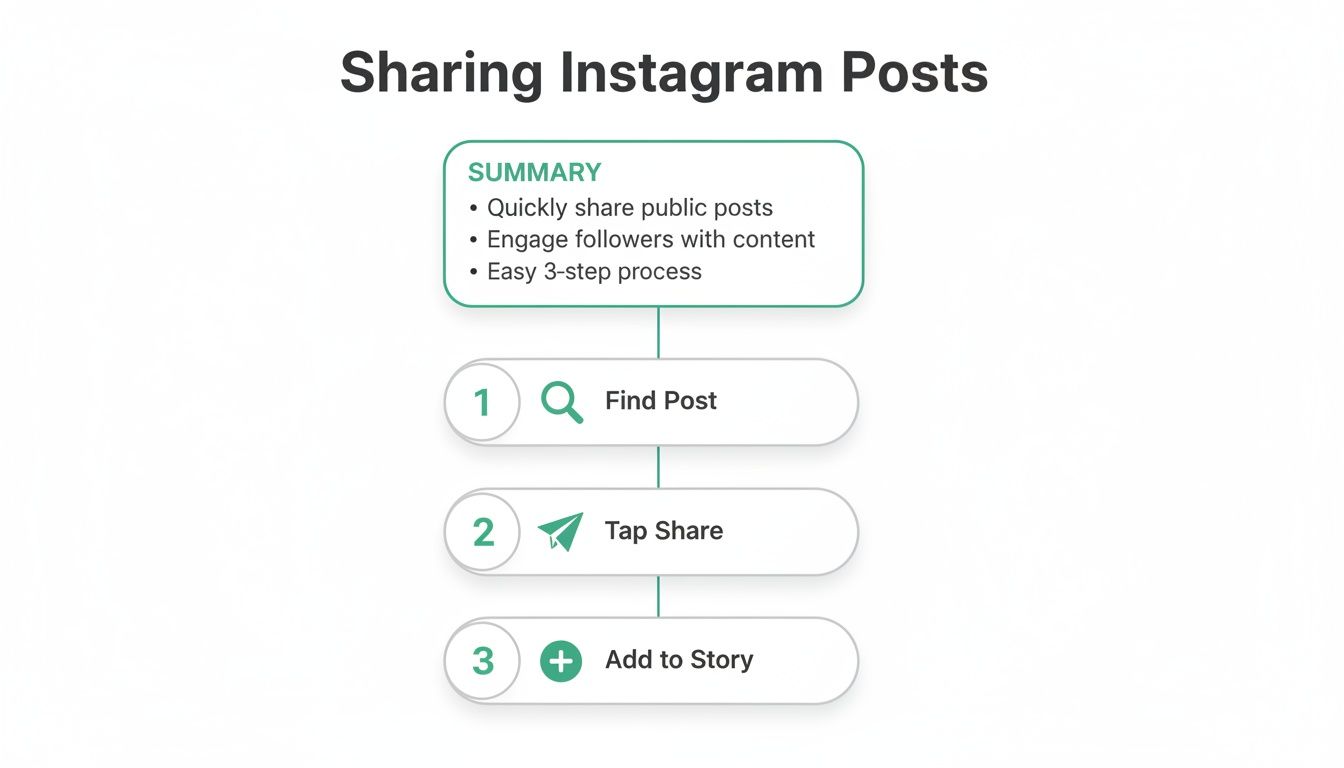
From finding the post to tapping that paper airplane icon, each action gets you one step closer to the creative canvas where you can really make your content shine.
Which Interactive Sticker Should You Use?
Choosing the right sticker depends entirely on what you want your audience to do. Think about your goal first, then pick the tool that gets you there. This table breaks down the most common options.
Poll Sticker — Goal: Get a quick opinion
Polls are perfect for fast, low-effort engagement. They encourage users to tap without thinking too much.
Example CTA: “Which of these two options is your favorite?”
Why it works: It boosts Story interaction and signals engagement to the algorithm.
Quiz Sticker — Goal: Test knowledge or educate
Quizzes make your audience curious and invite them to guess before revealing the answer.
Example CTA: “Guess the secret ingredient!”
Why it works: It’s interactive and educational, which keeps people watching your Stories longer.
Slider Sticker — Goal: Measure feeling or sentiment
Sliders let users express how strongly they feel about something in a fun, visual way.
Example CTA: “How much do you love this? Slide to tell me!”
Why it works: It’s playful, easy to use, and great for gauging emotional reactions.
Question Sticker — Goal: Gather open-ended feedback
This sticker invites detailed responses and deeper conversations with your audience.
Example CTA: “What’s the first thing that comes to mind when you see this?”
Why it works: It helps you collect insights and content ideas, and makes followers feel heard.
Link Sticker — Goal: Drive traffic off-platform
Link stickers are used to send viewers to a website, product page, or signup form.
Example CTA: “Tap here to shop the full collection!”
Why it works: It turns Stories into a direct traffic and conversion tool.
Ultimately, the best sticker is the one that feels like a natural extension of the post you're sharing. Mix it up to keep your audience on their toes!
Designing a Visually Appealing Share
Beyond stickers, the overall look and feel of your Story share matters a lot. A messy, uninspired design is easy to skip. But a clean background and a clear call-to-action can make a world of difference. Always start with high-quality source material; if you're sharing a video, think about things like refining your video's audio beforehand to create a better experience from the get-go.
Don't be afraid to be direct. Add a bold text overlay with a CTA like "Tap to Read the Full Caption!" or use the drawing tool to circle the post with an arrow pointing to it. Adding music that fits the vibe or a relevant GIF can also grab attention in those crucial first few seconds. For more deep-dive strategies, check out our guide on how to get more views on your Instagram Story at Gainsty.
The best Story shares never feel like an afterthought. They add context, inject personality, and give your audience a clear, compelling reason to engage further.
Advanced Tactics for Maximum Reach and Traffic
So, you've mastered the basics of sharing a post to your Story. That's a great start, but if you really want to move the needle on your account's growth, it's time to think bigger. A simple share is fine, but a strategic share can become a powerful engine for driving traffic and reaching people far beyond your current follower list.
This is about turning your Story from a passive update into an active growth tool. Instead of just showing your audience something they might have missed in their feed, you're giving them a clear next step—whether that's visiting your website or discovering another creator you love.
Using Mentions to Tap into New Audiences
One of the most overlooked growth hacks right inside your Stories is the @mention sticker. Every time you share a post—whether it's your own or someone else's—ask yourself: who else is connected to this content?
Tag the original creator: This is non-negotiable if you're sharing someone else's work. It's not just good etiquette; it sends them a notification. Many creators will reshare your Story as a "thank you," putting your account in front of their entire audience. Instant exposure.
Mention featured brands or people: Did you post a photo from a local coffee shop? Tag them. Are you wearing a specific brand's jacket? Tag them. That coffee shop is far more likely to share a Story that gives them a shout-out, amplifying your content for free.
Think of it this way: every mention turns a simple share into a networking play. You’re building relationships and borrowing the audience of others to grow your own.
Driving Off-Platform Traffic with the Link Sticker
For anyone trying to turn followers into website visitors or customers, the "Add Link" sticker is your best friend. Sharing a feed post about a new blog article or product launch? This sticker is the most direct path to get people off Instagram and onto your site.
Don't just paste the URL and hope for the best. You have to give people a reason to tap. Customize the sticker text with a strong call-to-action like "Read the Full Post," "Shop the New Collection," or "Grab Your Ticket." That small tweak can make a huge difference in your click-through rate.
This tactic is especially potent when sharing a Reel to your Story. While the average Story's reach can be pretty modest, a Reel that gets shared to Stories can catch a second wind and see a massive visibility boost. For anyone chasing organic growth, repurposing your best feed content into Stories isn't just a small task—it's a way to multiply your visibility. You can find more eye-opening Instagram stats over on Meltwater.com.
Solving Common Instagram Sharing Problems

It’s one of those little frustrations: you tap the paper airplane icon, ready to share a great post, but the "Add post to story" option is nowhere to be found. If this has happened to you, don't worry. It's a common hiccup, and the fix is usually straightforward.
Most of the time, this isn't a bug but a matter of permissions. The number one reason the share option goes missing is because of account privacy. You can only share posts from public Instagram accounts. If an account is set to private, Instagram simply won't give you the option to share their content to your Story, even if you’re one of their followers.
Another possibility is that the original poster has disabled sharing. Any public account can turn off resharing in its settings. If they've flipped that switch, Instagram honors their choice, and you won’t be able to share their posts. It's their content, their rules.
Troubleshooting Technical Glitches
Okay, so what if you know the post should be shareable, but you're still stuck? Sometimes, the problem is on your end, and the app itself is just acting up. The usual suspects are a buggy version of the app or a cluttered cache.
Here are a few quick things you can try to get things working again:
Update the App: First things first, pop over to your phone's app store and see if there’s an Instagram update waiting. Running an old version is a frequent cause of features going haywire.
Clear Your Cache: Head into your phone’s settings, find the Instagram app, and clear its cache. This is a great way to resolve minor performance issues without touching your login info or data.
Log Out and Back In: It's the classic "turn it off and on again" of the app world for a reason. Simply logging out and then logging back in can often give the app the reset it needs to fix the problem.
If you're running into issues with video quality or file size when posting to your Story, you can find some really helpful tips on how to compress videos specifically for Instagram.
Got Questions About Sharing to Stories?
Sharing posts to your Story seems straightforward, but a few tricky situations always seem to pop up. Let's walk through some of the most common questions I hear so you can share content like a pro.
Why Can't I Share Someone's Post to My Story?
So you hit the paper airplane icon, but the "Add to Story" option is nowhere to be found. This happens frequently, and it almost always boils down to one of two things.
First, the post has to be from a public account. That's a hard-and-fast privacy rule from Instagram—content from private profiles is locked down, even if you follow them. The second reason is that the account owner has turned off sharing. Public accounts can choose to prevent others from resharing their posts, and if they've flipped that switch, you won't be able to add their content to your Story.
How Do I Share the Entire Reel, Not Just the 15-Second Clip?
This is a big one. When you share a Reel, Instagram only shows a 15-second preview in your Story. There's currently no built-in way to make the full video play right there in the Story frame.
Honestly, this is by design. The preview acts as a teaser, nudging your followers to tap through and watch the whole thing on the creator's feed. It's all about driving traffic back to the original post. If you absolutely need the full video, you could screen-record it, but be sure to give proper credit by tagging the creator with a @mention sticker. It's just good etiquette.
Expert Tip: Think of the short preview as a hook, not the whole show. The real goal of sharing a Reel is usually to send viewers back to the original.
Can I See Who Shared My Post?
You can, but there's a catch: they have to tag you. When someone shares your post and adds your username with the @mention sticker, you'll get a notification and see their Story in your DMs. This makes it super easy to track and even reshare it to your own Story.
But what if they don't tag you? In that case, you won't be notified. Instagram doesn't provide a list of every single person who has shared your post. You only know about the shares that specifically give you a shout-out.
How Can I Stop People From Sharing My Posts?
You're in the driver's seat here. If you want your feed content to stay on your feed and nowhere else, you can easily disable the sharing feature.
Here’s the quick way to do it:
Head to your Profile and tap the menu icon (the three lines).
Go to Settings and privacy, then find Sharing and remixes.
Look for the Allow story sharing of posts option.
Just toggle that switch to the off position.
Once you do that, the "Add post to story" button will vanish from your posts for everyone else. Simple as that.
Ready to stop guessing and start growing? Gainsty uses a powerful combination of expert strategy and AI to attract real, engaged followers to your Instagram profile. Grow your audience organically and watch your engagement soar. Discover how Gainsty can change your Instagram growth today!