Why You Need a Strategy for Your Instagram Notifications
Most of us never touch the default notification settings. The result? A constant barrage of alerts that does more to fracture our attention than foster connection. This stream of digital noise is more than just annoying—it can genuinely overwhelm you. The good news is, you're in total control.
When you get strategic with your notifications, you change Instagram from a source of constant interruption into an experience you’ve designed yourself. It’s all about making conscious choices that match what you want to achieve. Maybe you're a business owner who can't miss a customer DM, or perhaps you just want to protect your peace of mind. Either way, there's a setup for you.
Reclaim Your Focus and Attention
Every single notification, from a new like to a new follower, is designed to pull you out of what you're doing. By taking a few minutes to customize your alerts, you get to decide what's actually worth your immediate attention. It’s not about going silent; it’s about prioritizing what matters.
If you’re a creator, you'll probably want to keep notifications on for comments so you can reply and keep the conversation going. But alerts for every new follower? That might be something you can turn off to cut down on the noise.
If you’re using Instagram personally: Try muting notifications for likes. It can help reduce that little pull for validation. At the same time, you can keep direct message alerts on so you don’t miss chats with friends and family.
Knowing how to manage your notifications is key to making the app work for you. This same intentional approach applies to creating content, too—like following Instagram Reels best practices to get more eyes on your videos.
When you deliberately choose your settings, you're telling the app exactly how you want it to interact with you. It’s a small change that puts you firmly in control, making sure the platform serves your needs, not the other way around.
Ultimately, a smart notification system is the first step toward building healthier habits online. It helps make your time on Instagram more intentional, more meaningful, and a lot less stressful.
Finding and Using Core Notification Controls
Ready to take charge of your Instagram alerts? First things first, you need to know where the control panel is hidden.
It's actually pretty straightforward. Just head to your Instagram profile, tap the "hamburger" menu (the three lines in the top-right corner), then navigate to Settings and privacy, and finally, tap on Notifications. This one screen is your mission control for everything that makes your phone buzz.
You’ll notice right away that Instagram groups its notifications into sensible categories. We're not just talking about a simple on/off switch here; these settings give you granular control over almost every type of interaction. Interestingly, while it's estimated that only about 28% of everyday users ever bother to customize these settings, that figure climbs to over 35% for creators and brands who live and die by timely engagement. You can dive deeper into how users engage with Instagram notifications to see why that is.
The main categories you'll see are things like 'Posts, Stories, and Comments' and 'Messages'.
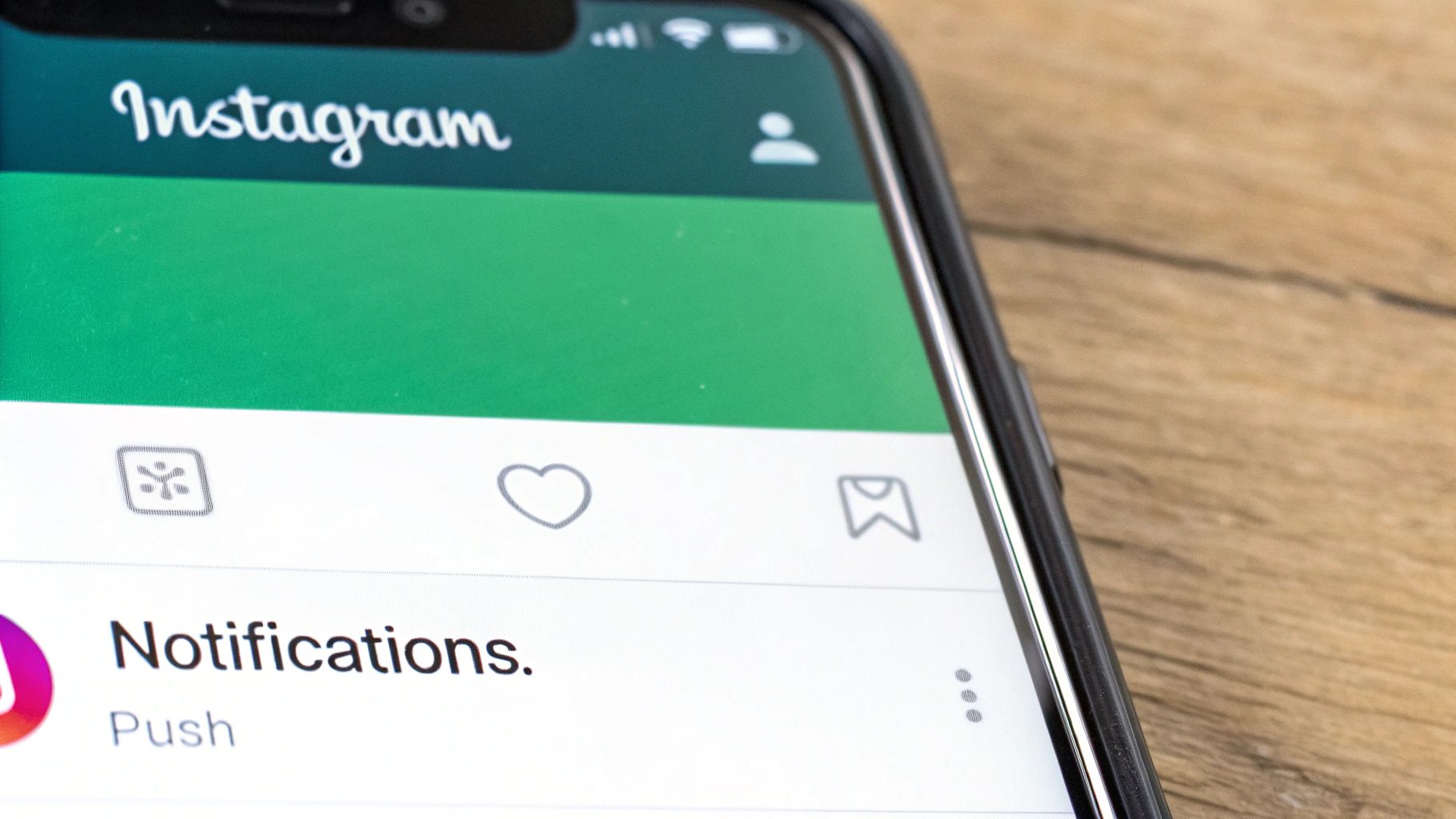
This central hub makes it easy to find exactly what you want to change without getting lost in a maze of menus.
Understanding Your Control Options
Once you tap into a category, you’ll usually find three main options for who can trigger a notification. Getting these right is the key to building a setup that actually serves you instead of annoying you.
From Everyone: This is the default for most alerts. It means any account on Instagram—stranger or friend—can make your phone light up for a specific action, like a comment or a like.
From People I Follow: This is my go-to for a balanced experience. It cuts through the noise from random accounts and only alerts you to activity from people you've actively chosen to follow. It's a game-changer.
Off: This one is self-explanatory. It completely silences notifications for a specific action. You'll still see the like or comment when you open the app, but you won't get a real-time alert for it.
Let's look at a practical example. I usually set 'Likes' to 'From People I Follow' because I want to see when my friends and colleagues appreciate my content. But for 'First Posts and Stories,' I turn them 'Off'. This stops my phone from buzzing every time someone I follow posts for the first time, which creates a much calmer, more curated experience.
Crafting Your Perfect Instagram Notification Setup
Alright, let's get into the nitty-gritty of making your notifications work for you, not against you. The default settings are a firehose of alerts, but we can fine-tune them to fit exactly what you need. This isn't just about turning things off; it's about making conscious choices to support your goals on the platform.
A great starting point for most people is to kill the notifications for 'Likes'. Honestly, it’s a game-changer. It helps break that cycle of constantly checking your phone for a quick hit of validation, letting you focus on genuine connection instead.
But you'll probably want to keep alerts for 'Comments' and 'DMs' on. These are where real conversations happen, and timely replies are key to building a community or serving customers.
If you're really looking to create a more focused online space, you might also want to learn how to turn off your active status on Instagram, which adds another layer of privacy.
Different Goals, Different Settings
Think about how you use Instagram. A small business owner, for instance, might silence everything except for direct messages. This strategy transforms their DMs into a dedicated customer service channel, ensuring they never miss a potential sale or support question amid the noise of likes and new follows.
On the other hand, a student might lean heavily on 'Quiet Mode' to block out all notifications during study hours. It’s a fantastic feature for creating a focused work block without having to delete the app. You’re not cutting yourself off completely, just controlling the flow of information.
Your notification settings are a direct reflection of your priorities. By customizing them, you're telling the app what's truly important to you, ensuring it serves your goals—not the other way around.
To make this even clearer, let's look at a few different approaches based on what you want to achieve.
Notification Strategy by User Goal
The right settings depend entirely on what you're trying to get out of Instagram. Here’s a quick breakdown of how different types of users might set things up.
For Digital Wellbeing
Likes & New Followers: Off — reduces validation-seeking behavior.
Comments & @Mentions: From people you follow — keeps interactions curated and meaningful.
Direct Messages (DMs): On — maintains personal connections.
Live Videos: Off — minimizes FOMO and interruptions.
Quiet Mode: Use frequently in the evenings or during focus time for better balance.
For Community Builders
Likes & New Followers: On (selectively) — helps acknowledge and welcome new members.
Comments & @Mentions: On — essential for engaging in conversations.
Direct Messages (DMs): On —fosters stronger, direct relationships.
Live Videos: From people you follow — helps you stay connected with your community.
Quiet Mode: Use occasionally to manage overwhelm and avoid burnout.
For Business Growth
Likes & New Followers: Off — focus on more impactful metrics rather than vanity numbers.
Comments & @Mentions: On — crucial for community management and customer engagement.
Direct Messages (DMs): On — vital for customer inquiries, collaborations, and sales.
Live Videos: On (from key partners or industry leaders) — stay informed about trends and insights.
Quiet Mode: Use strategically during deep work sessions or campaign planning.
This list is just a starting point. Feel free to mix and match these strategies to create a system that feels right for you.
Don't Forget About Email Alerts
It’s easy to focus only on push notifications, but Instagram’s emails can also become a source of clutter. While alerts for new logins are a must-have for security, you probably don't need marketing blasts clogging up your inbox.
You have full control over these email notifications, just like the ones that pop up on your phone.
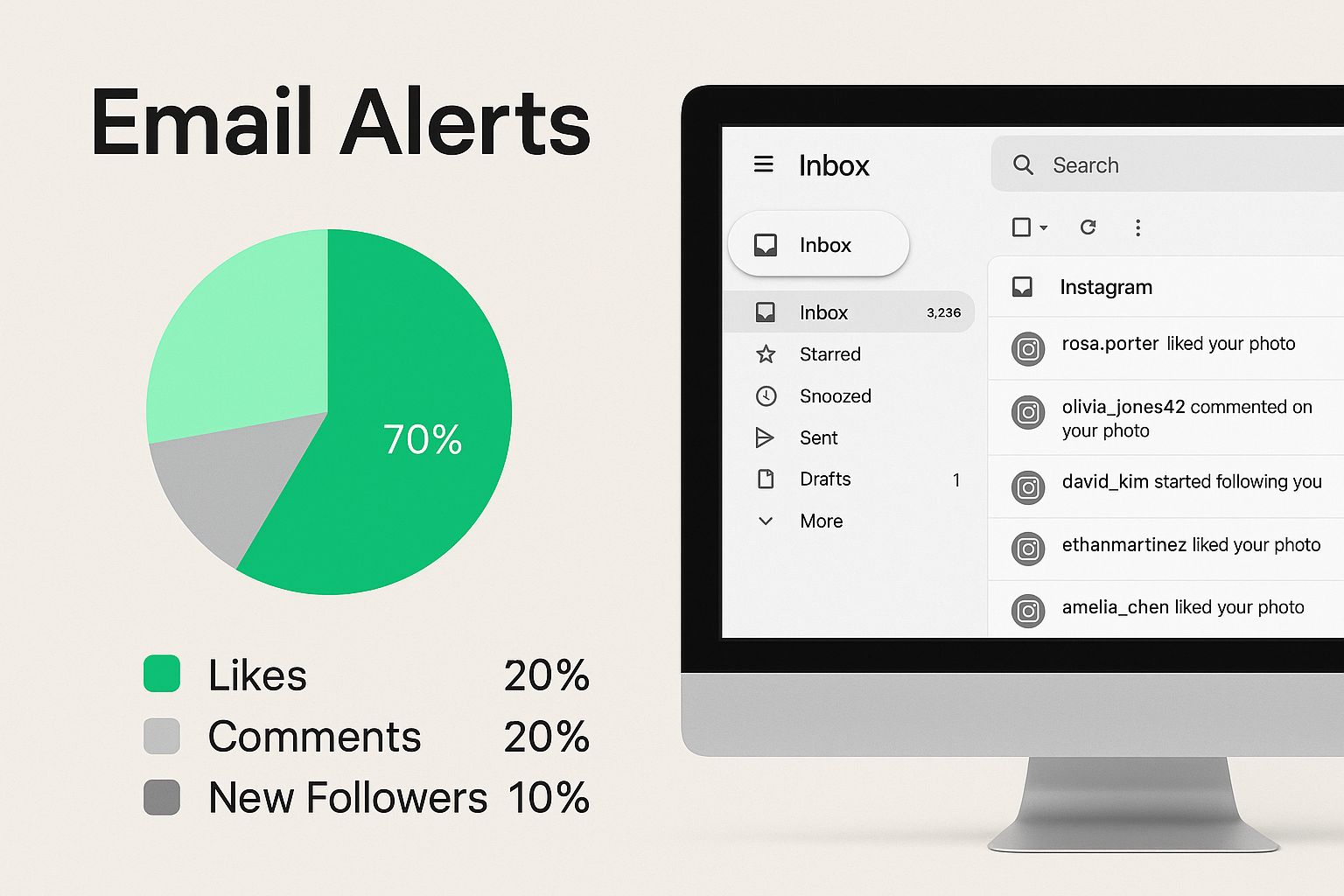
Dive into the 'Email notifications' section in your settings. From there, you can easily toggle off promotional emails while keeping the critical security alerts active. It’s a simple fix that keeps your inbox clean and your account safe.
How the Algorithm Shapes Your Alerts
Ever wonder why you get an instant notification when your best friend posts, but you miss updates from an account you followed last week? That’s not random. It's the Instagram algorithm doing its job behind the scenes.
Your notification feed isn't a simple, chronological list of every single like, comment, and follow. Think of it more as a personalized stream, curated based on who and what you engage with the most. If you’re constantly liking a creator's photos or replying to a friend's Stories, Instagram takes note. It learns that this connection matters to you and makes sure you see their activity first.
Cutting Down on the Noise
Let’s be honest, nobody likes being spammed with notifications. Instagram knows this and is actively trying to prevent that "notification fatigue" we all feel.
Its system uses machine learning to filter out the noise. For instance, if you get a flurry of likes from the same person in a short amount of time, the algorithm might bundle them into a single alert or even skip sending some of the later ones. It's all about keeping your alerts meaningful, not just numerous.
This is exactly why your instagram notifications settings are so critical. When you customize them, you're essentially training the algorithm, telling it precisely what you value. For a deeper dive, our guide on how Instagram's algorithm works breaks it all down.
A missed notification doesn't always mean a lack of activity. More often, it's the algorithm deciding that a particular alert wasn't high-priority enough to interrupt you, based on your past interactions.
If you're a creator, this is a game-changer. The same logic that gets your content seen also determines if your followers get notified about it. The algorithm rewards genuine interaction, which is why things like optimizing videos for Instagram Reels can drive the kind of engagement that makes the algorithm—and your notifications—work in your favor.
Troubleshooting Common Notification Issues
Is your phone suspiciously quiet when you know your Instagram should be buzzing? It's a frustratingly common problem, but thankfully, the solution is usually straightforward. Before you start thinking the app has a personal vendetta against you, let's walk through a few checks to get those alerts back on track.
The first place to look isn't actually in the Instagram app—it's in your phone's main settings. This is the master control panel for all app notifications. Whether you're on an iPhone or Android, dive into your system settings, find your list of apps, and make sure Instagram has the green light to send you notifications.
It sounds basic, but you’d be surprised how often this is the culprit. In fact, while outdated apps account for a huge chunk of notification failures (around 60%), a massive 25% of issues stem from incorrect device-level permissions. You can see a full breakdown of common Instagram notification problems and what causes them.
Digging a Little Deeper
If your phone settings are all correct, it's time to pop back into the Instagram app itself. The next thing to check is whether you've accidentally switched on Quiet Mode. It’s a great feature for focusing, but it’s also easy to forget you've enabled it. Head over to Settings and privacy > Notifications to see if it’s active.
One of the easiest and most effective fixes is simply clearing the app's cache. This temporary data can get bogged down or corrupted over time, causing all sorts of strange behavior, including silent notifications. This won't touch your account, photos, or DMs—it just gives the app a quick reset.
Still no luck? Let's check a few other common culprits that might be causing the radio silence:
Outdated App Version: An old version of the app can cause all sorts of glitches. Hop over to your app store and make sure Instagram is fully updated.
Disabled Background App Refresh: For notifications to pop up in real-time, the app needs permission to do its thing in the background. Double-check this setting in your phone's general settings.
Spotty Connection: Sometimes the simplest answer is the right one. A weak Wi-Fi or cellular signal can stop notifications from ever reaching your device.
Occasionally, the notification glitch might be tied to a specific feature. If you've noticed that only one part of the app is giving you trouble, our guide on fixing problems with Instagram Notes not working might have the specific solution you need. Working through these steps methodically will almost always uncover what’s keeping your phone so quiet.
Here's the rewritten section, designed to sound like an experienced human expert sharing their insights.
Digging Deeper: Advanced Controls and Hidden Settings
Alright, now let's get into the really granular stuff. Beyond the big, obvious categories, Instagram has tucked away some powerful controls that let you fine-tune your experience. Think of these as the pro-level settings that separate a default setup from one that’s truly optimized for how you use the app.
For instance, have you ever been stuck in a group chat that just won't stop buzzing? You don't have to leave the group or silence all your DMs. Just pop into that specific conversation, tap the group name at the top, and toggle on Mute messages. It's a lifesaver for staying in the loop without the constant interruptions.
Taking Control of Your Inbox
One area that often gets ignored is how Instagram communicates with you outside the app. If you're not careful, your email and even your text messages can get flooded with alerts for product announcements, login reminders, and other non-essential updates. It adds up to a lot of digital noise.
Thankfully, there's an easy fix. Head over to the Email and SMS section in your notification settings. From here, you can be really specific, turning off things like marketing and reminder emails while keeping the important security alerts active. This simple tweak can make a huge difference in cutting down on inbox clutter.
This is where you really start building an intentional relationship with the app. You're creating a system where every single alert has a clear purpose, respecting your time and focus.
Finally, there are a few other specific alerts worth looking at. A lot of people don't even realize they can control these:
Live Videos: Don't need a notification every single time a creator goes live? You can turn all of these off.
Fundraisers: Get a handle on alerts for charity campaigns and fundraisers you see in your feed.
From Instagram: This is the big one for managing those "new feature" announcements and other account updates directly from Instagram.
By spending a few minutes adjusting these settings, you shift from being a passive user to someone who has actively shaped the app to work for them, not the other way around.
Got Questions? We've Got Answers
Let's tackle some of the most common questions that pop up when you're trying to get a handle on your Instagram notifications.
Can I Set a Custom Notification Sound for Instagram DMs?
This is a really popular question, and the answer isn't a simple yes or no. Instagram, by itself, doesn't let you pick a unique sound for DMs from within the app.
For Android users, there's often a backdoor solution. You can try digging into your phone's main settings. Usually, this means going to Settings > Apps > Instagram > Notifications. In that menu, you might see a specific category for 'Instagram Direct,' and from there, you can assign a custom alert tone. Keep in mind, this isn't a guarantee—it really depends on your phone's manufacturer and which version of Android you're running.
Unfortunately, if you're on an iPhone, you're stuck with the standard iOS alert sound for Instagram.
Why Am I Still Getting Emails from Instagram?
It's a common trap to fall into. You've silenced all the push notifications on your phone, but your inbox is still getting pinged by Instagram. Why? Push notifications and email alerts are two completely different settings.
To stop the emails, you need to head back into your Instagram Settings > Notifications > Email notifications. Here, you can uncheck all the promotional stuff—like marketing and product emails—while making sure you still get the important updates, like security alerts.
Will People Know If I Turn Off My Like Notifications?
Nope, not at all. Your notification settings are completely private.
Think of it this way: turning off your notifications is just like putting your phone on silent. It only affects what you see and hear on your device. For everyone else, and within the app itself, everything looks exactly the same. They'll never know you've muted the buzz.
Ready to grow your Instagram followers without all the guesswork? Gainsty combines smart AI with proven expert strategies to help you attract real, engaged followers organically. Start growing with Gainsty today.