Why Your Instagram Notifications Matter More Than Ever
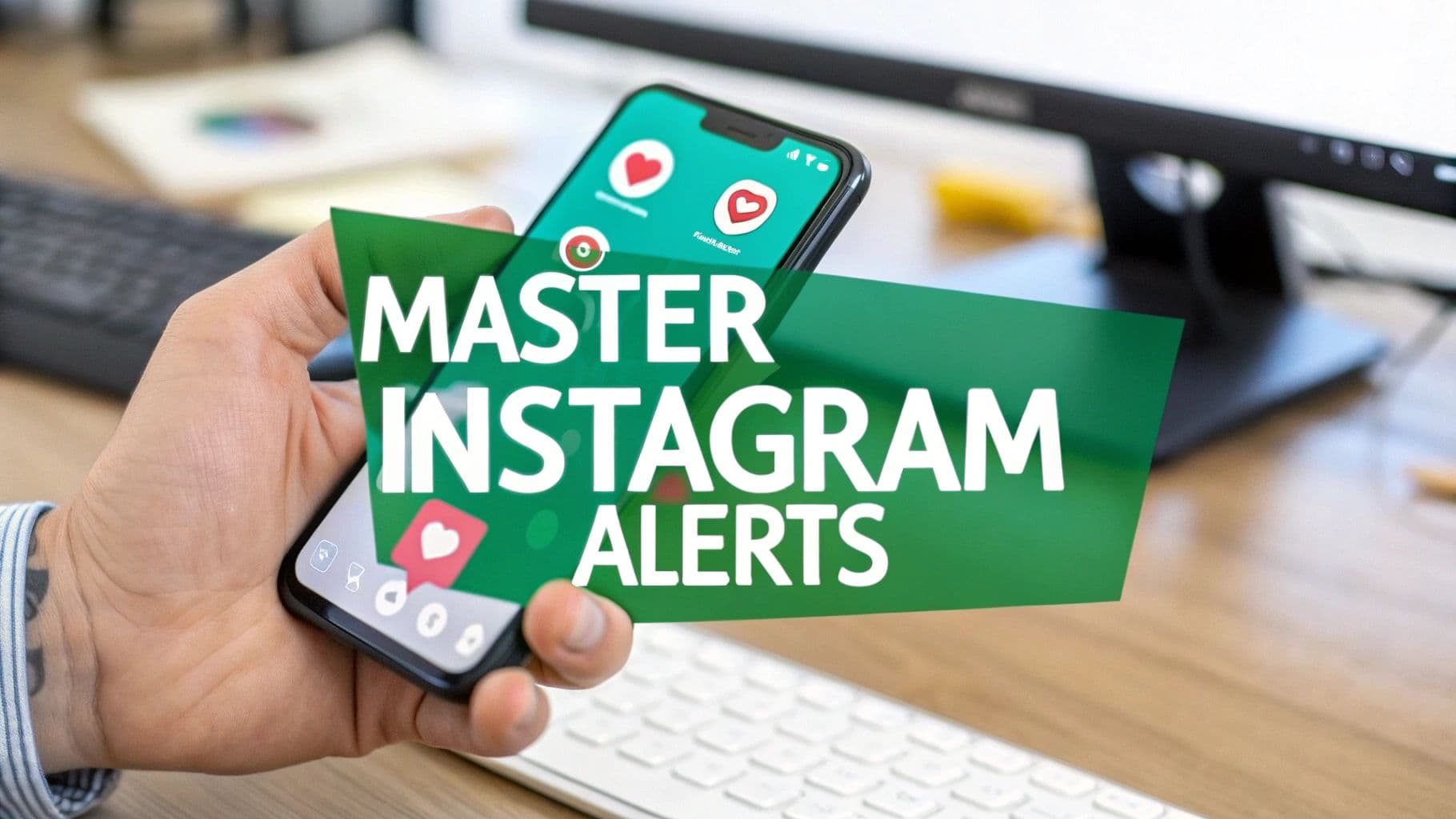
Let's be real for a second. Most of us are in one of two camps: either completely buried under an avalanche of Instagram pings or constantly missing the DMs and comments that actually matter. Getting your notifications right isn't just about keeping up; it's about making the platform serve you, not the other way around. A little bit of strategy here goes a long way in cutting through the digital noise.
Think of it less like an endless stream of interruptions and more like a finely tuned radar. You can set it up to only alert you to the interactions that are truly important for your brand or business. This simple shift can completely change your relationship with the app, moving you from a reactive state to a proactive one.
From Distraction to Strategy
For creators, brands, and anyone running a business on Instagram, your notification settings are a secret weapon. When you get them right, you can engage faster, build stronger relationships, and pounce on opportunities you might have otherwise missed.
Boost Your Engagement: When you get an alert for a new comment, you can reply right away. This kind of immediate interaction is gold for boosting a post's initial performance in the algorithm.
Sharpen Your Customer Service: Getting instant DM alerts means you can answer questions from potential customers in minutes, not hours. That speed can be the difference between making a sale and losing one.
Catch Real-Time Opportunities: You'll never miss a tag from a happy customer ready to be reshared or a mention from a collaborator you've been hoping to connect with.
By intentionally choosing what you see, you build a focused workflow. You’re always there for the high-value moments without falling victim to the notification fatigue that plagues over 60% of us. It’s about taking the reins and turning a simple alert into a powerful tool for growth.
How to Customize Your Notification Settings
Diving into your Instagram notification settings might feel a little overwhelming at first, but it's the key to making the app work for you, not the other way around. Getting a handle on what pops up on your screen is surprisingly simple on both iOS and Android.
Just head to your profile, tap the menu icon (the three horizontal lines), and navigate to Settings and Privacy > Notifications. The first thing you'll see is a master switch called Pause All. This is your best friend when you need to go into focus mode. You can silence everything for as little as 15 minutes or as long as 8 hours.
This infographic breaks down just how easy it is to manage the alerts that actually matter to you.
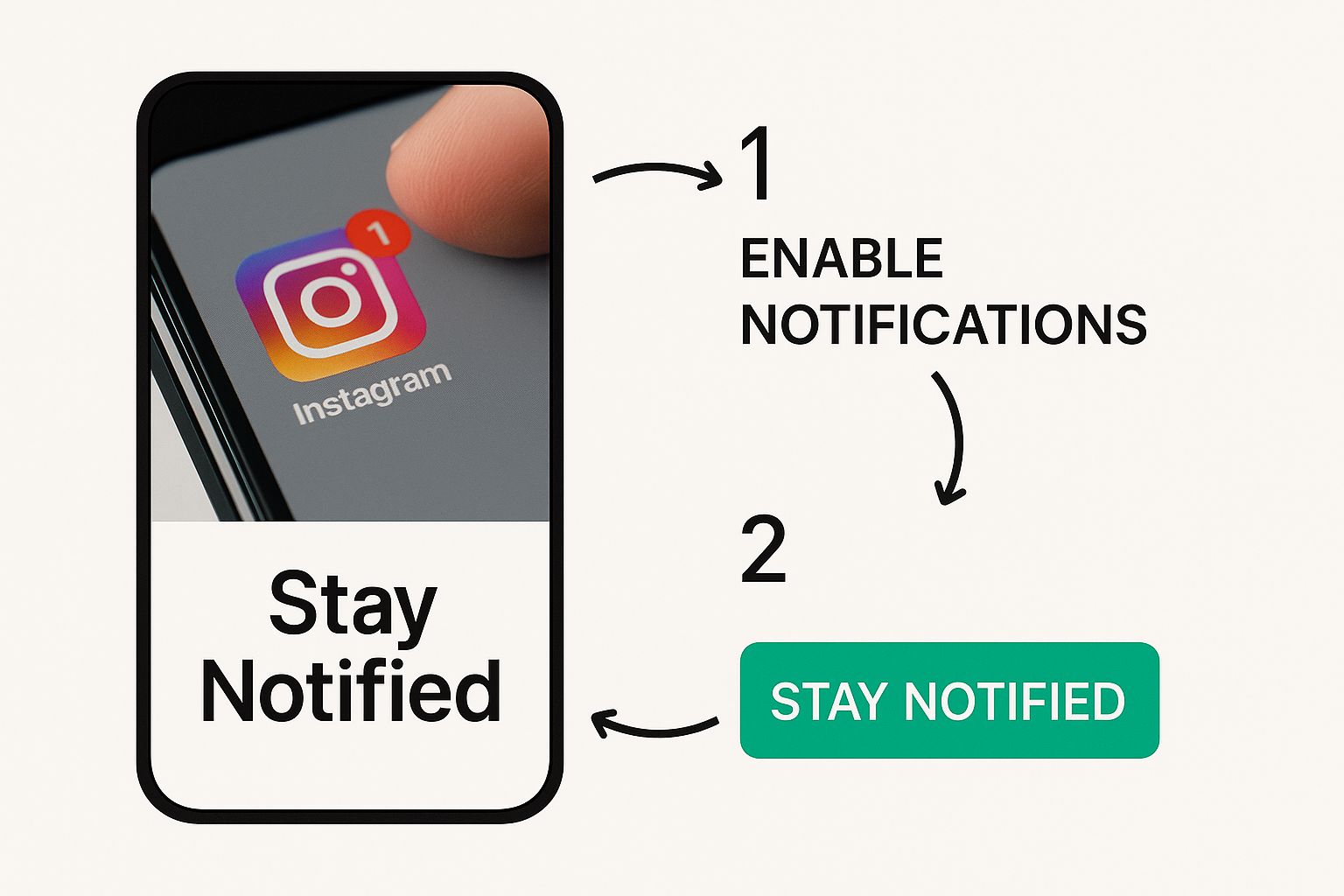
As you can see, it’s a direct, hands-on process. You're in complete control.
Fine-Tuning Your Alerts
Below that main "Pause All" switch is where the real magic happens. Instagram breaks down every possible notification into neat categories, letting you get incredibly specific about what you want to see.
Think about it from a practical standpoint. If you run a small business, you probably don't need a ping every time someone likes a photo. But a new DM or a comment? That could be a customer question. You can turn off the likes but keep the alerts for DMs and comments on, prioritizing real interactions over vanity metrics.
It's interesting to see how this plays out on a larger scale. The average global opt-in rate for push notifications is around 67.5%, but there's a huge split between operating systems. For iOS, it's only 43.9%, while Android users opt in at a staggering 91.1%. This is mostly because Apple’s system forces apps to ask for permission upfront, while Android's is historically more lenient. You can find more push notification statistics like this over on Mobiloud.
Pro Tip: Don’t think of it as a simple "on" or "off" choice. For many alerts, like DMs and comments, you can choose "From People I Follow" instead of "From Everyone." This is a fantastic way to cut down on the noise from random accounts without missing messages from people you actually know.
Key Instagram Notification Types and Their Purpose
To really build a notification system that works, you have to know what each category actually does. This list breaks down the most important types and who gets the most value out of them.
Posts, Stories & Comments notifications alert you whenever someone likes, comments, mentions, or tags you in their content. These are especially useful for creators and brands who want to monitor engagement and respond in real time.
Following & Followers notifications let you know about new followers, accepted follow requests, and suggested accounts. They’re ideal for anyone focused on growing their network and building an active community.
Messages (DMs) notifications inform you when you receive direct messages or message requests from other users. These are essential for businesses managing customer inquiries or for individuals who rely on DMs for communication.
Live & Reels notifications pop up when accounts you follow go live or post new Reels, helping you stay updated on trending content and catch live moments as they happen.
By taking a few minutes to customize these settings, you can change your push notifications instagram from a constant stream of distractions into a genuinely useful tool. You decide what's important, ensuring you can be responsive to the things that matter while letting the rest fade into the background.
A Strategic Approach for Creators and Brands
If you're using Instagram for your business, your notifications aren't just pings and buzzes—they're a direct line to your community and a powerful tool for growth. The key is to shift your mindset. Stop seeing them as a constant stream of distractions and start treating them as a real-time listening device.
Think about a small e-commerce brand, for example. By turning on notifications for DMs, they can jump on customer questions in minutes. That kind of speed doesn't just build a reputation for great service; it can be the difference between a sale and a lost customer.
Monitor and Engage in Real Time
One of the smartest ways to use alerts is to track brand mentions and tags as they happen. When a happy customer posts a glowing review and tags your business, an instant notification lets you engage right away. You can thank them, reshare their post to your Stories, and tap into that powerful user-generated content while the excitement is still fresh.
Creators can apply this same logic to new posts. When you enable comment notifications, you can respond to that first wave of comments almost immediately. This early engagement is a strong signal to the Instagram algorithm that your content is valuable, which can give its reach a serious boost.
Your notification feed is so much more than a list of likes. It's a dynamic dashboard for managing your community. It’s about catching those critical moments that build loyalty and make your brand feel present and human.
Prioritize High-Value Interactions
Let's be honest: not all followers are created equal when it comes to your business goals. You can essentially create a VIP notification channel for key partners, collaborators, or your most valuable customers. Just head to their profile, tap the bell icon, and turn on notifications for their posts and Stories. This simple trick ensures you never miss an opportunity to connect with the people who matter most.
Staying on top of these interactions is vital on a platform as busy as Instagram. As of 2025, it boasts over 2 billion monthly active users, and more than 60% of them are in the highly engaged 18-34 age group. This demographic is especially receptive to the kind of immediate, authentic engagement that push alerts make possible.
Beyond what you can do in the app, many businesses also implement social media monitoring notifications to track brand sentiment more broadly. A proactive approach like this transforms push notifications on Instagram from a simple feature into a genuine asset for growth.
Getting Your Reels and Stories Alerts Just Right
Let's be honest, video is king on Instagram now. If you're not on top of your notifications for Reels and Stories, you're missing out on a huge part of the conversation. These alerts aren't just noise; they're your real-time feedback loop, telling you what's landing with your audience and when.
Think about it: getting an instant ping when someone leaves the first comment on your new Reel lets you jump right in and reply. That immediate interaction can kickstart a conversation and give your content the early boost it needs. The same goes for when someone mentions you in their Story—that's a golden opportunity to reshare user-generated content right away.
A Smarter Way to Handle Video Alerts
The trick isn't to turn on every single notification. That’s a recipe for burnout. Instead, you need to be strategic and customize your alerts to fit what you're trying to achieve.
Here’s how I approach it:
Live Video Notifications: I only turn these on for a handful of must-see accounts—creators I admire or key competitors. Going Live is a massive engagement event, and being there as it happens is invaluable for community building and research.
Reels Interactions: Definitely enable alerts for comments and shares on your own Reels. Responding quickly shows you're engaged, which your followers love, and it also signals to the algorithm that your content is worth showing to more people.
Keep an Eye on the Competition: This is a bit of a pro move. I suggest turning on Reel notifications for a few of your main competitors. It’s like having a direct line to their content strategy, giving you a real-time glimpse into what's working for them.
When you dial in your push notifications for Instagram for Reels and Stories, you stop reacting to your phone and start using it as a proactive tool. You can catch trends early, engage when it matters most, and make sure your videos get the attention they deserve. To get the most out of this, brushing up on the latest Instagram Reels best practices will make a huge difference.
Why Reels Notifications Are a Game-Changer
The sheer scale of Reels is hard to wrap your head around. We're talking over 2 billion monthly active users and a mind-blowing 200 billion plays every single day. With Reels taking up about 35% of all time spent on the app, it’s clearly where the action is.
This is a massive, engaged audience waiting for your content. Using a timely push notification to announce a new Reel can give you an instant surge of views, which is critical in those first few hours.
For any business on the platform, getting this right isn't just a "nice-to-have" anymore. If you want a deeper look at creating video that actually moves the needle, our guide on using Instagram Reels for business is a great place to start. A solid content plan paired with smart notification management is a winning combination.
What to Do When Your Instagram Notifications Aren't Working
It’s one of those uniquely frustrating moments: you know things are happening on Instagram, but your phone is completely silent. When your push notifications for Instagram stop working, don't panic. The fix is usually something simple that's been accidentally overlooked.
Your first stop should be the Instagram app itself. Head over to Settings and Privacy > Notifications and double-check that the Pause All button is toggled off. It's surprisingly easy to hit that by mistake. While you're in there, it's worth taking a quick look at your individual notification settings for things like DMs and comments just to make sure nothing has been changed.
Check Your Phone's Master Controls
If everything looks fine inside the app, the culprit is almost certainly hiding in your phone's main settings. Your device's system-level permissions can always override what you've set up in Instagram, so this is a critical place to check.
On an iPhone: Go to Settings > Notifications > Instagram. The very first thing you'll see is "Allow Notifications"—make sure that's switched on. Also, confirm that you have Banners, Lock Screen, and Notification Center alerts enabled so you can actually see them when they arrive.
On an Android: The path is usually Settings > Apps > Instagram > Notifications. You should see a primary toggle for "All Instagram notifications." Make sure it's on. Android gives you a lot of specific controls, so you might also need to scroll down and ensure categories like "Direct messages" are individually enabled too.
A common culprit that gets missed is your phone's 'Do Not Disturb' or 'Focus Mode.' These settings are designed to silence everything, and they will absolutely override your Instagram notification settings every time.
Still no luck? Sometimes the app just needs a quick reset. Clearing the cache can work wonders for weird, persistent glitches. For more troubleshooting ideas that often overlap with notification issues, our guide on fixing things when Instagram Notes are not working might have the answer you're looking for.
Got Questions About Instagram Notifications? Let's Clear Things Up.
Even when you think you've got your settings perfected, Instagram's notifications can still throw a few curveballs. Let's tackle some of the most common questions that pop up.
How Do I Get Notified About a Specific Person?
Ever wondered if you can get alerts for just one person's updates without getting spammed by everyone else? Absolutely. This is one of my favorite features for keeping up with close friends, key clients, or even competitors without cluttering my notification screen.
It's super simple to set up:
Head over to the person's profile page.
Tap the bell icon you see in the top-right corner.
From there, you can handpick exactly what you want to be notified about—Posts, Stories, Reels, you name it.
Will Turning Off Notifications Hurt My Account's Performance?
This is a big one, and the short answer is no. Your personal notification settings are for your eyes only; they don't send a signal to the Instagram algorithm to suppress your content.
But there's a small catch. If you have your alerts turned off, you're likely going to be slower to respond to comments and DMs. Fast engagement is a positive signal to the algorithm, so a consistently slow response time could subtly affect your post's momentum. It's all about finding a balance between staying responsive and protecting your sanity.
Are your notifications showing up late? > This is almost always a device-level issue, not an Instagram one. The usual culprits are a spotty internet connection or an aggressive battery-saving mode on your phone that limits what apps can do in the background. Check your phone's battery optimization settings and permit Instagram to run without restrictions. That should solve the delay.
At the end of the day, getting a handle on your push notifications on Instagram is about making the platform work for you, not the other way around.
Ready to turn those notifications into real growth? Gainsty uses advanced AI and expert strategy to help you get more real followers and engagement organically. Start growing your Instagram audience today.