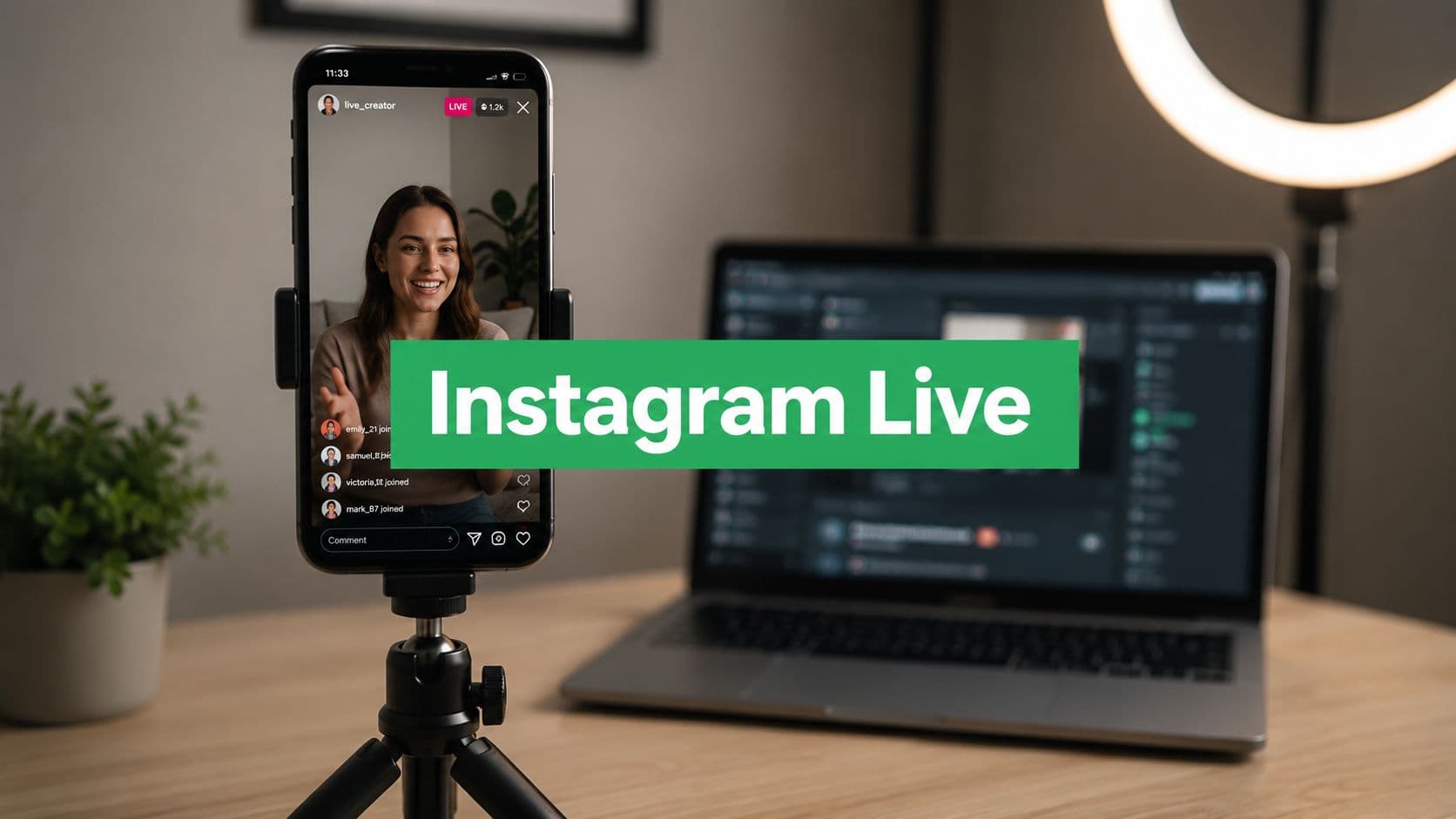
Why Instagram Live Matters for Organic Growth
A creator can have a feed full of good posts and still struggle to move people toward action. Instagram Live changes that because it asks for attention now, not later, and live attention is usually more deliberate than passive scrolling. That's why the format matters so much for organic growth, especially for accounts that need trust before conversion.
Live creates a different kind of attention
A post can be liked and forgotten. A Live session forces a choice, people stay, leave, ask something, or lurk while deciding whether you're worth following. That real-time pressure is useful, because it exposes whether your topic, energy, and delivery hold attention.
Live also gives you room to sound like a person instead of a polished asset. That's valuable for creators, founders, coaches, and brands that need to show judgment, not just content output. The app's scale makes that judgment visible to a lot of people at once, which is why the format deserves more respect than it usually gets.
Practical rule: If your goal is follower conversion, run Lives around a clear promise, not vague chatter. People stay when they know why they're there.
What you should expect from the format
The best Live sessions aren't theatrical. They're specific, useful, and easy to join in the first minute. That means you want to open with a reason to watch, keep your pacing tight, and make it easy for comments to shape the conversation.
There are really two paths here. The first is the quick mobile route, which is what most creators use because it's simple and dependable. The second is a production route for people who want a desk setup, camera control, or screen sharing, and that becomes worth it when the stream itself is part of the brand.

Preparing Your Account Before You Broadcast
A lot of Lives fail before they start because the account setup gets treated like a side task. If you want to know how to go on Instagram Live in a way that supports growth, the work starts before the camera comes on. People need a clear reason to stop, and your setup has to make that reason obvious fast.
Lock in the basics that shape reach
A Professional account is the cleaner choice for creators who want more control over how they show up, especially if you use Live as part of a repeatable content system. If your audience expects education, product demos, interviews, or recurring shows, the account should look like a place where that belongs. That matters even more if you want to use Instagram as a business channel, since the profile itself signals what kind of content people should expect. For a deeper look at why that matters for brands, this breakdown of Instagram business account benefits is useful context.
Your title matters more than many creators think. A title like “Live Q&A” is vague. “How I plan a week of Reels” or “Why your Lives get no viewers” gives people a reason to tap in because the value is visible immediately. The same logic applies to the opening frame, since viewers often decide whether to stay from the first few seconds they see.
Build a pre-live routine that people can recognize
Promotion should happen before the broadcast, not after you are already live and hoping for a notification miracle. Stories, countdown reminders, and direct messages to people who consistently engage are the most practical starting points. A short reminder sent the same day often does more than a polished announcement made too early.
For framing, use a clean vertical setup and make sure your face, hands, or product sit where the eye naturally lands. If you are unsure about sizing, find the right aspect ratio for social before you build your visuals, because a sloppy crop makes a stream feel less intentional. The same goes for lighting and background noise. If people cannot hear you cleanly, they will not stay long enough to care about the topic.
The best broadcasters do a short rehearsal. They check the camera, test the audio, and say the first few lines out loud before going public. That tiny habit catches the awkward pause, the bad angle, and the confusing opening before your audience has to.
If comments usually pull your stream off track, decide that before you start. You can hide comments on Instagram Live when you need a cleaner broadcast, and that choice is sometimes better for demos, training, or any session where focus matters more than fast back-and-forth. Keep the setting in mind before you go live, because once the room fills up, the extra noise is harder to manage.
Starting Instagram Live From Mobile
The mobile path is still the default for most creators because it's fast, familiar, and already built into the app. If you're learning how to go on Instagram Live for the first time, start here. You don't need a complex workflow to get a clean, useful broadcast running.
The tap path inside the app
Open Instagram, tap the + / Create button, then swipe or select Live. From there, choose your audience, add an optional title, and hit Go Live. Instagram checks the connection briefly before you're on air, so don't rush your first sentence while the app is still verifying the broadcast.
That audience choice is not decorative. It decides who can see the stream, which means it affects discovery before your content even starts. A public broadcast invites broader reach, while a narrower option is better when you're rehearsing, testing delivery, or sharing something for a smaller circle.
What to do in the first minute
Start with the value, not a greeting loop that goes nowhere. A good opening sounds like, “I'm breaking down the three mistakes that kill Live retention,” not “Hey everyone, just waiting for a few more people.” The first version tells newcomers why they should stay. The second tells them they arrived too early and should leave.
You can switch between the front and rear cameras during the broadcast if the moment calls for it. That's useful when you want to show a product, point at a whiteboard, or move from face-to-camera talk into a demonstration. Keep the transition simple, though. Every extra tap adds friction, and friction is what makes a Live feel amateur.
The best mobile Lives feel like a conversation that had structure before it started.

Going Live From Desktop and With Production Tools
Desktop streaming is where most basic guides go quiet, but it's exactly where a lot of brands and serious creators need help. A laptop setup makes more sense when the broadcast needs overlays, multi-camera switching, screen sharing, or a studio-style presentation. Recent guides note that Instagram Live on desktop may require special access and different setup steps, which is why you can't assume the phone workflow is the only option.
When the desktop path is worth it
If you're hosting interviews, walkthroughs, product demos, or podcast-style conversations, desktop tools can make the stream feel more controlled. A computer setup also helps when you need a stable mic, a better webcam, or a cleaner way to manage what viewers see. That extra polish matters when the Live itself is part of the brand, not just a casual check-in.
The trade-off is obvious. Desktop workflows take more setup time, more testing, and more patience with software. A phone broadcast is faster, but a production setup gives you control that mobile can't match. That's why the right choice depends on the job, not on ego.
How the broadcast feels once it's running
A well-run desktop Live usually has a clear opening hook, then a steady rhythm of comment moderation, questions, and direct responses. A host might pin a useful comment, answer a question by name, bring in a guest, and save the replay for later reuse. That structure makes the broadcast easier to follow and easier to repurpose.
If you want an integration reference point for tool selection, Instagram integration features are a useful place to compare how different workflows connect to the platform. For editing the clips after the stream, this guide to Instagram video editing apps is helpful if you're turning live moments into postable assets.
The key decision is simple. Use desktop when the stream needs more control than a phone can comfortably deliver. Use mobile when speed and spontaneity matter more than polish.
Engaging Viewers During the Broadcast
The first minute of a Live is where the room decides whether to stay. People don't usually leave because the topic is bad, they leave because the energy is flat, the opening is slow, or the host seems uncertain about why the session exists. If you want stronger retention, treat the broadcast like a guided conversation, not a monologue.
Open strong and keep the pace moving
A clear opening hook works better than a long greeting roll. Say what the session is about, name the payoff, and ask one direct question that gets chat moving. When people respond, use names. That small act makes the room feel smaller in a good way.
Replying by name matters because it gives viewers a personal loop back to you. A simple “Maya, that's a great question” does more for participation than ten generic thank-yous. Pinning a helpful comment can also keep the thread from drifting, especially when the chat gets busy, or a question deserves to stay visible for a few minutes.
Use interactive tools with intent
Q&A stickers work best when they're tied to a topic people already care about, not used as filler. If you're discussing content strategy, ask viewers what part of posting feels hardest. If you're doing a product demo, ask what feature they want to see next. The tool matters less than the specificity of the prompt.
Guest invites can raise the energy quickly because they add a second voice and a second perspective. Badges matter too, but only when they're mentioned naturally. If you push monetization too hard, the stream starts feeling like a pitch. If you treat support as part of the conversation, people respond better.
Practical rule: End while the room still feels active. Dragging a Live past its useful point usually hurts more than ending slightly early.
Energy management matters more than most creators admit. If you're tired, the camera will show it. If your pacing drifts, viewers notice within minutes. Strong hosts keep the movement going by changing the angle, pulling in a guest, shifting to a question, or ending cleanly once the main job is done.

Audience Targeting and Feature Choices That Drive Growth
Most creators ask how to go live. The better question is who should see it, and what the settings do to growth. Audience choice is not a technical detail. It's a strategic decision that changes discovery, retention, and the odds of turning viewers into followers.
Choose the audience based on the job
Practice mode is for rehearsal, audio checks, and delivery testing. It protects your learning curve from your audience's patience, which is useful when you're trying a new format or learning your camera rhythm.
Close Friends is different, it's better for intimate updates, private community moments, or test runs with a trusted circle.
Public Live is the option that gives you the broadest discovery potential. If your goal is reach, follower conversion, or broad awareness, this is usually the right default. Public streams also make your topic legible to people who don't know you yet, which matters because new viewers need context faster than existing followers do.
Rank the features by growth value
Scheduling is valuable because it creates anticipation and gives people time to plan around your stream. Guest invites are useful when another person brings a relevant audience or adds expertise that makes the session richer. Replay access matters because not everyone can attend live, and the replay can keep working after the broadcast ends.
Badges are best thought of as support, not the main event. If the stream is weak, monetization won't save it. If the stream is strong, badges can deepen the relationship because people like backing something they already value. That's why the right setup is usually public reach first, then feature layering second.
The common mistake is choosing settings for comfort instead of conversion. That's fine for practice, but not for growth. If the stream is meant to expand your audience, the live format and the audience choice need to support that goal from the start.
Troubleshooting Common Instagram Live Problems
A Live can go sideways fast. The connection drops, the audio warps, the room gets quiet, or the Live option isn't there. The creators who keep growing are the ones who fix the issue fast, stay calm, and keep the session useful instead of letting the moment collapse.
Connection, audio, and timing problems
If the stream starts stuttering, slow down your movement and stop any camera changes you do not need. A steady frame usually makes the broadcast feel more stable even before the technical issue clears. If the audio sounds thin or distorted, move closer to the mic source and cut any noise in the room that is fighting with your voice.
When the timing feels off, that usually shows up in the first minute. If you spend too long settling in, viewers leave before you have said anything useful. Start with the point, then fill in the context once people know why they should stay.
If the Live ends early by accident, restart quickly and explain what happened without making it a bigger story than it is. Viewers are usually more forgiving than creators expect if the reset is clean and the explanation stays brief. A short acknowledgment works better than a long apology.
No viewers or no Live option
A low viewer count can feel discouraging, but it does not always mean the stream failed. Sometimes the topic was too broad, the title was too vague, or the opening took too long to reach the point. The fix is usually in the next session, not in the moment. Tighten the promise, promote earlier, and make the first minute more direct.
If Instagram Live does not appear, check the obvious first, your app version, account state, and connection. One recent desktop-focused guide also notes that some desktop access may require special permissions, which is why creators should not assume every workflow looks the same. If the option is missing, the problem is often eligibility or setup rather than the content idea itself.
What to do if the broadcast is interrupted
If Instagram flags, interrupts, or limits a stream, end it cleanly and review the account status afterward. Do not keep forcing a broken session. Rebuild the next broadcast around a simpler format, a better connection, and a clearer title. The goal is to keep the audience relationship intact, not to argue with the app.
The most useful habit is to treat every problem as a note for the next Live. If the room dropped at the same point twice, change that segment. If comments slowed when the topic got abstract, anchor the next stream with a concrete example. Small adjustments compound fast when you repeat the format often.
Turn one Live into next week's content
The broadcast does not end when you tap End. Save the replay, pull a few strong moments into Reels, and post short story clips that point people back to the full conversation. Quote graphics work well when a line from the stream is sharp enough to stand alone.
DM the viewers who were active, especially the ones who asked good questions or stayed late. That follow-up turns a live audience into an ongoing relationship. Then review what held attention, which questions came up repeatedly, and what topic deserves a sequel. The best Live strategy is a loop, not a one-off event.
If you want help turning Instagram Live into a repeatable growth channel, Gainsty can help you build a smarter organic strategy around the sessions you are already running.
.png&w=1920&q=75&dpl=dpl_34ZXCf12K5qjjdZjPn9snwDRADrB)



.png&w=750&q=75&dpl=dpl_34ZXCf12K5qjjdZjPn9snwDRADrB)