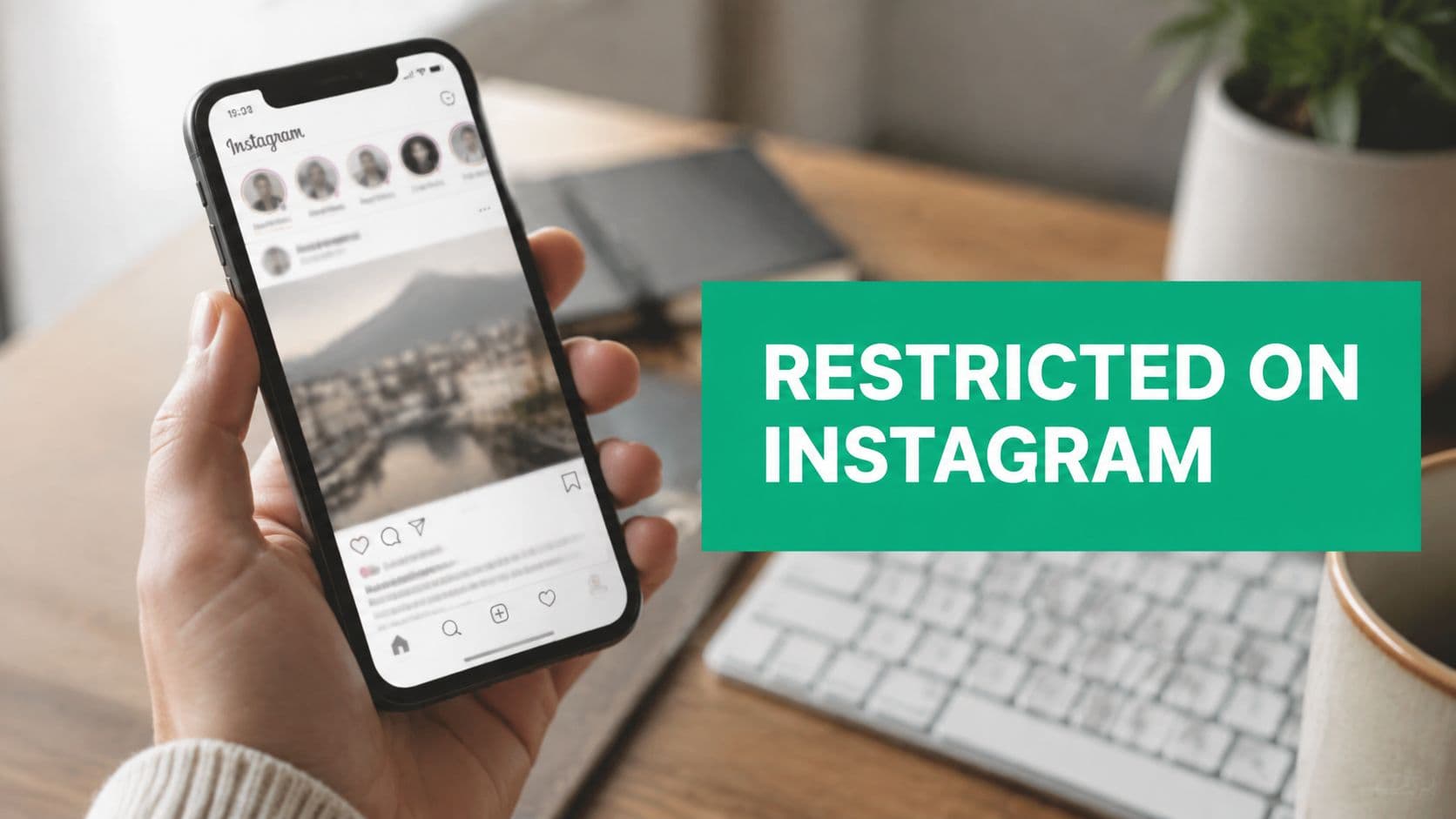
What Restrict Does on Instagram
A creator gets a familiar headache. Someone comments on every post, sends persistent DMs, and never quite crosses the line into something block-worthy. In that situation, Restrict gives you a quieter middle ground, you can reduce the interaction without turning it into a public break.
Instagram launched the feature in October 2019 as an anti-bullying tool, and the aim was simple, let users limit another account without blocking it because the platform had already been dealing with harassment and cyberbullying concerns. In practice, Restrict is a one-sided moderation control. You still see the person's activity, but they stop getting the same visibility and feedback from you that they would normally expect.
The mental model to keep in mind
Restrict works like a filter placed on one person's interaction with your account. They can still show up, but their comment and message path gets rerouted. Instagram designed the feature so the other person does not get a notification that they have been restricted, which is why it feels discreet rather than punitive at the account level.
If you're trying to understand what what does "restricted " means on Instagram in day-to-day use, that is the core idea, you're narrowing someone's access to your attention without making the move public. For creators, that matters because it helps you manage noise, protect your energy, and keep the door open if the relationship improves later.
Practical rule: use Restrict when the problem is repeated annoyance, not immediate danger.
That distinction matters more than people think. A lot of account owners jump straight to blocking because it is easy to understand, but Restrict is often better when you want to keep things calm and private. If your broader setup still feels loose, it is worth taking a look at your privacy controls and deciding how much access different people should have.
How Restrict Changes Comments, DMs and Visibility

The easiest way to understand Restrict is to split it by behavior. Comments, messages, and visibility all change in slightly different ways, and those differences are what make it useful for creators who need control without public drama.
Comments get filtered first
When a restricted account leaves a comment on your post, that comment is hidden from everyone else unless you approve it. Instagram says you can choose to see, approve, delete, or ignore those comments, which gives you a private moderation queue instead of an open fight inside the comments section. From the restricted person's point of view, their comment may still appear normal, and that's the point, they don't get an obvious signal that they've been filtered.
DMs move out of your main inbox
Their direct messages are routed to Message Requests, so they don't sit in the same place as normal conversations. Instagram also suppresses notifications for those messages, which reduces the pressure to respond in real time and cuts down on the usual visibility trail that comes with standard DMs. If you want to compare that with another visibility setting, this guide on how to turn off active status on Instagram helps show how Instagram separates presence from direct conversation.
Visibility gets quieter, not erased
Restrict isn't the same as disappearing from someone's world. The restricted user can still see your posts, stories, and highlights normally, but their interaction with you gets less surface area. That's why the feature feels like shadow moderation, the account still exists, but the engagement no longer lands with full force.
Their perspective usually feels normal, your side is the one that changes.
That asymmetry is why creators like this tool for low-level harassment, spammy praise, and comments that are technically harmless but still draining. It gives you a way to keep reading the room without letting one account dominate it.
Restrict vs Mute vs Block vs Report
People often ask for one perfect answer, but Instagram gives you four different tools for four different jobs. The right choice depends on whether you want less noise, less contact, a hard stop, or a policy review. If you want a companion explainer on another quiet option, this guide on Mute on Instagram fits well beside Restrict.
Restrict lets the other user keep interacting, but their comments and DMs are filtered. On your side, their comments and messages are limited, the relationship stays relatively quiet and low-conflict, and the feature is best for annoying, unwanted, or borderline behavior. It is also easy to undo.
Mute works differently. The other user can still interact with you normally, but their posts and stories stop showing in your feed. The relationship stays quiet because Mute mainly changes your own feed experience, not their access to you. It is best when you simply want less of their content, and it is easy to reverse.
Block creates a much clearer boundary. The other user loses access to your profile and content, and no normal interaction remains between you. The relationship impact is more obvious because Block creates a clean break. It is best for harassment, stalking, or situations where you need hard separation, and while it can be undone, it is more disruptive than Restrict or Mute.
Report is different from all three because it is a formal escalation to Instagram. The other user may still appear active until Instagram reviews the account or content, and your experience depends on the outcome of that review. Reporting is best for policy violations and abuse, and reversibility is not really the point because it is a safety action.
How to choose without overthinking it
If the person is merely exhausting, Restrict is usually the middle lane. If you only want less of their content in your own feed, Mute is cleaner because it doesn't change the relationship surface. If someone is crossing lines or you need a total cutoff, Block makes the boundary obvious. If the behavior violates policy, Report is the step that hands the problem to Instagram instead of leaving it in your inbox.
Good moderation rule: if you'd feel awkward explaining the decision out loud, Restrict is probably the cleaner option than Block.
That's especially true for creators, brands, and freelancers who still need to preserve goodwill. A difficult customer might be worth muting or restricting, while a scammer or harasser should move straight to blocking and reporting. Restrict sits in the middle because it protects your space without turning the interaction into a visible event.
How to Restrict and Unrestrict Someone on Instagram

You can restrict someone from a few different places, and Instagram makes the action fairly quick once you know where to look. The exact path matters because creators often meet the feature through comments or DMs before they ever open a privacy menu.
Restrict from a profile, comment, or DM
From a person's profile on mobile, tap the three dots in the corner, then choose Restrict. If you're looking at one of their comments, press and hold the comment and look for the Restrict option in the action menu. If the account appears through a message thread or request, open the conversation controls and select Restrict Account from the available settings.
Unrestrict when the relationship changes
If the person's behavior improves, or you want to restore normal interaction, go back to their profile and remove the restriction from the same control path. Instagram also lets you review people you've restricted through privacy-related settings, so you're not relying on memory alone when your list gets long. That makes it easier to clean up old boundaries instead of leaving them in place forever.
Check restricted comments and messages
Restricted comments sit in a private approval flow, so you can decide whether to show them, ignore them, or delete them. For DMs, check Message Requests and use the View All path if you're trying to see everything that's been filtered out. On desktop web, the same account and message controls are usually available through profile menus and inbox settings, though the labels can shift a bit depending on Instagram's current interface.
If you like watching a visual walkthrough while you tap through the app, the embedded guide below matches the basic flow many users see in the mobile interface.
User Restricted vs Platform Restricted Profiles
A lot of confusion starts because restricted can mean two different things on Instagram. One is a person choosing to restrict your account. The other is Instagram limiting what you can see, do, or access on the platform itself. Those are different problems, so the fix depends on which one you're dealing with.

When another user restricted you
If another person restricted your account, the clues usually show up in the interaction layer. Your comments may stop appearing publicly, and your DMs can feel ignored even when they were delivered. The profile still looks reachable, which is why this setting can be easy to miss at first.
When Instagram restricted the profile
Platform-level restriction works differently. Instagram may limit access because of Sensitive Content Control, account enforcement, or teen safety settings, and those controls can change what a person sees even if no individual user touched the account. For example, a teen account may be subject to stronger default content limits and parental supervision tools, while an account with a Content Advisory status may face visibility or access changes. Instagram has also expanded teen content limits in recent updates, as covered in recent reporting.
How to tell the difference
A user-level Restrict action usually shows up inside comments and DMs, while the profile itself still seems normal. A platform restriction is broader. You may see Content Not Available, missing posts, or access changes tied to safety controls rather than one person's choice.
A quick test helps. Ask whether one person set the boundary, or whether Instagram applied a rule across the account. If you want to check the account-side signals, this guide on Instagram account status is a useful reference because it focuses on platform controls, not interpersonal moderation. That distinction matters for creators and brands, since the workflow changes depending on whether you need to handle one noisy interaction or review an account-level limitation.
If the symptom affects only your interaction with one person, think Restrict. If it affects what Instagram lets you see or do, think platform controls.
When Creators and Brands Should Use Restrict
Creators usually don't need a dramatic answer, they need a workable one. Restrict is the right move when someone is annoying, passive-aggressive, or borderline disruptive, but you still want the option to keep the relationship intact. It's especially useful when the person is a customer, a fan, or a potential collaborator and you don't want a public block to become its own story.
The key trade-off is simple. Restrict is not a growth tactic, it's a moderation choice. Instagram still lets the restricted person see your posts, stories, and highlights, so you're not cutting off their ability to view your content. What you are doing is reducing the toxicity around that content, which is why the feature fits community management better than audience expansion.
Situations where Restrict makes sense
A brand might use it for a customer who keeps complaining in the comments but still needs support. A creator might use it for a follower who won't stop leaving provocative remarks but hasn't crossed into reportable abuse. A freelancer or agency account might use it for a competitor who tries to dominate the conversation without giving you a clean reason to block them.
Situations where another tool is better
If the person is threatening, stalking, or repeatedly violating rules, Block and Report are more appropriate. If you only want fewer posts from someone in your own feed, Mute solves that without touching their access to you. If you want a quiet boundary that preserves the surface of the relationship, Restrict is the middle move.
Creator best practice: don't use Restrict to “win” an argument. Use it to protect the quality of your comment section.
That's the part many overlook. Restrict helps you keep the room calm, but it won't improve your reach by itself, and it won't fix a broken community. It just gives you a cleaner way to manage the people who make the room noisier than it should be.
Key Takeaways and Best Practices Checklist

Restrict is for quiet moderation, Mute is for cutting feed noise, Block is for hard boundaries, and Report is for policy issues. Check your restricted accounts periodically in privacy settings, approve real comments when they're worth keeping, and unrestrict people if the situation improves. If you're unsure whether the issue is personal or platform-level, look at whether the change affects one interaction or the account as a whole.
If you manage an Instagram account for growth, community health, or customer trust, Gainsty can help you keep the audience side organized while you decide which moderation tools fit each situation. Visit Gainsty to see how its Instagram growth and account-management tools can support a cleaner, more controlled workflow.
.png&w=1920&q=75&dpl=dpl_C723nkStk4By7P6JWE3DQWUAB8y4)




.png&w=750&q=75&dpl=dpl_C723nkStk4By7P6JWE3DQWUAB8y4)