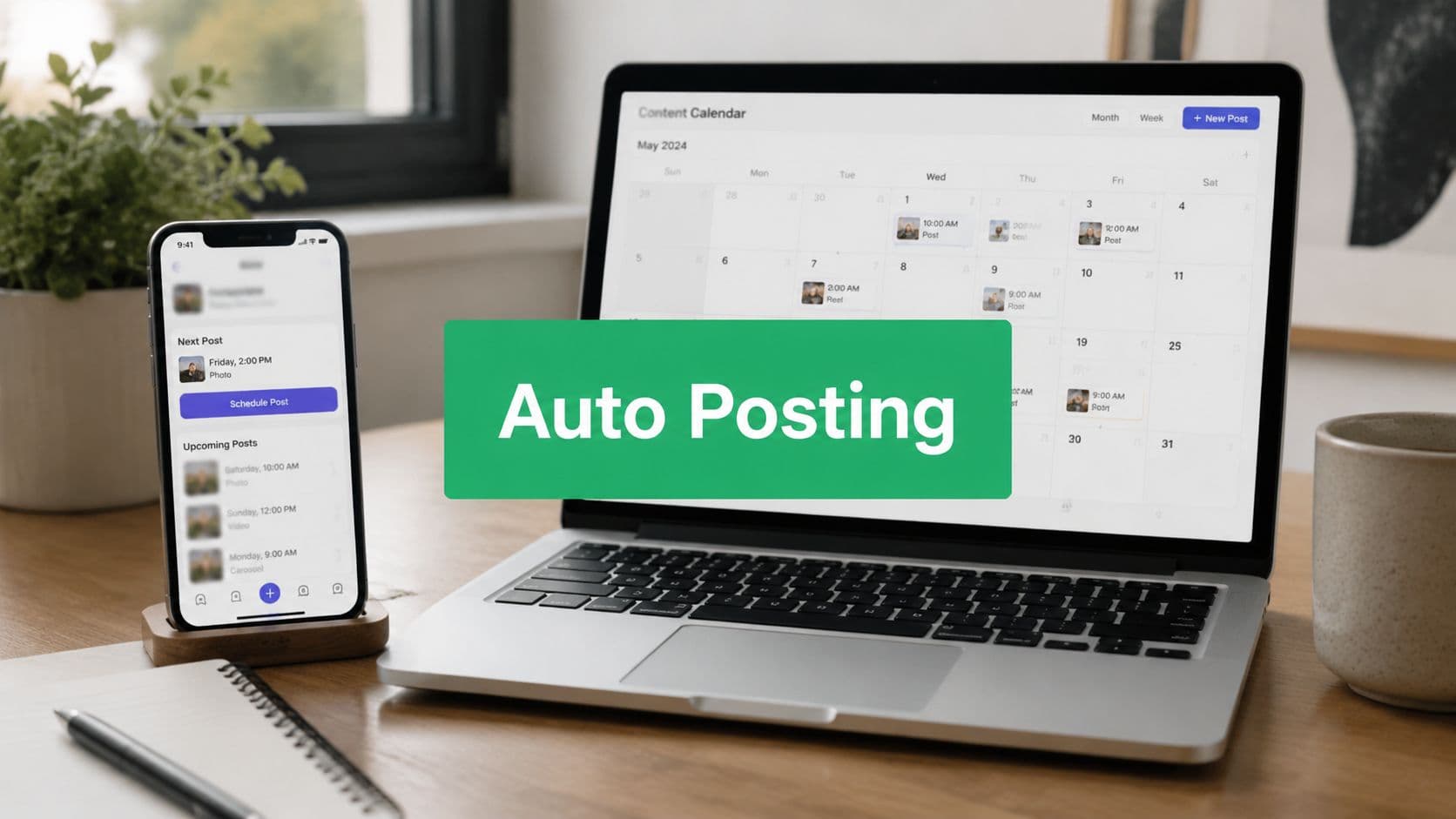
Understanding Your Auto-Posting Options
There are two safe paths for auto-posting on Instagram. You can schedule through Meta's native tools, or you can use an approved third-party scheduler that connects through Meta's official publishing system.
That distinction matters because Instagram automation used to live in a gray area. A major shift happened when official publishing support rolled out through Meta's Graph API, which let third-party tools publish to eligible Instagram business and creator accounts without the old manual phone-based posting workaround, as explained in this overview of safe Instagram automation. That changed automation from a workaround into a platform-sanctioned workflow for the account types Meta supports.

Meta tools versus third-party schedulers
The native route usually appeals to smaller teams, solo creators, and businesses that want the simplest possible setup. You stay inside Meta's ecosystem, which reduces moving parts. For many accounts, that's enough.
Third-party schedulers are for teams that need more than basic scheduling. The main benefits are usually operational, not magical. Think content calendars, approvals, reusable captions, cross-platform planning, and better coordination across clients or brands.
Here's the practical difference:
Meta native tools – Best for solo creators and small businesses. They offer a direct connection to Instagram/Facebook, a simpler setup, and fewer tools to manage, making them easy to use for straightforward posting. However, they provide less flexibility for advanced planning, collaboration, and team-based workflows.
Third-party schedulers – Best for agencies, brands, and multi-account teams. They provide calendar views, approval systems, content libraries, and stronger workflow management, which helps with organized content operations. The trade-offs include more setup complexity, subscription costs, and varying features depending on the tool used.
Practical rule: If your posting process is simple, start with Meta. If your bottleneck is coordination, approvals, or multi-channel planning, use a third-party scheduler.
What actually changes when you automate
Automation doesn't change what Instagram values. Good creative still matters. Relevance still matters. Timing still matters.
What changes is your ability to maintain cadence without relying on memory or manual posting. For professional accounts, that's the key advantage. You remove operational friction so your team can spend more time on creative, community management, and performance review instead of racing the clock every day.
The mistake is assuming every scheduler works the same way, or that every Instagram format is equally supported. They aren't. That's why tool choice and setup matter more than most guides admit.
Choosing and Connecting a Safe Scheduler
A safe scheduler should feel boring in the right ways. Clear permissions. Official connection flow. No strange requests for your password in a pop-up or spreadsheet. No “secret method” language.
The core filter is simple. Choose a tool that connects through Meta's approved system and is built for professional Instagram accounts, not one that relies on risky behavior to mimic human posting.
What to look for before you connect anything
The biggest selection mistake is shopping for features before checking compatibility. A key question isn't just whether a tool can publish. It's what you should automate without hurting growth, because support is uneven across posts, reels, stories, and tagging, as noted in this breakdown of Instagram automation trade-offs.
Use these criteria when comparing schedulers:
Official API access: The tool should clearly explain that it connects through Meta's approved publishing path.
Format support: Check whether it supports the formats you use, especially if your strategy depends on Reels or Stories.
Workflow features: Agencies and in-house teams often need approvals, drafts, asset libraries, and shared calendars.
Analytics and review tools: Scheduling alone isn't enough if you can't see what performed well.
Reliable error handling: Good schedulers warn you about failed posts, broken assets, or unsupported media before publish time.
If you're comparing options, this roundup of social media management platforms for scheduling and workflow planning is a useful starting point.
How the connection process should work
A safe connection process is usually recognizable:
You log into the scheduler.
The tool sends you through Meta's authorization flow.
You choose the Facebook Page and the linked Instagram professional account.
You grant specific permissions.
The account appears in the scheduler dashboard.
That's normal. What isn't normal is a tool asking for your Instagram login in a way that bypasses the official connection flow.
The safest automation setup is the one that asks for the least direct account access while still giving you the permissions needed to publish.
A few signs to slow down
If a tool makes vague promises about guaranteed reach, claims to automate everything on Instagram with no limitations, or hides which account types it supports, don't rush.
Instagram publishing is full of edge cases. Safe tools are usually transparent about limitations. Risky tools usually pretend that limitations don't exist.
How to Configure Your First Automated Post
The first scheduled post should be simple on purpose. Don't start with your most complicated campaign asset. Start with a standard feed post or a basic Reel that already matches Instagram's normal publishing rules.

Start with the post type, not the caption
Before you upload anything, confirm three things:
Account type: Auto-posting support is for business and creator accounts, not personal profiles.
Format: Feed posts, carousels, Reels, and Stories don't all behave the same way inside scheduling tools.
Asset specs: If the file or format doesn't meet supported requirements, the post may fail or switch to a manual reminder flow.
Many teams get frustrated by this situation. Meta-supported scheduling isn't uniform. Creator and business accounts can auto-post, but there are limits, such as a 25 API-published post cap per 24 hours and carousels maxing out at 10 items, according to this guide to Instagram auto-post restrictions. Those details matter when you're managing volume or planning campaigns with multiple assets.
Build the post in this order
A clean build sequence prevents most publishing errors.
Upload the final asset
Use the approved image or video file, not a draft export someone might replace later.Write the caption for the actual goal
If the post is meant to educate, keep the hook and body aligned with that goal. If it's meant to convert, make the call to action explicit.Add mentions carefully
Mention accounts only when they add context. Random tagging looks spammy and won't improve the post.Use location tagging selectively
This is useful for local businesses, events, and location-based discovery. It's less useful when the tag is irrelevant.Review the preview
Cropping, line breaks, cover image, and caption formatting are where mistakes often show up.
Most scheduling failures aren't strategy failures. They're formatting failures.
A lot of teams also use the first comment field for hashtag placement when their scheduler supports it. That can keep the caption cleaner. But don't treat hashtags as a dumping ground. Whether they live in the caption or first comment, they still need to match the post.
Watch for feature gaps before publish time
The “set it and forget it” approach encounters limitations. Some features still require manual posting or a notification-based workflow, depending on the tool and post type. That can include advanced Story elements, certain tagging options, or format-specific features that Instagram hasn't made fully available through supported scheduling.
A repeatable pre-schedule checklist
Before you click schedule, confirm:
Correct account selected
Final creative approved
Caption checked for links, typos, and spacing
Time zone verified
Mentions and location reviewed
Post type supported for auto-publish
That final check is what separates a smooth workflow from a post that fails without notice while everyone assumes it's live.
Developing a Smart Auto-Posting Strategy
Scheduling content isn't the strategy. It's the delivery system.
The accounts that benefit most from auto-posting on Instagram are the ones with a clear content mix, realistic publishing rhythm, and a reason for each post type. Without that, automation just makes inconsistency happen faster.
Build around content buckets
A practical calendar usually starts with a few recurring buckets. The names can vary, but the function stays the same. You want variety without randomness.
For most brands, the mix looks something like this:
Educational content: Tips, how-tos, explanations, common mistakes
Social proof or trust content: Testimonials, results, community reactions, behind-the-scenes proof of process
Brand narrative: Founder perspective, team moments, values, point of view
Promotional content: Offers, launches, product pushes, event reminders
This gives your scheduler a job beyond “post whatever's ready.” It becomes a way to distribute a balanced feed.

Use timing as a support system
Publishing time matters, but not in a simplistic “post once at the magic hour” way. Buffer's 2026 analysis of 9.6 million Instagram posts found that accounts posting 3 to 5 posts per week plus 1 to 2 Stories per day hit a strong engagement sweet spot, and Wednesday was the single best day to post, according to Buffer's Instagram timing analysis.
That doesn't mean every account should copy the exact same calendar. It means consistency has a measurable relationship to performance, and automation helps you maintain that cadence without manual friction.
A useful schedule feels consistent to your audience, not mechanical to your team.
Batch content without sounding robotic
Batching works because it reduces context switching. Write several captions in one session. Prepare visual assets together. Load them into a calendar while the campaign logic is still fresh.
The trick is avoiding a feed that sounds preloaded and lifeless. Keep room for live adjustments. If audience behavior shifts, a trend becomes relevant, or a campaign underperforms, update the queue.
Two resources help here. A structured Instagram content calendar template for planning campaigns makes batching easier, and teams in niche communities can borrow ideas from guides that optimize church social media strategy, especially around consistent messaging and event-driven scheduling.
Monitoring Performance and Staying Compliant
If your workflow ends at “scheduled successfully,” you're only doing half the job.
Automation creates consistency. It does not create judgment. Someone still needs to monitor what is published, what resonates, and what needs a human response. That's where a lot of Instagram teams leave value on the table.
What to review after posts go live
You don't need a complicated analytics ritual, but you do need a repeatable one. Review performance by post type, creative angle, and posting window. Look for patterns in what starts conversations, what gets ignored, and what attracts the wrong kind of engagement.
A detailed Instagram analytics guide for business growth decisions can help you turn those observations into a cleaner content plan.

Compliance is part of performance
The best automation setups are conservative. They use approved publishing paths, respect account-type restrictions, and avoid trying to force unsupported features through shortcuts.
That matters because the point of automation is reliability. If your process depends on tactics that feel like a loophole, the workflow is fragile by definition.
A solid compliance mindset looks like this:
Use approved tools: Stay inside platform-sanctioned publishing methods.
Respect format limits: Don't assume every post type supports the same features.
Review failed posts quickly: Publishing errors compound when no one catches them.
Avoid spam behavior: Automation should schedule content, not fake engagement.
Good automation removes repetitive work so your team can spend more time replying to comments, handling DMs, and improving content.
The human layer still decides growth
Scheduled posts can keep your calendar full. They can't answer questions in comments. They can't notice that a post is attracting confused replies. They can't reshape the next week of content after a market shift, event, or product issue.
The strongest accounts use automation to create time for community management. That's the trade-off worth making. Let software handle timing. Let people handle relationships, positioning, and judgment.
Frequently Asked Questions About Instagram Auto-Posting
Can auto-posting on Instagram get your account banned?
Not by itself, if you're using approved tools and a supported connection method. The risk usually comes from unsafe shortcuts, unclear account access, or trying to automate actions that go beyond legitimate publishing. Safe scheduling should look like normal professional publishing, just planned in advance.
Can you auto-post from a personal Instagram account?
No, not in the same way professional accounts can. Safe auto-posting is tied to business and creator account support. If someone is still using a personal profile for a brand, creator business, or client account, switching account type is usually the first operational fix.
Do automated posts get less engagement than manual posts?
There's no useful blanket answer. What matters more is the quality of the content, the timing, and what happens after the post goes live. A scheduled post with strong creative and active community management will usually outperform a manually posted weak one.
Should you automate Stories and Reels too?
Only if your tool supports the specific version of the format you need and the post doesn't rely on unsupported features. Under these conditions, many teams over-automate. Feed posts are often the easiest place to build reliability first. Then you can expand carefully.
What should you automate first?
Start with recurring content that already has a repeatable workflow. Educational feed posts, product updates, event reminders, and planned campaign content are good candidates. Leave trend-based content, reactive posts, and anything that depends on live context more flexible.
How far ahead should you schedule?
Far enough to remove daily posting stress, but not so far that your feed becomes disconnected from what's happening in your business or audience. A useful queue gives you breathing room. It shouldn't lock you into outdated messaging.
If you want a more structured Instagram workflow, Gainsty is one option to explore for planning and supporting organic growth processes around your content. The right setup should help you stay consistent, keep publishing safely, and leave more time for the human work that builds momentum.
.png&w=1920&q=75&dpl=dpl_2si4hWs7xtpQVmrY6d8xhJ1wLJZL)





.png&w=750&q=75&dpl=dpl_2si4hWs7xtpQVmrY6d8xhJ1wLJZL)