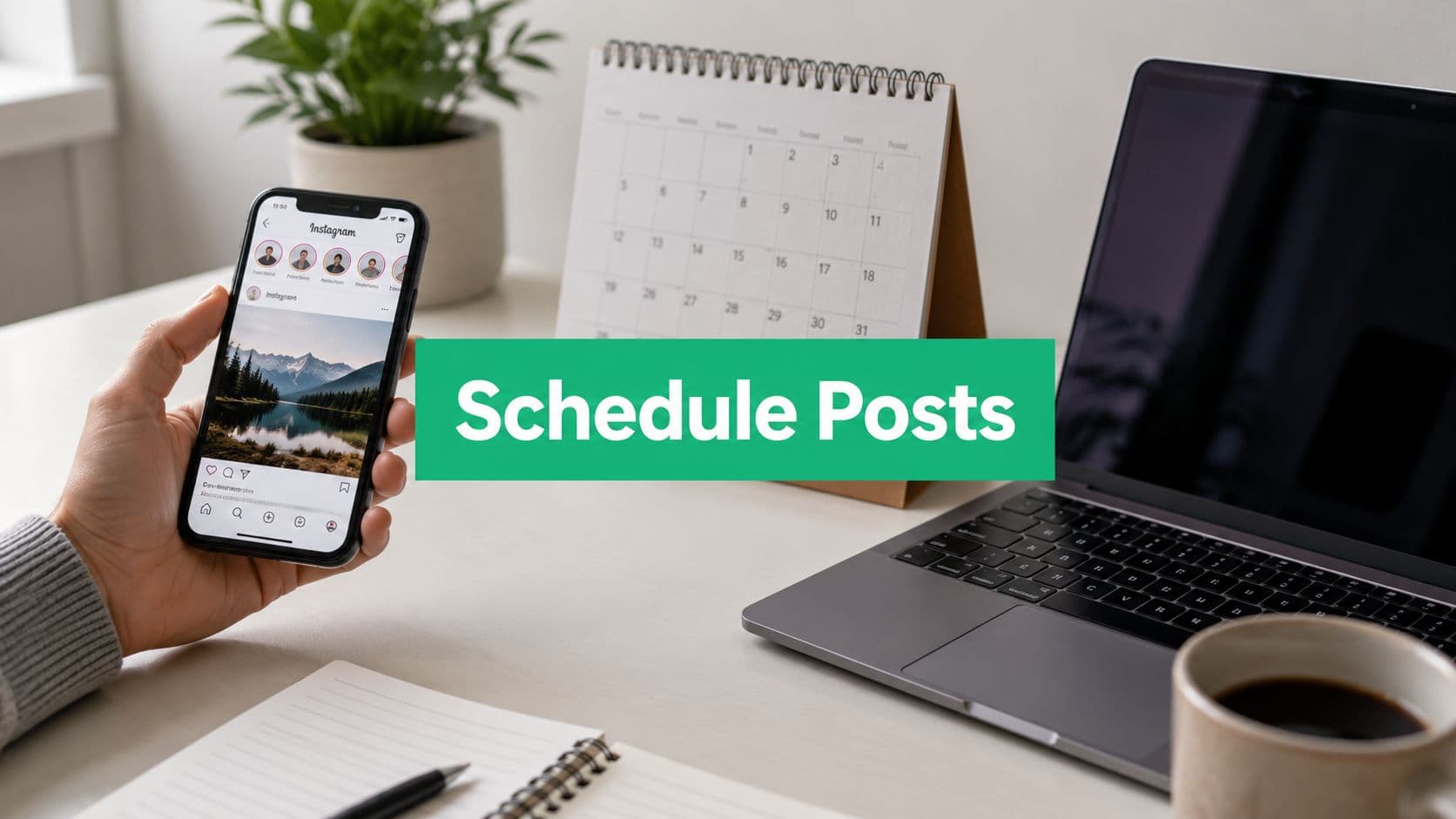
Yes, You Can Schedule Posts, and It's a Game Changer
Instagram scheduling helps you plan content ahead, publish on time, and avoid living inside the app. For creators, brands, and agencies, that means fewer mistakes, better timing, and a more consistent presence.
There is one important catch. Native scheduling is not available to everyone, and support varies by format. You need a Professional account, and Stories have more limited native support than feed posts and Reels.
There are three practical ways to schedule:
Instagram's native tools for simple in-app scheduling
Meta Business Suite for desktop planning and Story scheduling
Third-party schedulers for approvals, shared calendars, and multi-account workflows
If you manage one account, native tools are usually enough. If your workflow includes reviews, handoffs, or cross-platform publishing, a paid scheduler may be worth it.
A clear Instagram content calendar template for planning posts in advance also makes scheduling easier by helping you batch captions, creative, and publish dates.
If you want to go beyond scheduling, this guide on how to automate Instagram posts is a useful next step.
The biggest benefit is control. You spend less time reacting and more time publishing with intention.
Get Your Account Ready for Scheduling
Before troubleshooting anything, check your account type.
Instagram's native scheduler is a Professional account feature. That means Business and Creator accounts can use it, but Personal accounts cannot. Some articles claim any public account can schedule after a March 2026 update, but that conflicts with official guidance and is discussed in Crowbert's review of the scheduling update claims.

How to check if you're on the right account
If your profile is set up as Personal, native scheduling will not appear.
Use this quick check:
Go to your profile and open the menu.
Look for account type settings.
Confirm that you are using Business or Creator.
Switch if needed before trying anything else.
If the scheduling option is missing, the wrong account type is often the reason.
Why switching to Professional is worth it
A Professional account is not just for large brands. It is the baseline if you want to grow, sell, or manage content more deliberately.
Besides scheduling, it gives you access to analytics and profile tools that improve your publishing decisions.
If you can't find the Schedule toggle, check the account type before updating the app, reconnecting tools, or searching forums.
If you want to organize content before you schedule it, this Instagram content calendar template can help.
One myth to ignore
Public visibility and Professional status are not the same thing.
You can have a public Personal account and still not get native scheduling. That is why many people waste time looking for a feature their account will never show until they switch.
How to Schedule Using Instagram's Native Tools
If your account is set up correctly, Instagram gives you two native ways to schedule. The app is best for quick post setup. Meta Business Suite is better for desktop planning and Story scheduling.
Native tools handle the basics well, but they also have limits on how far ahead you can schedule and how many posts you can queue each day.

Schedule a post in the Instagram app
For straightforward publishing, use the app.
Create your post as usual.
Add your caption, tags, and location.
Open the settings menu before publishing. On iOS, this is usually under Advanced Settings. On Android, it is often under More Options.
Turn on Schedule this post.
Pick the date and time.
Save the scheduled post.
This works well for solo creators, founders, and small teams managing one account.
The limitation people miss
You cannot schedule Instagram Stories natively inside the mobile Instagram app.
Many articles blur this point, which leads people to search app menus for an option that is not there. If Stories matter in your workflow, use Meta Business Suite or a third-party scheduler.
If you want a broader comparison before choosing a tool stack, this roundup of social media management platforms for scheduling and collaboration is a useful reference.
Use Meta Business Suite when the app starts feeling cramped
Meta Business Suite is easier when you want to write on desktop, plan several posts at once, or schedule Stories alongside feed content. It is also useful if you manage Facebook content in the same calendar.
Creator Flow's guide to Instagram scheduling workflows notes that Meta Business Suite requires your Instagram account to be connected inside a Business Portfolio. Once connected, you can schedule from desktop and use Active Times data to choose better publish windows.
Use the app for quick one-off scheduling. Use Business Suite when timing, visibility, and format mix matter more.
Where Meta Business Suite helps most
Use it when you need:
Story scheduling through Meta's desktop workflow
Desktop caption writing instead of typing on a phone
Audience activity guidance through Active times
Shared access inside Meta's business tools
A clearer publishing calendar across Instagram and Facebook
Common failure points include:
A disconnected Facebook Page can break publishing in Business Suite
Scheduling too far in advance can leave posts in draft or fail to queue
Assuming Stories should be available in-app wastes time during setup
If your workflow is getting heavier, a dedicated content automation software guide can help you decide when native tools stop being enough.
For one account and simple feed scheduling, Instagram's app is usually enough. For Story scheduling, desktop planning, and better timing visibility, Meta Business Suite is the stronger native option.
Using Third-Party Schedulers for More Power
Native scheduling works, but it has limits.
If you manage multiple accounts, campaign approvals, content libraries, or cross-platform publishing, third-party schedulers can make sense. Their value is not that they outperform Instagram's own tools. Their value is operational control.

What you gain beyond native tools
Third-party platforms are useful when your workflow includes more than publishing one post at a time.
Common reasons teams upgrade:
Bulk scheduling for larger content batches
Cross-platform management for Instagram, Facebook, LinkedIn, TikTok, and more
Collaboration tools for strategists, designers, and approvers
Deeper reporting than native tools usually provide
Content libraries and templates that reduce repetitive setup
If you are comparing platforms broadly, this roundup of social media management platforms is a practical starting point.
Native Scheduling vs. Third-Party Tools
Setup
Native Scheduling (Instagram App / Meta Business Suite): Schedule content directly within Instagram or Meta tools with minimal setup.
Typical Third-Party Scheduler: Requires connecting your social accounts and completing the platform’s onboarding process.
Cost
Native Scheduling: Free to use.
Typical Third-Party Scheduler: Usually requires a paid subscription, although some platforms offer limited free plans.
Best for
Native Scheduling: Solo creators, freelancers, and small businesses with straightforward publishing needs.
Typical Third-Party Scheduler: Agencies, marketing teams, and businesses managing multiple brands or social accounts.
Publishing scope
Native Scheduling: Focused primarily on Instagram, with support across the Meta ecosystem (such as Facebook).
Typical Third-Party Scheduler: Often supports publishing across multiple social media platforms from a single dashboard.
Workflow depth
Native Scheduling: Includes basic scheduling and queue management.
Typical Third-Party Scheduler: Provides advanced workflows such as content calendars, approval processes, asset libraries, and team collaboration.
Analytics
Native Scheduling: Offers useful first-party insights into reach, engagement, and audience performance.
Typical Third-Party Scheduler: Typically provides deeper reporting, historical comparisons, customizable dashboards, and cross-platform analytics.
Content planning
Native Scheduling: Well suited for simple, day-to-day publishing.
Typical Third-Party Scheduler: Better for campaign planning, editorial calendars, and coordinating larger content strategies across teams.
The trade-off most people miss
Third-party schedulers are not automatically better. They are better when complexity is slowing you down.
If you only need to schedule a week of posts for one account, a paid platform may add unnecessary friction. But if you are managing approvals, reusing assets across channels, or coordinating a team, native tools can feel limiting quickly.
Buy extra software when your workflow breaks, not while you are still learning the basics.
If you are evaluating broader publishing stacks, not just Instagram schedulers, this content automation software guide is useful for thinking beyond a single-channel tool.
A good decision filter
Stick with native tools if you want simplicity.
Move to a third-party scheduler if your team needs more structure. That is usually the point when content operations matter as much as content creation.
Best Practices for Scheduled Instagram Content
Scheduling only helps if the content is strong and timed well.
The good news is that scheduling itself does not hurt engagement. According to Cloud Campaign's analysis of scheduled Instagram engagement, Instagram gives scheduled content the same visibility potential as manually published content. The real advantage comes from consistency and timing.
Focus on timing, not superstition
Some creators still think scheduled posts get buried, but weak performance is usually about timing or content quality, not the act of scheduling.
What matters more:
Posting when your audience is active
Maintaining a steady content rhythm
Using a realistic weekly cadence
Following up with engagement after the post goes live
Cloud Campaign also notes that posting 3 to 5 times per week is a strong range for growth, while 1 to 2 times per week is a reasonable minimum for consistency. The same source recommends using analytics to find your audience's Active times instead of guessing.

Build a schedule you can actually sustain
The most common mistake is building a schedule you cannot maintain.
A better rhythm looks like this:
Batch content creation: Write captions and prepare visuals in focused blocks.
Choose repeatable slots: Use analytics and commit to a few tested windows.
Leave room for reactive content: Do not schedule every slot so tightly that you cannot respond to trends or announcements.
Review after publishing: Check what happened, not just whether the post went live.
If video is a priority in your mix, these video posting insights from Moonb can help you think more carefully about timing windows and format behavior.
Stories need their own role
Stories help fill the gaps between feed posts. Cloud Campaign recommends 3 to 5 stories daily for maximum visibility and suggests posting Stories when feed engagement is lower so you stay visible throughout the day.
That does not mean every brand needs that volume. It means Stories work best as a support layer, not an afterthought.
Scheduled publishing saves time. Growth still comes from reviewing what worked and improving the next batch.
If you want to refine your timing strategy, this guide on the best time to schedule Instagram posts is a helpful next step.
A simple checklist before you schedule
Use this before you queue a week of content:
Check the hook: The first line should earn the second.
Check the creative: Make sure the cover image or first slide can stop the scroll.
Check the timing: Use audience activity data, not a default time.
Check the follow-up plan: Scheduling does not replace replying to comments and DMs.
Automation handles publishing. It does not handle community.
Common Scheduling Questions and Troubleshooting
Most scheduling issues come down to account setup, unsupported formats, or broken connections.
Why can't I find the Schedule option
Start here:
Wrong account type: Personal accounts do not support native scheduling
Unsupported content expectation: Stories do not have a native mobile scheduling option
Tool connection problem: In Meta Business Suite, disconnected assets can break auto-publishing
If the Schedule toggle is missing in the app, confirm that you are on a Professional account first.
Can you schedule Instagram Stories natively
The answer is not in the native mobile Instagram app.
As noted in Brandwatch's discussion of Instagram Story scheduling confusion, many articles fail to explain clearly that Story scheduling is tied to the desktop Meta Business Suite workflow, not the native in-app posting flow.
How do you edit or delete a scheduled post?
You can manage scheduled content from the queue inside Instagram or from your publishing calendar inside Meta Business Suite.
Use this process:
Open your scheduled content list
Select the post you want to change
Choose to edit, reschedule, or delete
Recheck the final publish time before saving
If a post fails to publish, check whether the connected account or linked business assets changed, then recreate the post if needed. That usually resolves one-off failures faster than trying to rescue a broken draft.
When a scheduled post misfires, treat it as a system issue first, not a content issue.
Can you schedule collaborative posts?
That depends on current platform support in the workflow you are using, and Instagram's feature behavior can change. For collab posts or any format with extra settings, test the exact setup before building a full campaign around it.
If you want help turning this into steady Instagram growth, Gainsty is built for creators, brands, and businesses that want stronger organic reach without bots or fake followers. It combines AI support, human strategy, and Instagram-specific expertise so you can grow more consistently while keeping your account safe and your workflow manageable.

.png&w=1920&q=75&dpl=dpl_2si4hWs7xtpQVmrY6d8xhJ1wLJZL)





.png&w=750&q=75&dpl=dpl_2si4hWs7xtpQVmrY6d8xhJ1wLJZL)