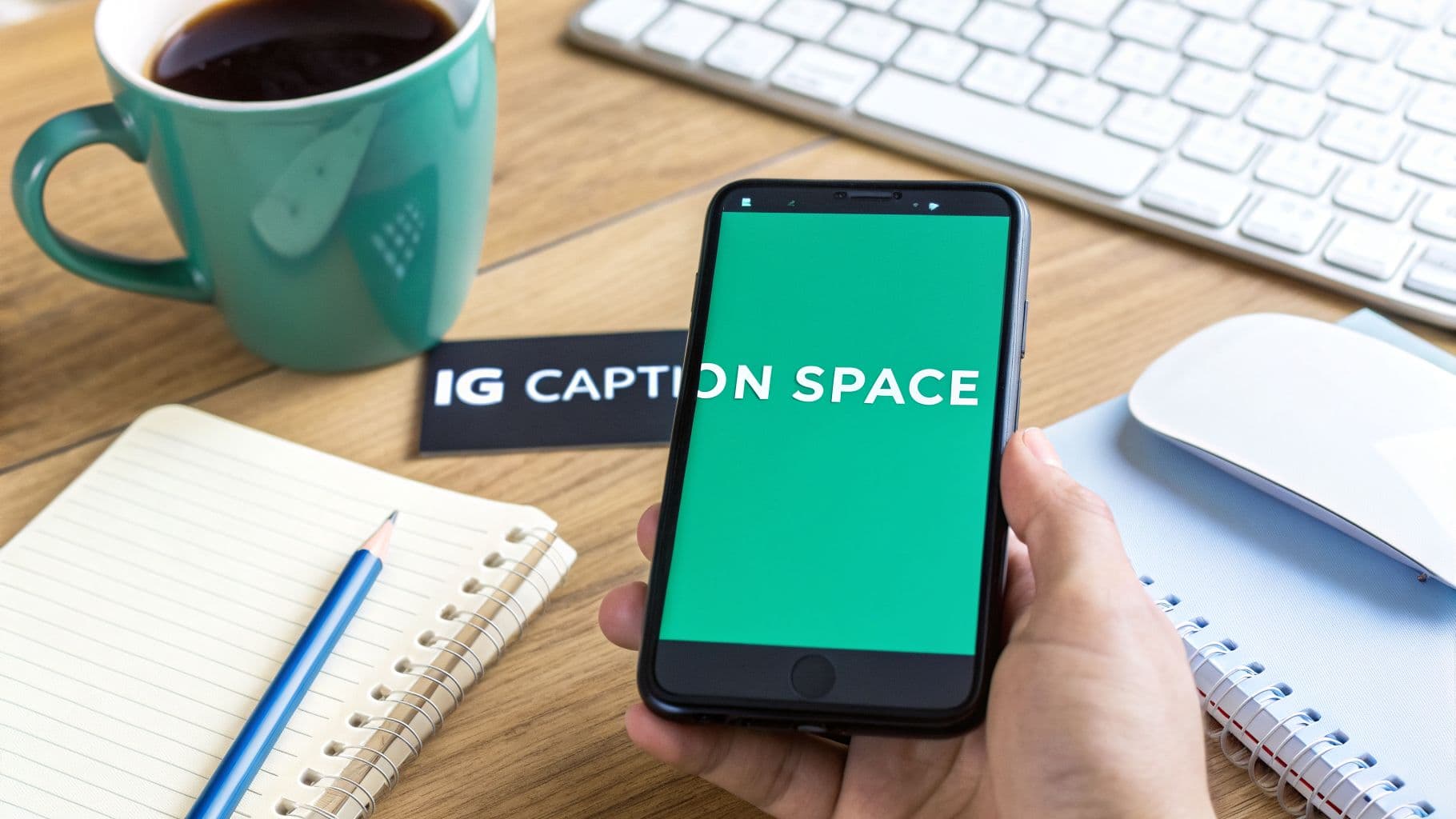
Why Your IG Caption Space Is a Growth Goldmine
Think of your Instagram caption like the display in a shop window. If it's cluttered and chaotic, people will walk right by. But a clean, thoughtfully arranged display draws them in. Your caption works the same way. A dense block of text is an instant scroll-past for almost everyone.
Strategic spacing is your secret weapon to stop the scroll. By making your content easier to read, you're not just making it prettier; you're directly improving the engagement metrics that Instagram's algorithm cares about.
The Power of Readability
When a caption is easy on the eyes, people are far more likely to stick around and read the whole thing. This increases the "dwell time" on your post, which tells Instagram your content is valuable. This simple change can lead to some big wins:
More Saves: People save posts with helpful, well-organized information they can come back to later.
Higher Share Counts: A clear, impactful story is much more shareable.
Better Comments: When your followers can easily read your message and any questions you ask, they’re more likely to leave a thoughtful response.
This flowchart breaks down how to choose the right formatting method for what you're trying to achieve.

As you can see, getting clean spacing usually comes down to a simple choice: using standard line breaks or adding special characters, depending on your goal.
From Character Limits to a Storytelling Canvas
Having the room to tell a longer story is a bigger deal than you might think. Back in 2012, captions were limited to just 140 characters. Instagram bumped that up to a much more generous 2,200 characters in 2016, but there's a catch: today, only the first 125 characters show up in the feed before the "more" button. This change makes your opening line and your initial spacing more important than ever for grabbing your audience's attention right away.
Mastering the IG caption space is the foundation for turning casual viewers into a loyal community. It’s a small detail that delivers huge results by proving your content is worth reading.
By learning how to control your caption's layout, you're doing more than just tidying up. You are actively fine-tuning your content for better performance and showing both users and the algorithm that your posts have real value. To get a better sense of how this impacts your post's reach, check out our guide on how Instagram's algorithm works.
Adding Line Breaks Directly in the Instagram App

Let's start with the most straightforward approach: creating your caption spaces right inside the Instagram app. You don't actually need any special tools for this. It's often called the "Return Key Method," and it’s a game-changer once you learn the one tiny detail that trips everyone up.
The big secret? It’s all about what you do before you hit the "Return" or "Enter" key on your phone.
We’ve all been there. You type out a perfectly spaced caption, hit "Share," and poof—it collapses into a dense wall of text. The culprit is almost always a stray space. Instagram’s editor sees a space at the end of a line and automatically eats the line break that follows. It's a frustrating little quirk.
To get a clean line break, make sure your cursor is immediately after the last word or punctuation mark. No space. Then, hit Return. That's it.
My Foolproof Workflow for Perfect Breaks
After one too many frantic edits on a live post, I developed a simple workflow that guarantees clean formatting every single time. It takes an extra minute, but it saves so much frustration.
I draft 100% of my captions in a separate app first. The Notes app on an iPhone or Google Keep on Android works perfectly. This gives you a clean editing environment, free from Instagram's formatting quirks, making it way easier to spot and delete those accidental spaces.
Once the caption looks good in your notes, just select all, copy, and paste it directly into the caption field on Instagram. The line breaks and spacing you carefully created will carry over without a hitch.
My Top Tip: While writing in your Notes app, get into the habit of double-checking the end of every single line. Before hitting Return, make sure your cursor is snug against the final character. No space, no problem.
This pre-drafting habit is truly the key to mastering caption spacing on mobile.
Putting It Into Practice
Let's look at a real-world example. Say you're a fitness coach sharing a quick daily tip. You want to make it scannable and easy to digest.
What most people do (Incorrect Formatting):Today’s quick tip is all about hydration. 💧 Aim for 8 glasses of water a day. Your body will thank you! #fitnesstips
When posted, this often becomes a single, messy block of text because of the spaces before the line breaks.
How to format it correctly (in your Notes app):Today’s quick tip is all about hydration.💧[RETURN]Aim for 8 glasses of water a day.[RETURN]Your body will thank you![RETURN][RETURN]#fitnesstips
Notice there are no spaces after the emoji, the period, or the exclamation point. By hitting Return immediately after the last character on each line, the final caption looks clean, professional, and is far more inviting for your audience to read. This small adjustment makes a huge difference in holding attention and boosting engagement.
The Secret Weapon for Perfect Caption Formatting: Invisible Characters

When hitting the "Return" key just isn't cutting it, there's a go-to trick that social media pros have been using for years: invisible characters. This is hands-down the most reliable way to control your IG caption space and create those clean, empty lines you see on top accounts. It's the secret to getting that polished, blog-post feel that makes your captions so much easier to read.
So what's the magic here? An "invisible character" is just a specific type of blank space that Instagram's app actually recognizes as a character. Think of it as a ghost letter. This little trick forces the app to hold the line break, preventing it from collapsing your empty lines together.
I've made it easy for you. Below is the invisible character you need, tucked between a set of brackets. Copy the blank space inside, and you're good to go.
Copy This:
[ㅤ]
Once it's on your clipboard, you can paste this character onto any line where you need a guaranteed blank space. It’s a game-changer for adding dramatic pauses, separating your main caption from a block of hashtags, or just giving a key call-to-action its own moment to shine.
How to Use Invisible Characters Like a Pro
This is where you can get really creative. Using invisible spaces lets you build unique layouts that stop the scroll and make your captions far more readable. And that's a huge deal. Your IG caption space is a battleground for attention, and with a post’s half-life sitting around 18.27 hours, you need to make an impact fast.
Here are a few ways I’ve seen creators use this to great effect:
Create Airy Lists: Instead of a cramped bulleted list, paste an invisible character on an empty line between each item. It instantly makes the list feel more premium and easier to scan.
Indent Key Paragraphs: Want a quote or an important point to stand out? Start a new line and paste a few invisible characters at the beginning to create a clean, indented look.
Build Anticipation: Drop in a few lines with invisible characters to create a dramatic pause right before a punchline or a big reveal. It’s a classic storytelling technique that works wonders on social media.
This level of control helps you guide your reader's eye. While data-backed insights show that shorter captions often get more engagement, sometimes you need to go long-form to share value and build authority. In those cases, clean formatting isn't just nice—it's necessary. Using invisible spaces lets you break down walls of text into digestible, bite-sized chunks that keep people reading.
A Quick Example
Let's look at a real-world scenario. Imagine a travel creator sharing a packing list. By using invisible characters, they can turn a jumbled caption into a beautifully organized mini-guide.
Caption Formatted with Invisible Characters:My top 3 carry-on essentials for any trip: ✈️[ㅤ]🎧 Noise-canceling headphones[ㅤ]📖 A good book (or Kindle!)[ㅤ]💧 A reusable water bottle[ㅤ]What’s the one thing you never travel without? Let me know below! 👇
See the difference? This tiny adjustment makes your content look infinitely more professional and encourages readers to actually engage with what you've written. It's a small detail that has a massive impact on your profile's overall polish.
Formatting Captions with Desktop and Scheduling Tools
While posting from your phone is great for those in-the-moment updates, the real heavy lifting of content planning—especially for brands and creators—often happens at a desk. Let's be honest, trying to manage a full content calendar from a tiny screen is a headache. Thankfully, getting that perfect IG caption space is a whole lot easier on a computer.
When you're typing directly into a desktop browser or, even better, using a scheduling tool, the "Enter" or "Return" key actually does what it's supposed to do. You can finally say goodbye to hunting for invisible characters or pasting from your notes app. This is a massive relief for anyone who's ever battled with Instagram's mobile formatting quirks.
Using Meta Business Suite
If you’re scheduling posts natively for Facebook and Instagram, you're likely working within the Meta Business Suite. The good news is that their post composer is incredibly intuitive and doesn't fight you on formatting.
It’s as simple as typing your text and hitting Enter for a standard line break. Need a clean visual gap between paragraphs? Just press Enter twice. This lets you structure your captions for maximum readability without jumping through any hoops.
As you can see, the built-in preview is a lifesaver. You get to see exactly how your caption will appear on Instagram, which is perfect for catching any awkward spacing before you hit publish.
Working with Third-Party Schedulers
Most of the big-name social media management tools are built by people who understand the daily grind of a social media manager. Platforms like Later, Buffer, or Planoly have powerful caption editors that make formatting a breeze.
Inside these schedulers, it feels just like writing in a familiar document:
Hit Enter once to start a new line.
Hit Enter twice to create that clean, scannable blank line between your thoughts.
This simple, reliable functionality means you can batch-create clean, professional-looking captions every single time. It frees you up to focus on crafting a great message instead of wrestling with the app.
A quick pro-tip: even on desktop, the goal isn't just to add space—it's to add clarity. Use breaks to separate ideas, build lists, and draw your reader’s eye down to that all-important call-to-action.
For those times when you need absolutely flawless formatting or want to try something more creative with your text, an external tool like an Instagram Text Formatter can be your secret weapon. These tools automatically insert the necessary invisible characters to lock your formatting in place, ensuring it looks perfect no matter what device your followers are using. It’s an extra layer of polish that can make all the difference.
Using Space to Boost Readability and Engagement
So, you’ve mastered the technical tricks for adding an IG caption space. That's half the battle. But knowing how to create space is one thing; knowing why and when to use it is what truly separates a decent post from a magnetic one. This is where we move from simple mechanics to real strategy.
Think of white space as a tool for guiding your reader's eye. You're creating a visual path through your words. By breaking up your thoughts into short, scannable paragraphs, you make your message feel less like a chore to read and far more inviting.
Turning a Wall of Text into an Engaging Story
We’ve all seen it. A brand is excited about a new product, but they cram every single detail into one massive, intimidating block of text. The information is there, but it's overwhelming. What do most of us do? We keep scrolling.
Now, let’s see what happens when we apply some strategic spacing to that same caption.
Before (The dreaded wall of text):Our new sustainable activewear line just dropped! We're so excited to share our new collection, made from 100% recycled materials. Each piece is designed for comfort and performance, so you can feel good and look good during your workout. Available in three new colors: Ocean Blue, Forest Green, and Desert Sand. We poured our hearts into this and hope you love it as much as we do. Shop the link in our bio! #sustainablefashion #activewear #newdrop
After (Scannable and engaging):Our new sustainable activewear line is here! ✨
Designed for comfort and performance, each piece is made from 100% recycled materials.
Available in three new stunning colors:💙 Ocean Blue🌲 Forest Green🏜️ Desert Sand
We know you'll love it. Shop the full collection via the link in our bio! #sustainablefashion
See the difference? The second version is instantly easier to look at. It uses emojis as simple bullet points, gives each idea its own line, and lets the call-to-action stand out. It’s the same information, but the thoughtful presentation makes it infinitely more readable and effective.
Formatting Tips for Maximum Impact
Great caption formatting goes beyond just hitting the return key. It’s about making deliberate choices that drastically improve the reader’s experience.
Here are a few things I always keep in mind:
Hook Them Immediately: Your first 125 characters are everything. This is what people see before they have to tap "more." Put your most captivating sentence right at the top.
Embrace Emoji Bullet Points: Emojis are perfect for breaking up lists or features. They add a splash of color and make key points incredibly easy to scan.
Isolate Your Call-to-Action (CTA): Never bury your CTA. Give it its own line, or even better, separate it with a blank line above and below. This makes it impossible to miss.
Getting these little details right is what makes a big difference. This principle of clear, concise presentation isn't just for Instagram posts; it's a universal rule for digital content, including video. In fact, you'll find excellent strategies for effective captions on short-form video that lean on the same ideas of clarity and brevity.
Strategic spacing isn't about filling a character count; it's about making every character count. When you prioritize readability, you're making a direct investment in higher engagement and a stronger community.
And the data backs this up. An analysis of post performance found that captions between 1 and 20 characters can achieve a 6.71% engagement rate. In contrast, super-long captions (over 2,000 characters) saw engagement drop to just 5.51%. It shows that being clear and concise often wins.
Of course, there's a time and place for longer, storytelling captions, but the formatting needs to be flawless. To go even deeper on this, check out our complete guide on how to write Instagram captions that truly connect and convert.
Common Questions About IG Caption Spacing

Even after you master the basics of creating the perfect IG caption space, Instagram can still throw you a curveball. You spend time crafting a beautiful, spaced-out caption, hit "Share," and suddenly it’s a wall of text. It's frustrating, I know. Let's walk through a few of the most common headaches and how to solve them for good.
My Line Breaks Keep Disappearing!
This is, without a doubt, the most common issue. You hit return, but when you post, the line break vanishes. The culprit is almost always the same: a single, sneaky space.
Instagram is incredibly picky here. If there is even one space after the last word or punctuation on a line, it will completely ignore your attempt to create a break. It just smashes everything together.
The fix is to be a little obsessive. Before you hit the "Return" or "Enter" key, make sure your cursor is tucked right up against the very last character of your sentence. Backspace to delete any invisible spaces you might have accidentally added. This is a great reason to draft your captions in a separate app, where it’s often easier to spot these tiny errors.
The golden rule for clean line breaks is simple: end your line with a word or punctuation, and immediately hit return. No spaces after. This one habit will solve 99% of your spacing issues.
Where’s the Best Place to Put Hashtags?
The great hashtag debate! You need them for discovery, but a giant block of 30 hashtags can make an otherwise elegant caption look messy. The good news is you have a couple of great options that keep your caption clean while ensuring your post gets seen.
Tuck them at the very bottom. Once you’ve written your main caption, add a few line breaks to create a nice visual separation. Then, paste your block of hashtags at the end. This pushes them out of the way, so the focus stays on your message.
Post them in the first comment. This is my personal favorite for a super minimalist look. As soon as your post goes live, hop into the comments and add your hashtags there. Instagram’s algorithm treats hashtags in the first comment the same as those in the caption, so you don't lose any reach.
Either way works perfectly. It really just comes down to your personal aesthetic and which workflow you prefer.
Can I Fix My Spacing After I’ve Already Posted?
Yes! We’ve all had that "oops" moment where you spot a formatting mistake right after your post goes live. Thankfully, you don't have to delete everything and start over.
Just tap the three-dot menu (...) at the top-right of your post and choose "Edit." This re-opens the caption editor, allowing you to add the line breaks you missed, delete extra spaces, or fix any typos. The same rules about no trailing spaces apply. Once you hit "Done," the changes are instant, and your caption will look exactly as you intended.
Ready to stop worrying about formatting and start focusing on growth? With Gainsty, our AI-powered social assistant helps you attract thousands of real, engaged followers organically. We build an authentic community around your brand so that you can go viral without the guesswork. Learn more at https://www.gainsty.com.
.png&w=1920&q=75&dpl=dpl_D59Qa4oJ5cFQ7dZDLQ1JPQVnqHSs)





.png&w=750&q=75&dpl=dpl_D59Qa4oJ5cFQ7dZDLQ1JPQVnqHSs)