Why Your Instagram Feed Is Stuck in the Past
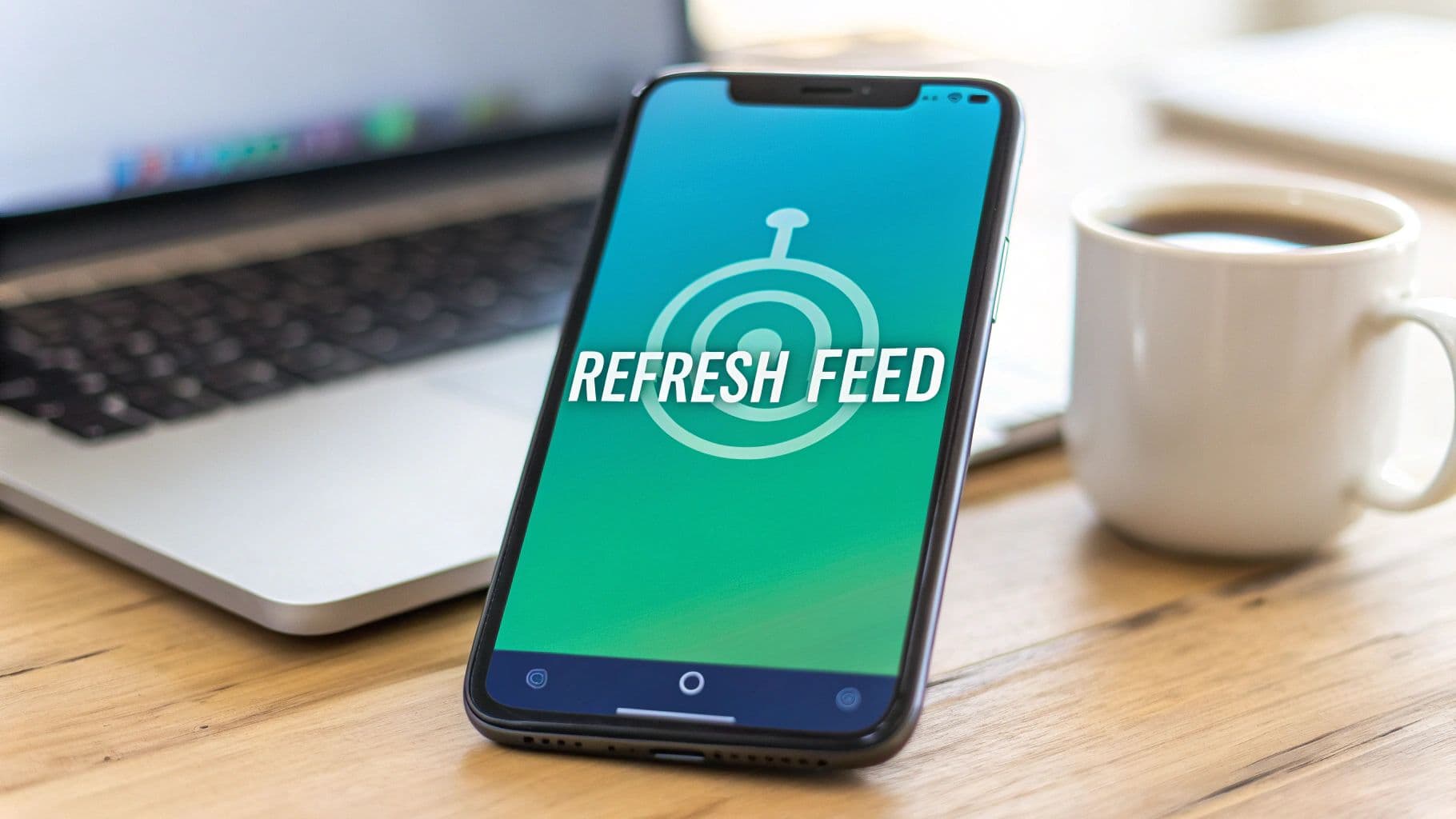
That dreaded "couldn't refresh feed" banner can feel like a major technical meltdown, but it's rarely a cause for alarm. Think of it as a symptom of a temporary disconnect somewhere between your phone and Instagram’s servers. Pinpointing where that communication broke down is the first step to getting things back on track.
Before you start digging through complex settings, let's look at the usual suspects.
Unpacking the Common Culprits
The most common reason for Instagram not refreshing is a weak or unstable internet connection. Your phone might show full bars for Wi-Fi or cellular, but that doesn't always tell the whole story. A brief network stutter, especially on crowded public Wi-Fi, can easily stop new data from loading.
Another prime suspect is a simple software glitch inside the Instagram app. As you use it, the app builds up a cache of temporary files. If that data gets corrupted—which happens from time to time—it can mess with the app's performance and cause refresh failures.
And sometimes, the problem isn't you or your device at all. Instagram's servers are a massive operation, handling requests from billions of users. Occasional outages or maintenance windows are just part of the deal. If Instagram is down, no amount of troubleshooting on your end will make a difference.
Platform-Specific Glitches
The reason your feed is stuck can also change depending on whether you’re on an iPhone, Android, or your computer. Each one has its own quirks.
For Android users, aggressive battery-saving modes can sometimes cut off Instagram's ability to use data in the background, preventing it from refreshing properly until you open the app.
On iOS, running a seriously outdated version of the app can cause compatibility issues with Instagram's latest server updates, leading to strange behavior.
With a web browser, extensions are often the problem. Ad blockers and privacy tools are notorious for accidentally blocking the scripts Instagram needs to load new content.
Key Takeaway: The "Instagram not refreshing" error is almost never a serious issue with your account. It's usually just a temporary snag with your connection, the app's cache, or an Instagram server hiccup. Figuring out the likely cause will save you a ton of time.
To help you narrow down the possibilities even further, here’s a quick reference table.
Common Causes for Instagram Refresh Issues by Platform
Weak internet connection – Can affect notifications on iOS, Android, and web browsers because all of them need a stable connection to sync activity.
Corrupted app cache – Applies to iOS and Android; on the web browser, the equivalent issue is fixed by clearing the browser cache.
Outdated app version – A problem for iOS and Android when the app isn’t updated; not applicable on web browsers, which update automatically.
Instagram server outage – Affects iOS, Android, and web since it comes from Instagram’s side.
Battery optimization – Mainly impacts Android, where background activity can be restricted; not typical on iOS and not applicable on the web.
Browser extensions – Can interfere with notifications on the web browser only; not relevant for iOS or Android.
This list should give you a good starting point for your troubleshooting.
By understanding these potential roadblocks, you have a much clearer path to a solution. And if you're curious about the mechanics behind what you see, you can learn more about how Instagram's algorithm works, which provides great context on feed behavior. Now, let's get you back to scrolling.
Quick Fixes to Get Your Instagram Feed Moving Again
When your Instagram feed suddenly freezes, it's easy to jump to the worst conclusion. But more often than not, the solution is surprisingly simple. Before you start digging into complex settings, let's run through a few quick-fire tricks that usually get things back on track in a matter of seconds.
Honestly, these are the first things I try whenever an app acts up, and they work for most people.
Let’s kick things off with the most dependable fix of all: a full app restart. Just swiping the app away from your recent apps screen doesn’t always cut it. You need to perform a "force stop," which completely shuts down any lingering background processes that might be causing the glitch. This gives Instagram a totally clean slate when you launch it again.
Reset Your Connection
You glance at your phone and see full bars for Wi-Fi or 5G. So, the connection can't be the problem, right? Not necessarily. It's incredibly common for a device to show a strong connection while the actual data flow has stalled. Your phone thinks it's online, but nothing is getting through.
The easiest way to fix this is by toggling Airplane Mode.
Swipe down to open your Control Center (on iPhone) or Quick Settings panel (on Android).
Tap the Airplane Mode icon to turn it on.
Give it a solid 15-20 seconds. This ensures all wireless radios have completely shut down.
Tap the icon again to turn it off.
This simple on-and-off cycle forces your phone to establish brand new connections to the network, which often clears the digital logjam that was holding up your feed. If that doesn't do the trick, try switching from Wi-Fi to your mobile data, or the other way around. This helps you figure out if the problem is with your internet source itself.
Force a Server Resync
Sometimes, the problem isn't on your end at all. It's a hiccup in the communication between your app and Instagram's servers. A tiny authentication error or a stale session token can stop new content from loading, even when everything else seems perfectly fine.
The classic "turn it off and on again" of the software world is logging out and back in. This is the go-to solution here.
Logging out immediately terminates your current session. When you log back in, the app has to create a fresh, verified connection to Instagram's servers. This process effectively wipes your session data, resolves temporary token problems, and pulls the most current version of your feed. It’s a surprisingly powerful fix for a stubborn Instagram not refreshing issue.
Pro Tip: Before you log out, take a second to make sure you actually know your password. It's easy to rely on Face ID or saved logins and forget the credentials you'll need to get back into your account.
Think of these initial steps as your first line of defense. They’re fast, easy, and solve the vast majority of feed refresh problems without getting into the weeds.
By the way, if you're looking to fine-tune your account's performance beyond just fixing glitches, you might also want to check out our guide on understanding and adjusting your Instagram notifications settings.
If these quick fixes don't get your feed scrolling again, then it's time to move on to some more specific solutions for your device.
Advanced Troubleshooting for iOS and Android
So, you've tried the quick fixes and your Instagram feed is still stuck in the past. It’s time to dig a little deeper into your device's settings. Since iOS and Android handle apps and their data in completely different ways, we need to take a platform-specific approach to knock out those stubborn glitches.
This flowchart lays out the first line of defense—the simple, effective steps that solve the problem most of the time.
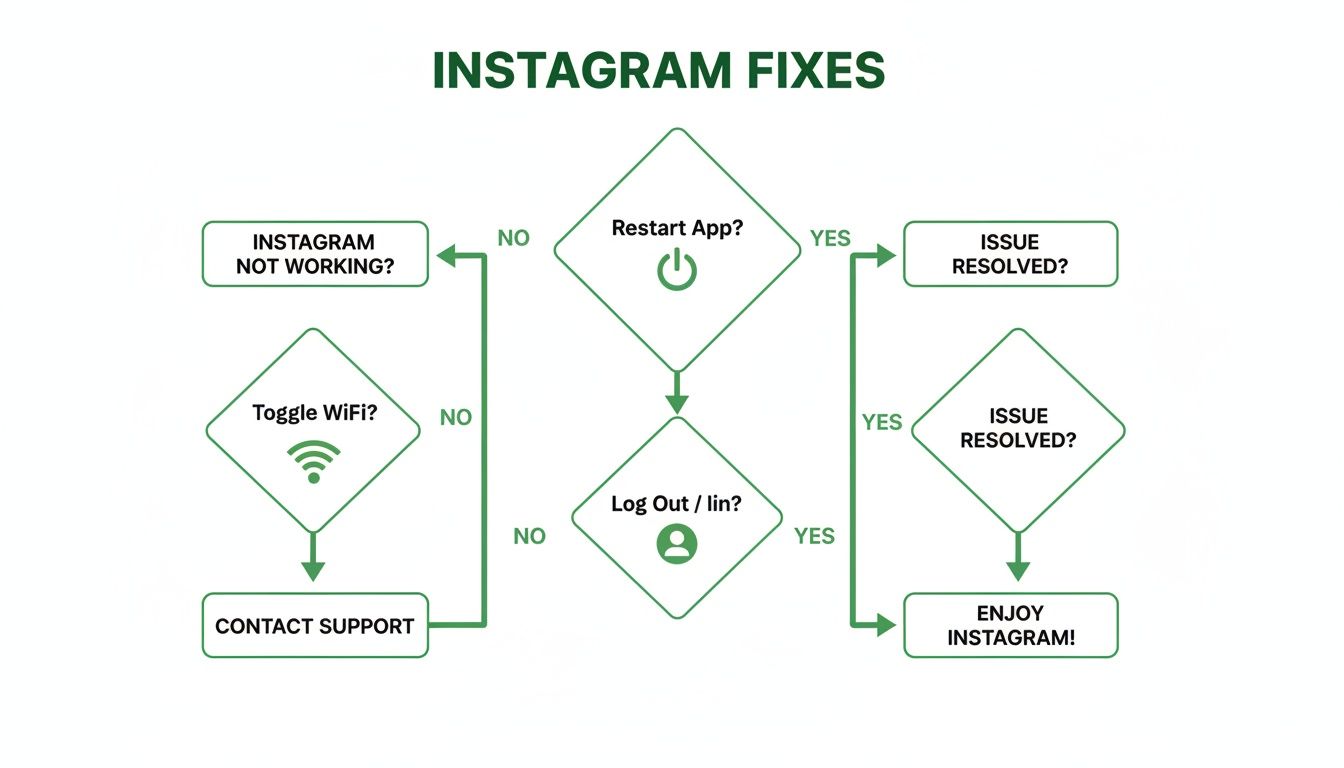
If you've gone through these basics and are still staring at the same old posts, don't worry. The next steps are more targeted and almost always get things working again.
Solutions for Android Users
One of the great things about Android is the level of control it gives you over individual apps. When Instagram is acting up, this is a huge advantage. Our first move is a simple but powerful one: clearing the app's cache.
Think of the app cache as a digital junk drawer. Instagram throws temporary files in there—like thumbnails and profile pictures—to make things load faster next time. But over time, that drawer gets cluttered, and some of those files can get corrupted, leading to the exact refresh issue you're seeing.
To give it a quick clean-up:
Head into your phone’s Settings.
Tap on Apps (or Application Manager, depending on your device).
Scroll to find and select Instagram.
Choose Storage & cache, then hit the Clear Cache button.
This doesn't touch your login info or any important data; it just tidies up the temporary files.
If that didn't do the trick, it's time for the next level: Clear Data. This is a much bigger reset. It wipes the app's local data clean, effectively returning it to the state it was in when you first installed it. You'll be logged out and will have to sign back in.
Don't panic! Clearing data sounds scary, but it won't delete your account, your photos, or your DMs. All of that is safe and sound on Instagram's servers. This step just forces the app on your phone to start over from scratch.
Solutions for iOS Users
If you're on an iPhone, you've probably noticed there's no "Clear Cache" button. Apple handles things differently, but they have an equally effective tool called Offload App.
Offloading is a neat trick. It deletes the Instagram app itself but carefully preserves all your personal data and settings right on your phone. When you reinstall it, the fresh app just picks up where the old one left off. It's the perfect way to fix a corrupted app without losing anything.
Here’s how you do it:
Go to Settings > General > iPhone Storage.
Wait for the list to load, then scroll down and tap Instagram.
Tap the Offload App and confirm your choice.
After a moment, the button will change to Reinstall App. Tap it.
This process downloads a brand-new, clean version of Instagram from the App Store, which usually resolves any deep-seated glitches causing the refresh problem. If you're curious about the technical side of how your feed gets populated, the official Instagram Timeline API guides offer a glimpse into how the data is pulled.
Check App Permissions and Device Settings
Sometimes, the problem isn't with the app itself but with a device setting that's getting in the way. If your feed is still not refreshing, there are a couple of final things to check on both iOS and Android.
Make sure Background App Refresh (on iOS) or Background data usage (on Android) is turned on for Instagram. This permission lets the app fetch new content in the background, so your feed is ready to go when you open it.
Also, take a look at your battery settings. If your phone is in an aggressive Low Power Mode (iOS) or Battery Saver (Android) mode, it might be restricting Instagram's ability to use data to save juice. Try turning that mode off for a few minutes and see if your feed comes back to life.
Solving Refresh Problems on Your Web Browser
That frustrating "couldn't refresh feed" error isn't just a mobile problem. When you're scrolling through Instagram on a desktop or laptop, a completely different set of issues can pop up. If the app on your phone is working just fine but the website won't budge, the problem is almost certainly living in your browser.
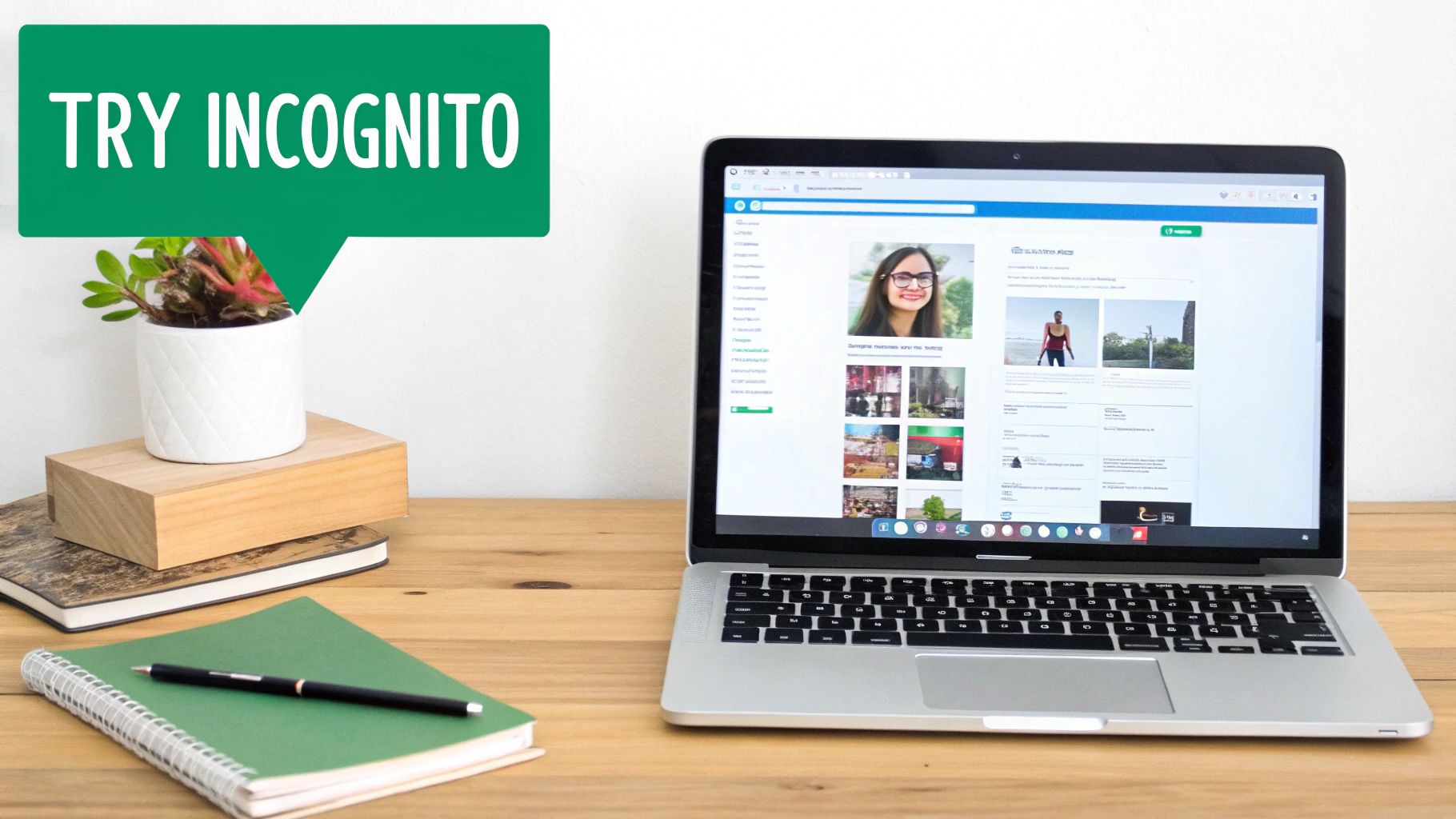
Unlike the self-contained app, your web browser is a busy place, juggling data from every site you visit. This can sometimes create conflicts that stop Instagram from fetching new content. The good news? These browser-specific glitches are usually pretty straightforward to fix.
Target and Clear Your Browser Cache
Your browser saves little pieces of websites in its cache to make them load faster next time. But sometimes, the cached data for Instagram gets old or corrupted, trapping you in a refresh loop. Instead of nuking your entire browsing history and getting logged out of everything, you can do a much more surgical strike.
Most modern browsers, like Chrome and Firefox, let you clear the cache and cookies for just one specific site.
Head into your browser's settings.
Look for the "Privacy and security" section.
Find an option like "Site Settings" or "Cookies and Site Data."
From there, you can search for "instagram.com" and remove only its data.
This is a much cleaner approach that solves the problem without the hassle.
The Extension Interference Test
Browser extensions are amazing, but some can be a little overzealous. Ad blockers, privacy tools, and even some productivity extensions can accidentally interfere with the scripts Instagram relies on to load your feed. They might mistake a key part of Instagram for an ad or tracker and block it, leaving your feed frozen.
The quickest way to diagnose this is by opening an incognito or private browsing window.
Why Incognito Works: This mode typically loads a clean slate by disabling most of your extensions by default. If Instagram suddenly works perfectly in an incognito window, an extension is almost certainly the culprit.
If that test works, head back to your normal browser window. Start disabling your extensions one by one, giving Instagram a refresh after each one. It's a simple process of elimination that will quickly reveal which add-on is causing the Instagram not refreshing issue. You can then decide whether to disable it just for Instagram or tweak its settings.
What to Do When the Problem Is Not on Your End
You’ve tried everything. You restarted the app, rebooted your phone, and even did a full reinstall, but your Instagram feed is still stuck in the past. If you’ve gone through all the usual troubleshooting steps, it’s time to consider that the problem might not be on your end at all.
Sometimes, the issue is much bigger than your device—it's happening on Instagram's side.
Checking for Widespread Outages
Before you waste any more time digging through your phone's settings, it's smart to check if Instagram itself is down. While asking a friend or checking X (formerly Twitter) can give you a hint, a dedicated service like Downdetector is far more reliable.
These sites crowdsource data from users in real-time. If you see a sudden, massive spike in reports, you've found your answer. The problem is widespread, and there’s nothing you can do but wait it out.
A quick look at a service status website will usually show you:
A live outage map pinpointing where the issues are concentrated.
A timeline of reports showing when the problems began.
User comments describing the specific errors they're seeing.
If the evidence points to a major outage, just step away. Instagram’s engineers are undoubtedly scrambling to get things back online.
When the Platform Itself Is the Problem
Server outages are obvious, but sometimes the problem is more subtle. Instagram is constantly tinkering with its features and algorithm, and these rollouts can cause unexpected bugs that mimic a simple refresh error. Your feed might look frozen, but you could be experiencing the side effects of a new software deployment.
We've seen this happen before with major platform shifts. For example, the way hashtags work for content discovery has changed completely. In early 2024, Instagram CEO Adam Mosseri even stated that hashtags are no longer a primary driver for reach. The algorithm now focuses on things like keywords in your captions, how many people save your post, and share activity. You can get a better sense of these recent Instagram updates to see how the platform is evolving.
When huge algorithmic shifts happen, a little instability is almost expected. The app is re-learning how to serve content to billions of people, and that process is rarely seamless.
In these situations, the only real fix is patience. While you wait for things to stabilize, it’s a good idea to keep an eye on your account's health. You can learn how to monitor your Instagram account status with our guide to make sure your profile hasn't been flagged for other reasons while the platform works through its own issues.
How to Prevent Instagram Feed Issues in the Future
The best way to deal with the “couldn’t refresh feed” error is to make sure you never see it in the first place. Instead of scrambling for a fix when things go wrong, a little proactive care can keep your Instagram experience smooth and uninterrupted.
This isn’t about diving into complex settings. It’s more like basic digital hygiene—a few simple habits that prevent problems before they start. Think of it like a quick tune-up for one of your most-used apps.
Adopt Proactive App Maintenance
One of the easiest things you can do is periodically clear your app's cache. If you're on Android, you can do this directly in your settings. For iOS users, the equivalent is to offload and then reinstall the app. You don't need to do this every day, but making it a monthly routine can stop corrupted temporary files from building up, which is a common culprit behind the Instagram not refreshing bug.
Also, keep everything up to date. This means both the Instagram app itself and your phone’s operating system. Developers are constantly pushing out updates with bug fixes and performance tweaks that directly target stability. The simplest way to handle this? Just turn on automatic updates and forget about it.
The Importance of Consistent Activity
This might sound strange, but how you use your account can actually affect how well the app performs for you. Instagram's algorithm is designed to prioritize active, engaged accounts. If you disappear for a while, you might find that your feed feels glitchy or slow when you come back.
This is especially critical for creators. When an account goes dormant, the algorithm often hits a reset button on its visibility, making it much harder for your content to reach people. To keep your content fresh and in front of your audience, learning how to get more views on Instagram Stories is a great place to start.
A good rule of thumb for creators is to post three to four times a week. This consistency signals to the algorithm that your account is active and relevant, which can lead to a healthier, better-performing app experience overall. You can find more details about how the algorithm favors active accounts on YouTube.
By pairing these simple maintenance habits with a consistent posting schedule, you create a much better environment for your Instagram account, making those frustrating refresh errors a lot less likely to pop up.
Ready to stop worrying about glitches and start focusing on growth? Gainsty uses advanced AI and expert strategies to help you gain real, engaged followers organically. Grow your Instagram presence safely and effectively. Start growing with Gainsty today!
.png&w=1920&q=75&dpl=dpl_34ZXCf12K5qjjdZjPn9snwDRADrB)





.png&w=750&q=75&dpl=dpl_34ZXCf12K5qjjdZjPn9snwDRADrB)