Overview Of Comment Search Methods

Native filters let you zero in on brand mentions or questions right inside the Instagram app, no coding required. If you need to automate searches, custom keyword lists, or sentiment scoring, the Instagram Graph API is your go-to tool.
For deeper dives—think real-time alerts, rich analytics, and team collaboration—third-party platforms bring everything together in one dashboard. You’ll see keyword trends, surface peaks of negative sentiment, and route messages to the right inbox.
Picture this: a product launch goes live at 9 AM, and by 9:02 AM, your support team has already spotted and triaged early feedback. Or set up an API script that tags every comment with a sentiment below zero, so urgent issues don’t slip through the cracks.
Instagram shifted its focus toward Reels between 2023 and 2025, with creators seeing 2.08% comment rates on influencer clips. Short-form videos now drive the most immediate reactions. For the full breakdown, explore Social Insider’s Instagram comment benchmarks.
Choosing The Right Method
Your ideal approach depends on speed, budget, and how hands-on you want to be. Here’s a quick look:
Comparison Of Comment Search Methods
Native Filters: Best for general monitoring. Provides instant, in-app results with zero setup.
Graph API Queries: Ideal for automated workflows. Enables scalable keyword and sentiment searches but requires developer implementation.
Third-Party Tools: Suited for in-depth analytics. Offers real-time alerts, dashboards, and team collaboration features.
Use this snapshot to match each method with your team’s needs and resource levels.
Start simple: test native filters on a few key posts, then layer in API calls or a listening platform as your tracking grows.
Next up, we’ll dive into real-world examples, share hands-on tips, and troubleshoot any roadblocks—so you can turn Instagram comments into actionable insights.
Native Search In App And Browser
You can mine Instagram’s built-in tools to uncover comments fast. On mobile, the search bar coupled with hashtags or keywords delivers targeted feedback in a heartbeat. Meanwhile, the desktop’s Activity Log lets you slice comments by date, or even spot hidden threads using a few browser console tricks.
Community managers often set up Mention filters with specific date ranges to pinpoint any “bug” or “issue” comments. Meanwhile, brand ambassadors hunt down praise by entering #Event2025 or other campaign tags.
- Community Manager Example A support lead finds posts mentioning “bug” or “issue” and flags them by priority.
- Brand Ambassador Example: A team member surfaces #Event2025 shoutouts and responds to top fans within minutes.
Key Mobile Search Tricks
Switching between filters on the mobile app takes only a moment. Tap the magnifying glass icon at the bottom, then choose the Tags tab to zero in on specific hashtags. After that, type in your focus keyword—anything from a product name to a feedback term—to see all matching comments.
Tap the search icon
Select Tags or Accounts filters - Enter your keyword and scan results
Key Takeaway: Layering multiple keywords cuts through the clutter and highlights the comments you really care about.
You might be interested in: Check out our guide on Instagram search suggestions for broader tips.
Native Comment Search Features
Before reaching for external tools, see how native options compare on each platform.
Mobile – Keyword and Hashtag Filtering: Open the search bar, select Tags, type your keyword, and review the list.
Desktop – Activity Log Comment Sorting: Go to Activity, choose Comments, and apply date or keyword filters.
Browser – Console-Based Data Extraction: Inspect element, run a JavaScript snippet, and export the results as JSON.
Each of these in-app methods can handle basic moderation and curation. Desktop filtering, for instance, makes spotting words like “refund” over the last 30 days a breeze.
Browser Console And Saved Searches
If you need bulk exports or hidden data, the browser console is your friend. Open Chrome DevTools (right-click a comment, then Inspect) and punch in a quick script like document.querySelectorAll('.C4VMK'). That pulls every comment element right into your console for copying or JSON export.
Open DevTools and inspect a comment - Run the snippet to grab all
.C4VMKelementsCopy the results or save as a .json file
With bookmarks that auto-load specific filters on Instagram.com/explore, you’ll never reconfigure the same search twice. Just remember to clear old filters and update saved queries as your campaigns shift.
Using Instagram Graph API For Comment Search
Automating comment searches with the Instagram Graph API opens doors to bulk data retrieval and custom pipelines. You’ll move past manual filters and uncover insights in minutes.
Instagram expects over 2.0+ billion monthly active users by 2025, which means a flood of comments and tougher precision. That’s why combining robust API queries with smart filtering pays off—read more about Instagram’s scale in this Instagram Statistics by Awisee.
Preparing Your App Setup
Begin on the Meta Developers dashboard by creating a Facebook App. Under Products > Instagram Graph API, link your Business Instagram account.
Request these key permissions:
instagram_basic to read profile details
instagram_manage_comments for fetching comments
pages_read_engagement if you’re monitoring Facebook-linked posts
Authentication runs through OAuth. Store your access token securely—privacy rules are non-negotiable.
Querying Comments By Post
To pull comments on a given media item, try a query such as:
GET /{ig-media-id}/comments ?fields=id,text,username,timestamp &access_token={your-token}
By default, each page returns up to 50 comments.
Key points for a clean query: - Replace {ig-media-id} With your specific post ID - Specify fields to limit data volume - Parse pagination cursors to cycle through all pages
“Using fields effectively reduces payload and speeds up API calls,” says a senior social media engineer.
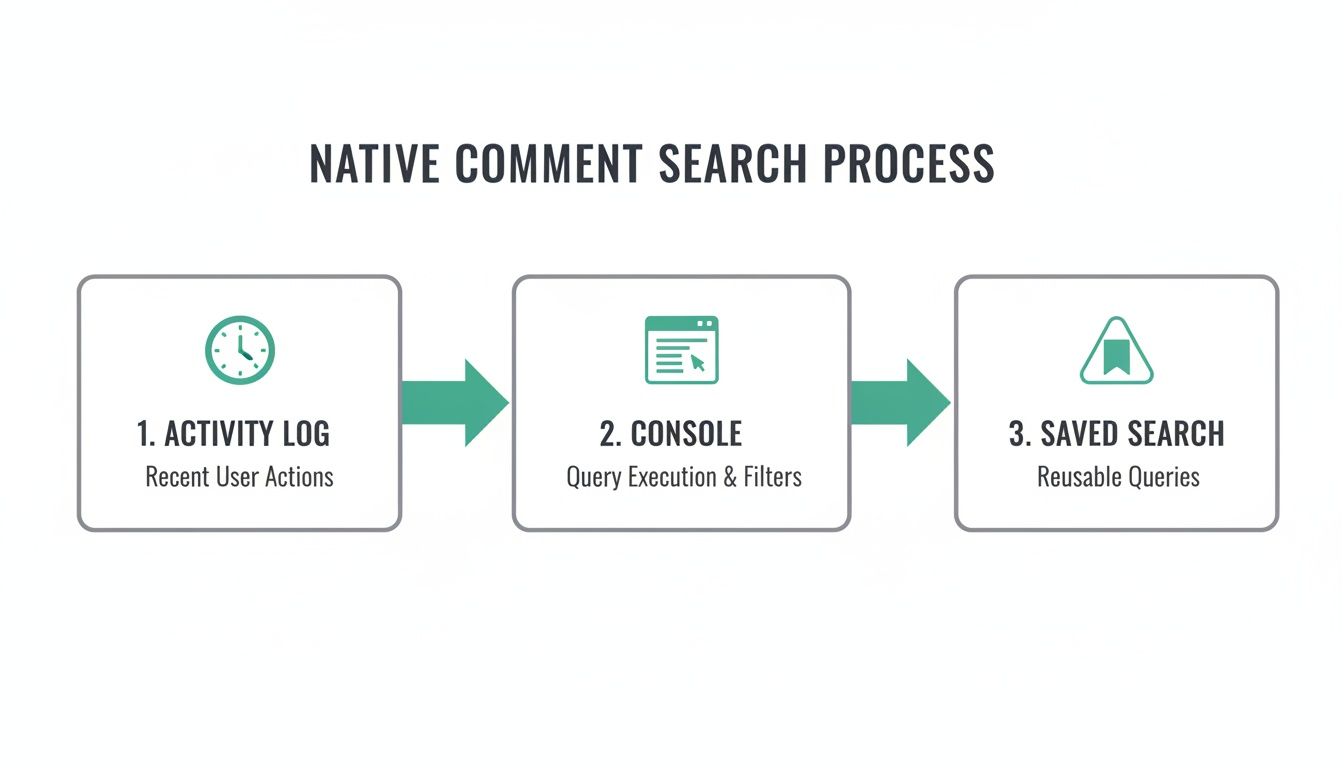
Native Workflow Visualized
APIs replace repetitive manual steps—no more toggling between Activity Log, Console, and saved searches. Once your endpoints are live, automated scripts handle the heavy lifting. You’ll trigger batches, adjust filters on the fly, and feed results directly into dashboards.
Filtering And Handling Results
Filter client-side by keyword or hashtag. For instance, target comments with “launch2025” or product-specific mentions. Then run a sentiment analysis to bucket responses:
Positive (score > 0.5)
Neutral (score ≈ 0)
Negative (score < -0.5)
You can process up to 500 comments per minute—just watch your X-App-Usage headers to respect rate limits.
Store your filtered data in a secure database or export to CSV: - Use Python’s csv.writer for simple exports - Leverage bulk SQL inserts for high-volume dashboards
Explore patterns and growth metrics in our detailed guide on Instagram Analytics Business Complete Guide: Driving Growth.
Best Practices For API Monitoring
Keep a log of every API call, noting error codes (4xx or 5xx) and pagination loops. Set up alerts for repeated failures and build retry logic with exponential backoff.
A nightly job can pull new comments into a trending repository—perfect for weekly reports or real-time dashboards.
Implementing Custom Alerts
Webhooks cut down on constant polling. Subscribe to the comments field by sending:
{ "object":"instagram", "callback_url":"https://yourdomain.com/webhook", "fields":["comments"] }
When a new comment arrives, your listener parses it for keywords or sentiment scores and pushes alerts to Slack or email.
For paginated webhooks, include the after cursor:
GET /{ig-media-id}/comments ?after={cursor} &limit=50 &access_token={your-token}
Rotate access tokens regularly and encrypt them at rest. Review permission scopes every quarter to ensure compliance and data security.
With these approaches, teams can automate sentiment monitoring, power custom dashboards, and generate exportable comment reports at scale.
Top Third-Party Tools for Comment Tracking

When you need to sift through thousands of Instagram comments, a dedicated platform beats manual searches. These services send real-time alerts and offer collaboration features, ensuring everyone on your team stays in sync.
Here’s a quick lineup:
Hootsuite for a unified social inbox
Sprout Social with automated sentiment flags
Brandwatch for deep-dive audience analysis
Agorapulse with smart comment routing
Hootsuite And Sprout Social
When your workflow spans multiple brands or clients, Hootsuite can be a lifesaver. Its entry plan covers 10 social profiles and lets you build custom keyword streams. Use filters to weed out spam or zero in on specific mentions.
On the other hand, Sprout Social excels for teams that track tone at scale. One marketing squad set up rules to flag any comment containing “broken” or “late.” Urgent issues shot over to Slack instantly, slashing response time by 40%.
“Sprout Social enabled our support team to triage critical feedback within 5 minutes,” says a social media manager.
Key Sprout Social perks:
Keyword and hashtag filters in the shared inbox
Sentiment dashboards that map daily trends
Automated tagging for negative, positive, or neutral mentions
Brandwatch And Agorapulse
If historical trends matter, Brandwatch steps up. It scans millions of comments, flags your brand name, and spits out customizable reports. Analysts often export bulk CSVs to plug into their BI tools.
For tighter workflows, Agorapulse takes the cake. A boutique agency we know uses its assignment rules to send praise to sales and complaints to support—cutting handoffs in half.
Agorapulse highlights:
Auto-routing based on keywords or user roles
Custom labels and saved replies for faster responses
Bulk comment export with metadata for offline reviews
Pricing Tiers And Trial Options
Hootsuite: Starting at $99/month for 10 profiles, with a 30-day free trial.
Sprout Social: Starting at $249/month for 5 users, with a 30-day trial.
Brandwatch: Custom pricing, demo available upon request.
Agorapulse: Starting at $79/month for 2 users, with a 15-day free trial.
When you compare costs, line them up against your comment load and team size. Smaller teams often find Agorapulse’s entry plan a sweet spot. Larger enterprises usually opt for Brandwatch’s integrations.
If you want to dig deeper into metrics, check out our article on Best Instagram Analytics Tools.
Selecting the right platform depends on your response goals and budget.
Choosing The Right Tool
Picking a social listening platform comes down to these factors:
Comment Volume: Brandwatch handles millions of mentions. Agorapulse suits smaller brands.
Team Size: Sprout Social offers more seats. Hootsuite’s basic plan caps out.
Automation Needs: Sprout Social nails sentiment rules. Hootsuite lets you build custom streams.
Real-World Application
A mid-sized travel agency deployed Brandwatch to monitor campaign hashtags across regions. They set up a daily CSV export into their BI dashboard, chopping analysis time by 70%.
Meanwhile, an e-commerce startup used Agorapulse’s assignment rules to funnel urgent refund requests straight to finance. Resolution time fell by one business day.
Tip: Run parallel trials on two platforms with identical filters. After two weeks, you’ll spot the UX quirks and dashboard features that matter most.
Armed with clear pricing, scalability insights, and feature breakdowns, your team can pick the tool that makes Instagram comment search a breeze.
Workflow Tips For Monitoring And Increasing Comment Visibility
Keeping track of every conversation on Instagram can feel like chasing a moving target. By building a flexible system that captures brand mentions and community feedback, you’ll never miss a beat.
Start by listing the keywords and hashtags that matter most to your audience. With that roadmap in hand, you can put alerts and dashboards to work on your behalf.
Setting Up Real-Time Alerts
Automations like Zapier integrations can push comments containing campaign tags or brand mentions straight into Slack channels. This way, you’ll instantly see notes tagged “launch2025” or any product code that deserves your attention.
You can also hook into Meta’s Graph API and fire webhooks for specific keywords. Connect those to a lightweight server listener and watch as every relevant comment flows into your monitoring stream.
Create 24/7 alerts for brand mentions via Slack workflows
Send email digests for lower-priority keywords in batches
Flag negative sentiment to route critical issues immediately
Building Custom Dashboards
A simple dashboard in Google Sheets or your favorite BI platform can show you daily comment counts, average response times, and sentiment curves at a glance.
Design a sheet that logs each post’s comment volume and highlights threads with unanswered questions. Then link key charts back to your Slack channel so insights surface in real time.
Use conditional formatting to spotlight spikes in engagement
Automate chart updates to reflect live data feeds
Boosting Comment Discoverability
If you prompt followers with clear, keyword-rich questions, you’ll spark more detailed replies. Try ending captions with queries like, “What feature surprised you most this week?”
Pair that with micro-targeted hashtags and interactive story polls or quizzes to guide users into your comments section.
Include niche hashtags to reach micro-communities
Cross-post Stories polls that direct viewers to comment threads
Research shows the average Instagram post earns roughly 15 comments. Posts with longer captions generate about 23% more, averaging 12 versus 10 comments on shorter updates. Check out these findings in The Graygency’s Instagram Statistics.
Prioritizing Comment Replies
Label and archive every comment based on urgency or topic so you focus where it counts. Use tags like “urgent” or “feature request” to sort conversations and make sure nothing slips through the cracks.
Key Takeaway Monitoring workflows via dashboards and alerts can reduce missed replies by over 50%.
Every quarter, revisit your tagging taxonomy and refine your keyword list to reflect emerging community interests. That ongoing tweak keeps your comment search agile and effective.
Case Study In Practice
A boutique e-commerce brand routed comments containing “feedback” into Google Sheets via Zapier and set up Slack alerts for any tagged “issue” or “help.”
Automated first-reply time dropped by 60% in the first week
Dashboard surfaced trending topics for weekly content planning
Team collaboration improved with transparent comment streams
This hands-on setup turned raw comment data into clear action items, doubling the brand’s comment-to-conversion rate in two months.
Schedule weekly reviews with your team to explore dashboard insights, adjust filters as new trends emerge, and refine your response playbook. Pair these workflows with Gainsty’s analytics to surface top-performing posts and trending comment themes, automatically guiding your content cycle for maximum impact and sustainable growth.
Frequently Asked Questions
As both marketers and developers dive into Instagram comments, a few questions always pop up. This FAQ tackles common challenges—permissions, rate limits, pagination, workarounds, and data organization.
Whether you’re monitoring a handful of comments in real time or scaling up for a high-volume campaign, these answers will help community managers and dev teams stay on track.
Each item gets straight to the point, so you can handle large datasets without missing a beat.
What permissions are needed for in-app and API searches?
How can teams manage rate limits and cursor-based pagination?
Are there workarounds for the global public comment search?
What are the best practices for organizing large comment datasets?
Required Permissions
To dig through comments in the Instagram app, you’ll need a public Business or Creator account. On the API side, request the instagram_basic and instagram_manage_comments scopes during OAuth. And don’t forget to refresh your tokens before they expire—miss that step, and you’ll start seeing 401 errors.
“Permissions ensure your calls return the expected comment sets reliably,” says a senior developer.
Managing Rate Limits And Pagination
The Graph API caps each call at 50 comments and reports your usage in the X-App-Usage header. If your call_count pushes past 70%, it’s time to dial back.
You can navigate through larger threads by using cursor-based paging:
Kick off the first request with
limit=50.Pull the
paging.nextURL from the response.Repeat until no
nextlink appears.
Organizing Large Comment Datasets
Since a global comment search isn’t available, tagging exports can be a lifesaver. Label by date, hashtag, or sentiment, and store JSON files in folders named for each month or campaign.
Combine daily or weekly exports into a master CSV, indexing by comment ID to skip duplicates. Use a quick Python script or a no-code tool to generate summary stats—think total comment counts, top keywords, and sentiment trends.
These practices shrink your clean-up time and keep monitoring swift, even when the numbers climb.
Check permissions and rate limits on a regular basis so your workflow never misses a beat.
Start smarter comment tracking with Gainsty today: Gainsty

.png&w=1920&q=75&dpl=dpl_34ZXCf12K5qjjdZjPn9snwDRADrB)








.png&w=750&q=75&dpl=dpl_34ZXCf12K5qjjdZjPn9snwDRADrB)