Why GIFs Are Your Secret Weapon for Instagram Engagement
On a feed packed with beautiful but static images, anything that moves is going to catch someone's eye. GIFs aren't just a quirky trend; they're a surprisingly powerful tool for getting people to stop scrolling and pay attention. They inject personality into your brand and make your content feel more alive.
At their core, animated GIFs work because they spark an immediate emotional reaction, making your point stick.
The Power of Dynamic Visuals
Just think about the last time a funny reaction GIF in a friend's Story made you crack a smile. That little moment of connection is accurately what you're aiming for as a creator or brand.
Unlike a highly produced video, GIFs feel casual and authentic. They have a raw, low-effort vibe that helps break down the wall between you and your audience. You could almost call them the visual equivalent of an inside joke.
This is especially true when you use them with interactive stickers. When you add a GIF to a Q&A or a poll, you're not just answering—you're creating a fun little experience that feels personal. That one simple move can help turn passive lurkers into an active community.
Since Instagram Stories first launched in 2016, GIFs have become a go-to way to spark engagement. According to a Meltwater analysis of Instagram trends, 62% of users report feeling more interested in a brand after seeing it in a Story. A well-placed GIF makes that interaction even more effective by instantly setting the mood.
The real magic of posting GIFs to Instagram isn't just about adding motion. It's about communicating emotion, humor, and relatability in a format that feels completely natural to the platform and connects with people on a deeper level.
Building a Relatable Brand Voice
Choosing the right GIFs is a masterclass in brand-building. Are you witty? Supportive? High-energy? The GIFs you pick can say all of that without you ever typing a word.
This is your shot to stand out from competitors who might be playing it safe with a more corporate or generic feel. These small, dynamic visuals are your secret to forging a genuine connection with your followers.
Using GIFs Natively in Instagram Stories and DMs

Honestly, the quickest way to get started with GIFs on Instagram is by using the features already built into the app. Thanks to a direct hookup with GIPHY, you can drop animated stickers right into your Stories and Direct Messages. It’s a super simple way to turn a basic photo or video into something far more dynamic and fun.
This is the go-to method for most people, and it makes sense why. There's no need to mess with third-party apps or figure out file conversions. You can add a splash of personality to your content in just a few seconds.
Finding the Perfect GIF for Your Story
When you tap the sticker icon in your Instagram Story, you'll see the GIF option. This little button opens up a massive, searchable library of animations. The real skill here isn't just finding a GIF but finding the right one.
My advice? Think beyond single-word searches. Instead of just typing “happy,” try a phrase that captures the exact vibe you're going for, like “excited dance” or “good vibes only.” You'll be surprised by the unique options that pop up.
Here are a few search tactics I use all the time:
Add Descriptive Words: Try adding “sparkle,” “neon,” “retro,” or “minimalist” to your main keyword. This helps you find GIFs that match your brand’s aesthetic.
Search by Creator: Many GIF artists have their own unique style. If you spot a GIF you love, check the artist's name and search their GIPHY username (like “@giphystudios”) to see their whole collection.
Find Transparent Stickers: Add “sticker” or “transparent” to your search. This filters for GIFs without a solid background, making them perfect for layering over your photos and videos without looking clunky.
Once you’ve picked your GIF, you can pinch to resize it, drag it around, or just tap it to flip its orientation. These simple controls give you a ton of creative freedom. For a deeper dive, refer to our complete Instagram Story guide for more advanced tricks.
Layering and Positioning GIFs for Impact
A single, well-placed GIF can definitely grab attention, but layering a few of them together can create a truly memorable story. The key is to avoid making it look like a chaotic mess.
Let's say you're a local coffee shop posting about a new latte. You could add a subtle “steam” GIF rising from the mug, a sparkling “New!” sticker next to it, and maybe a little blinking arrow pointing to a poll sticker. Each GIF has a job, guiding your viewer’s eye exactly where you want it to go.
Pro Tip: Pinning GIFs to moving objects in a video is an absolute game-changer. Just press and hold the GIF, drag it onto the object you want it to follow in your video, and hit "Pin." The GIF will stick to that object as it moves, creating a really professional and polished effect.
Using GIFs to Build Relationships in DMs
GIFs aren't just for public-facing Stories; they're a wonderful tool for building your community in Direct Messages. A quick, funny GIF can make an otherwise formal chat feel friendly and personal, which is huge for earning follower loyalty.
For example, a fitness coach could send a “You got this!” GIF to clients in a group DM right before a tough workout. Or a brand could welcome a new follower with a fun “Welcome to the club!” animation instead of a boring, automated text message. These little touches go a long way in making people feel seen, turning them from passive followers into true fans.
GIF Usage Across Different Instagram Features
To help you decide where your animated content will have the most impact, here’s a quick breakdown of how GIFs function across the platform.
Stories
You can use native GIPHY stickers or pin GIFs directly to moving objects in your video Stories. This is great for adding personality, highlighting calls-to-action, or creating dynamic, attention-grabbing scenes. Engagement is typically high because Stories are interactive and visually appealing.
Feed Posts
For feed posts, you can convert a GIF into a looping video (MP4) and upload it. This works best for high-quality branded animations, meme-style content, or product showcases. Engagement potential is moderate to high, as looping videos catch attention but require followers to pause and watch.
Reels
GIFs can be converted to video or added as GIF-style stickers in Reels. This is effective for quick visual gags, adding reactions, or enhancing storytelling in short-form content. Engagement is generally high since Reels are prioritized by the algorithm for discovery.
Direct Messages (DMs)
You can use the native GIPHY keyboard to send GIFs in DMs. This method is ideal for building relationships, expressing emotion, and personalizing communication. Engagement is high for community interactions, as GIFs make messages more relatable and memorable.
This shows that while Stories and DMs offer the most straightforward way to use GIFs through native integrations, converting your GIFs to video format for the Feed and Reels unlocks new opportunities for brand-building and reaching a wider audience. Choosing the right feature depends entirely on your goal for that specific piece of content.
How to Post GIFs on Your Instagram Feed and Reels
So you’ve tried to post a killer GIF to your Instagram feed, only to be met with an error message. It's a common frustration. The simple truth is that Instagram’s Feed and Reels just don't play nice with the .gif file format. But don't give up—there's an easy workaround that every creator should know.
The secret? Convert your GIF into a short, looping video. An MP4 file is your best bet. Instagram loves video, and an MP4 will loop seamlessly, giving you the exact look of a GIF while fitting perfectly into the platform's rules. Once it's converted, you can post it just like any other video.
The Conversion Process Made Simple
Turning a GIF into an Instagram-ready video is way easier than it sounds. You don’t need fancy, expensive software. Several free and intuitive tools can get the job done in seconds, basically just repackaging your animation into a video format that Instagram understands.
Here are a couple of my go-to options:
Online GIF to MP4 Converters: Sites like Ezgif or CloudConvert are lifesavers. You just upload your GIF, choose MP4 as the output, and download the new video file straight to your phone or computer. No installation, no fuss.
Mobile Converter Apps: For creating on the fly, apps like GIPHY CAM or ImgPlay are fantastic. They often come packed with extra editing features, letting you add filters, text, or tweak the speed before you export.
No matter which tool you pick, the steps are just about the same: upload the GIF, confirm your settings (most have presets ready for social media), and save your new MP4. Now you're ready to post.
Optimizing Your GIF for the Instagram Feed
You've got your MP4 file. Great. Now, posting it is just like sharing any other video, but there's one crucial step that can make or break your post's performance: the cover image.
This is the thumbnail people will see on your profile grid before the video starts playing. If it's a blurry, awkward, in-between frame, you're going to lose many potential views.
Pro Tip: Never let Instagram pick a random frame for your cover. On the final posting screen, tap "Cover" and manually scrub through the video to find the sharpest, most compelling frame. A great cover is what earns you the tap.
Think of it as the cover of a book. It needs to be intriguing and give a clear idea of what's inside. If you’re a brand, pick a frame that showcases your product clearly. If you're a creator, choose a frame that captures the peak emotion or the most interesting part of the action.
Maximizing Reach with GIFs in Reels
Using your converted GIF as an Instagram Reel is a brilliant move for visibility. The Reels algorithm is hungry for short, snappy, looping content, and your converted GIF fits the bill perfectly. But to really get a boost, you need to think like a Reels creator.
That means adding trending audio. A silent reel is a dead reel; it's just not going to get the same push from the algorithm. Find a popular song or sound that matches the vibe of your GIF, and you'll dramatically increase your chances of landing on the Explore page. To really make an impact, you should be using powerful hooks for Instagram Reels to stop the scroll from the very first second.
For example, imagine a coffee shop has a cool animated GIF of latte art being poured. By converting it to an MP4 and layering a trending “cozy morning” audio clip over it, they've turned a simple animation into a shareable, algorithm-friendly Reel that can reach a massive new audience. It's these small, strategic steps that make all the difference.
Creating and Uploading Your Custom GIFs
While using Instagram's built-in GIPHY library is fine for a quick reaction, creating your own custom GIFs is how you build a truly memorable brand. It's the difference between joining a conversation and starting one. Just imagine your followers sharing GIFs of your products, your logo, or even your team's inside jokes—it’s a seriously powerful way to boost recognition and get people creating content with your brand at the center.
And you don't need to be a design wizard to pull it off. Tools like Canva have made it incredibly easy to turn short video clips into clean, looping animations. Whether it’s a snippet of your perfect latte art, a quick product demo, or a funny reaction from a team meeting, you can have a branded GIF ready to go in minutes.
Making Your GIFs Searchable on Instagram
The real magic kicks in when your custom GIFs become publicly searchable right inside the Instagram app. This means not just you, but your entire audience, can find and use your branded animations in their Stories. To make this happen, you have to go through Instagram’s official partner, GIPHY.
The whole process boils down to a couple of key things:
Set up a GIPHY Brand Channel: This isn't your average personal account. It's a verified channel for businesses and artists, so you'll need to apply and meet a few requirements, like having a professional website. GIPHY is pretty serious about keeping its library full of high-quality, legit content.
Upload and Tag Everything: Once your channel gets the green light, you can start uploading your creations. This next part is crucial: tagging. You have to think like your audience. What keywords would they* search for to find your GIF? Mix it up with branded tags (like your company name) and broader, searchable terms (like “good morning coffee” or “celebration dance”).
No matter if you're posting to your Feed or Reels, the core technical step is always the same: your GIF file has to become a video.
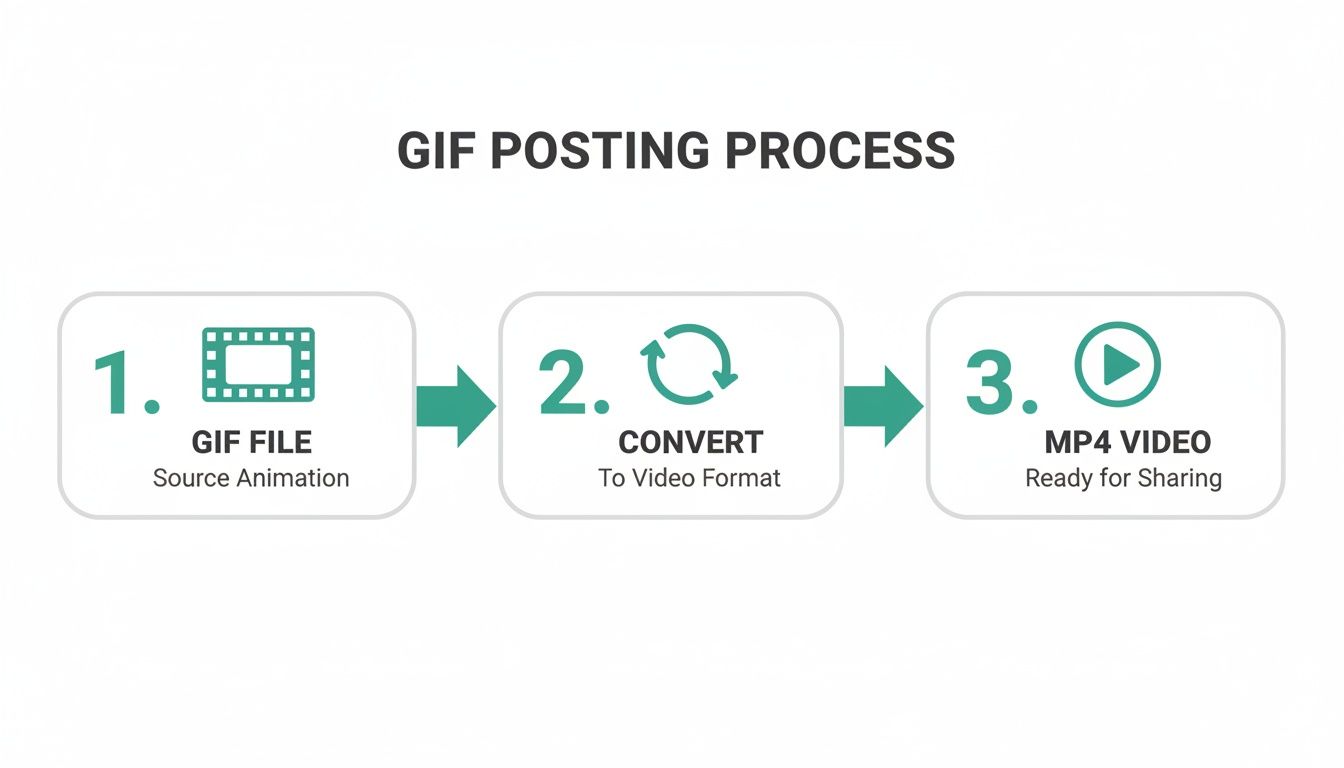
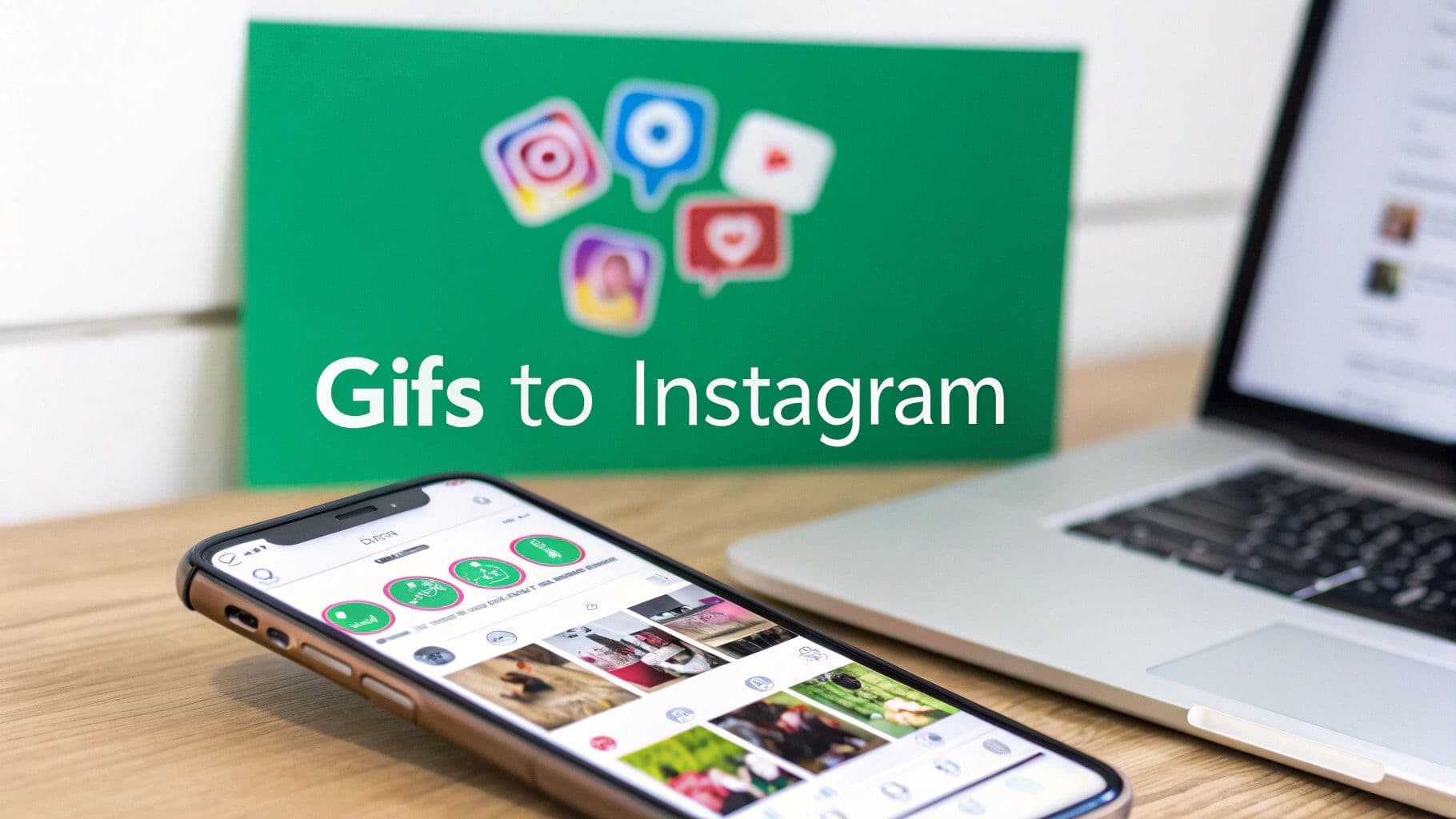
This graphic actually shows that essential conversion from a .gif file into an .mp4 video—the only format Instagram will recognize for those types of posts.
A Powerful Strategy for Brand Identity
Having your library of custom GIFs is way more than just a fun gimmick; it's a strategic asset. Think about how much GIFs changed the game when they were first added to Stories. For brands, creators, and agencies, custom GIFs are perfect for setting the mood around a launch or big announcement, driving a ton of interest without the heavy lift of full-on video production.
By creating a branded GIPHY channel, you are essentially building a library of free, interactive advertisements that your biggest fans will willingly share on your behalf. Every time a follower uses your custom GIF, they are exposing their network to your brand in an authentic, engaging way.
This strategy also lets you create animated stickers, which are just GIFs with transparent backgrounds. They're perfect for layering over photos and videos without covering everything up. If you want to dive deeper into that specific format, take a look at our guide on how to make an Instagram sticker for your brand. It’s a great way to keep your visual identity sharp and professional, even when it’s your audience doing the posting.
A Smart Strategy for Using GIFs Effectively
Look, just because you can plaster a GIF on every piece of content doesn't mean you should. The real magic in posting GIFs to Instagram comes down to intention and timing, not just slapping on some moving decoration. Think of GIFs as a strategic tool—something you pull out to get a specific result, whether that's getting more votes on a poll or just making your brand feel a little more human.
One of the best ways to nail this is by tapping into what’s happening in culture right now. When a particular meme or reaction GIF is blowing up, weaving it into your content shows your audience you're paying attention. The trick is to be quick about it and make sure it actually fits your brand’s personality. Otherwise, it just feels forced.
Driving Interaction with Purpose
This is where GIFs really shine. Pairing them with Instagram's interactive stickers is a game-changer. Instead of just a plain old poll question, why not add two hilarious reaction GIFs to represent the choices? It instantly makes tapping an option feel more like a fun game than a boring survey, and I've seen this simple trick boost interaction rates every time.
Here are a few ways to put this into practice:
Quiz Stickers: Don't just list out A, B, and C. Assign a different, on-point reaction GIF to each potential answer to make the quiz more visual and entertaining.
Slider Stickers: Find a GIF with a great emotional range—maybe someone going from sad to ecstatic—and pair it with an emoji slider. It’s a perfect way to ask your audience how they feel about a new product or an upcoming event.
Q&A Sessions: When you’re answering questions in your Stories, ditch the text-only replies occasionally. A perfectly chosen reaction GIF can say it all, and it's almost always more memorable.
Using GIFs isn't just about adding motion; it's about amplifying emotion. A well-timed GIF can make a simple poll feel exciting, a quiz more engaging, and a Q&A response more personal, which is fundamental to building a strong community.
Maintaining Brand Voice Through Moderation
While GIFs are fantastic for letting your personality shine through, you still need to keep things aligned with your brand. Overloading every story or reel with flashy, distracting animations can make your content look chaotic and unprofessional. It’s all about balance.
A good idea is to set some simple guidelines for your team. For instance, you decide to stick to a certain aesthetic—like only using retro-style GIFs or clips from specific TV shows. This creates a more cohesive look and feel, ensuring the GIFs add to your message instead of drowning it out.
At the end of the day, figuring out which GIFs resonate with your audience is a key part of any solid content plan. When you use them thoughtfully, you’re creating the kind of content the Instagram algorithm loves, which can lead to better reach and growth. For a deeper dive into boosting audience interaction, refer to these proven Instagram engagement strategies that pair perfectly with smart GIF usage.
Do You Have Questions About Instagram GIFs? Let's Clear Things Up.
Even with the right methods, posting GIFs to Instagram can feel a little tricky. It’s a common frustration for many creators, so let’s tackle some of the most frequent questions that pop up.
The number one question I always hear is, “Can’t I just upload a .gif file straight from my phone?”
I wish it were that simple, but unfortunately, the answer is no. Instagram just isn't built to handle the .gif file format for posts on your feed or in Reels. It’s strictly designed for standard image files (like JPEG and PNG) and video files (MP4 and MOV).
“Help! My GIF Doesn't Have Any Sound!”
That’s by design! GIFs are, at their core, a silent image format. Think of them as a flipbook, not a movie.
If you're looking to add audio, you’ll need to convert that GIF into a video file first, like an MP4. Once it's in a video format, you can bring it into the Instagram Reels or Stories editor and layer on trending audio, music, or your voiceover. This is actually a killer strategy for making your content more engaging.
Can I Actually Post a GIF in the Comments?
Yes, you can—and you should! This is one of the few spots where Instagram has a direct integration with GIPHY, just like in Stories and DMs.
When you tap to write a comment, look for the “GIF” button right there in the text field. Tapping it pulls up the entire GIPHY library, ready for you to search. It’s a great way to drop a quick, funny reaction and make the comment section way more interesting.
The main thing to remember is this: if it's for your Feed or a Reel, your GIF must be turned into an MP4 video. For Stories, DMs, and comments, you can skip the conversion and use the built-in GIPHY search to add animation directly. Knowing when to convert and when to use the sticker feature is the whole game.
Ready to stop guessing and start growing? Gainsty uses advanced AI and expert strategy to attract real, engaged followers to your Instagram account. Start your organic growth journey today.

.png&w=1920&q=75&dpl=dpl_D59Qa4oJ5cFQ7dZDLQ1JPQVnqHSs)






.png&w=750&q=75&dpl=dpl_D59Qa4oJ5cFQ7dZDLQ1JPQVnqHSs)