The Real Reasons Your Instagram Stories Look Blurry
You might capture a perfectly sharp photo or video, but once it hits your Story, the quality can drop dramatically. This isn’t bad luck—it’s Instagram’s compression and technical handling at work.
Instagram compresses files to save server space and keep Stories loading quickly for billions of users. If your media is already slightly soft or not the right size, compression amplifies the blurriness.
For a deeper dive into high-impact content creation, check out our complete Instagram Story guide.
Key Factors Degrading Your Story Quality
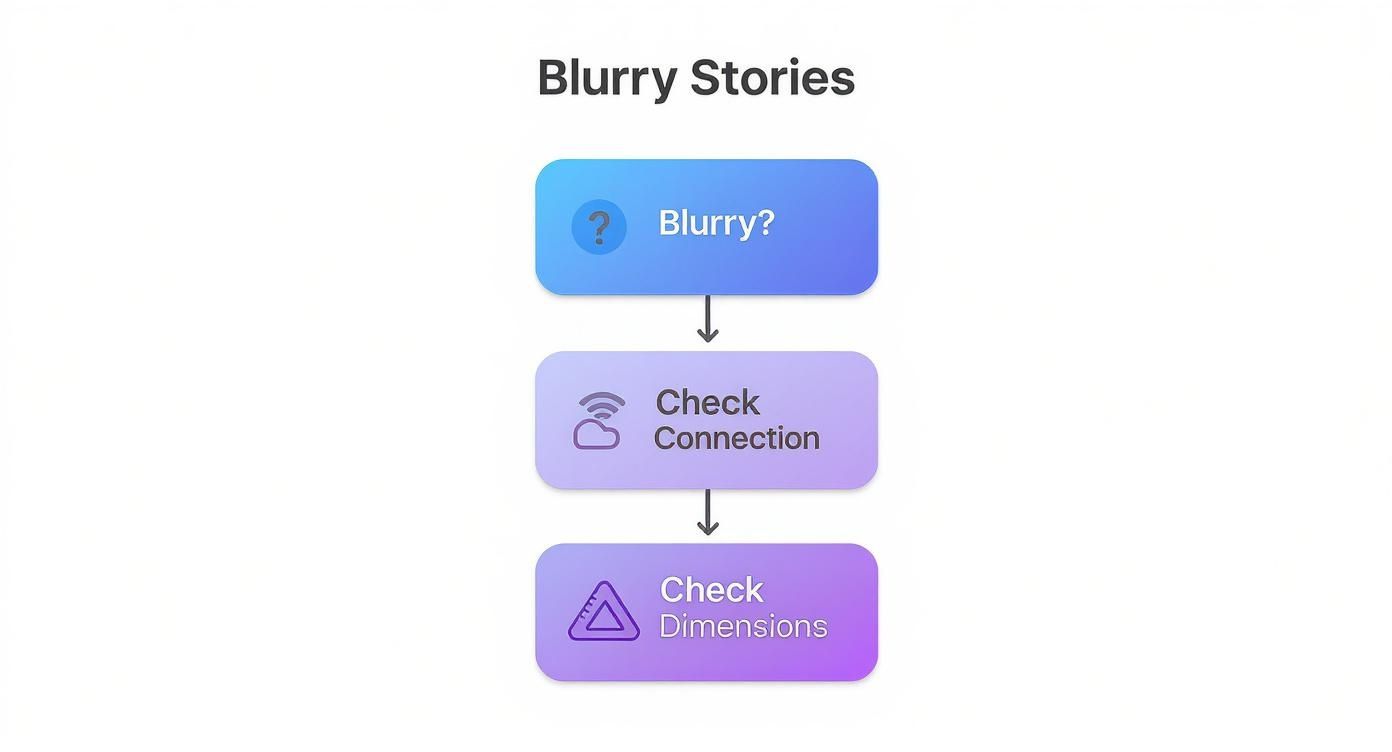
Three main issues almost always cause blurry uploads:
1. Aggressive Compression: Instagram reduces file sizes to improve load times and save server space. Starting with high-resolution files gives the algorithm more data to work with, resulting in a cleaner final image.
2. Incorrect Dimensions: Files not in the recommended 1080x1920 pixels (9:16 aspect ratio) force Instagram to crop, stretch, or resize your media, which often ruins quality.
3. Poor Connectivity: Weak Wi-Fi or mobile networks can trigger Instagram to upload a lower-quality version to avoid upload failures.
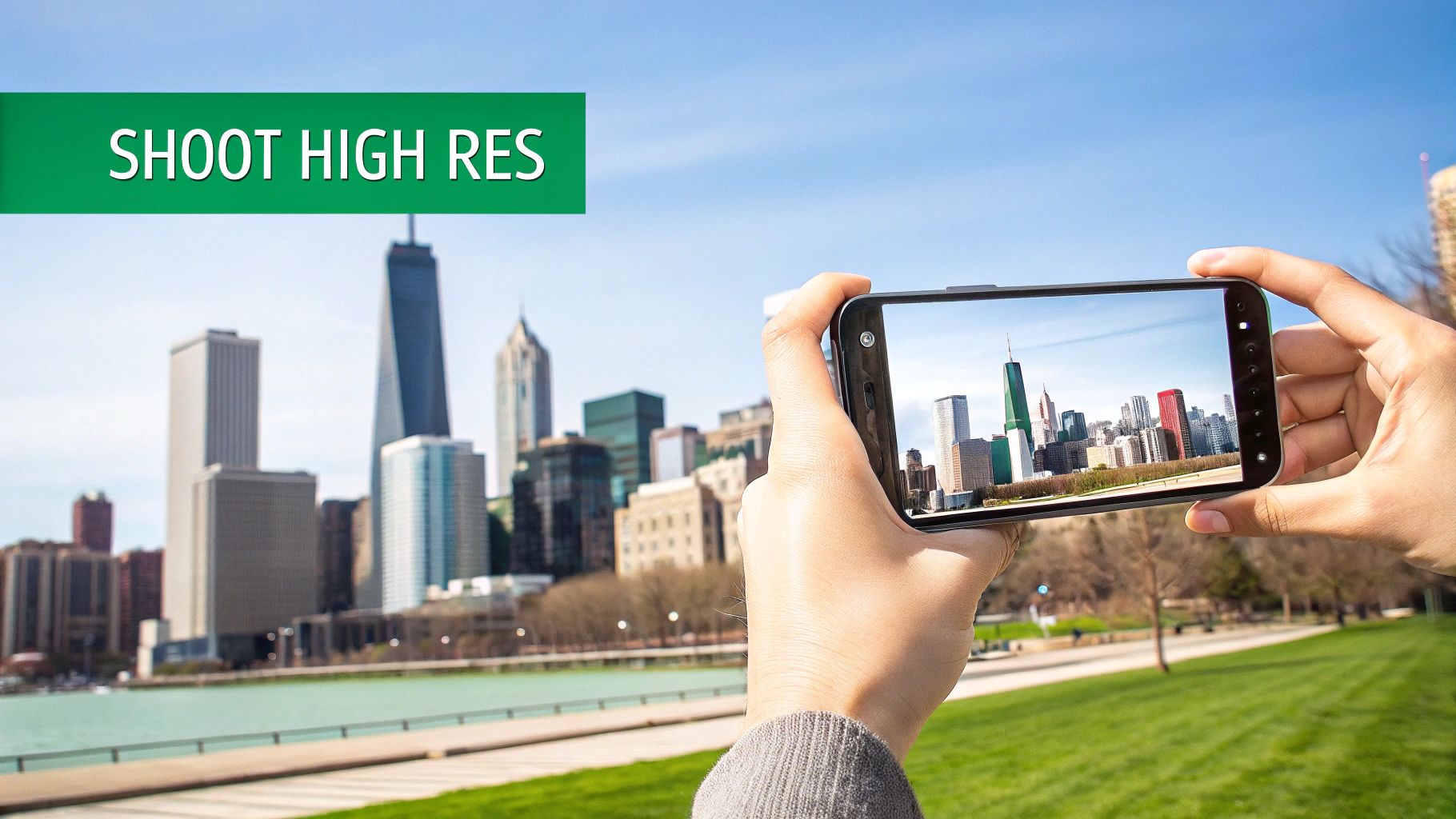
Pro Tip: Use your phone’s native camera at the highest resolution. Instagram’s in-app camera often produces softer images before compression even starts.
Quick Fixes for Blurry Instagram Stories
Here’s how to tackle the most common causes:
Instagram Compression: Enable High Quality Uploads in your account settings
Incorrect Aspect Ratio: Resize your media to 1080x1920 before uploading
Poor Internet Connection: Switch to stable Wi-Fi or cellular data
In-App Camera Issues: Use your phone’s native camera instead of Instagram’s Story camera
App Glitches or Bugs: Close and reopen the app; if problems persist, update Instagram
These quick fixes help you post crisp content immediately while you work on a permanent solution.
Optimising Your Phone's Camera for Crisp Content
The fight against blurry Stories starts before you open Instagram. The quality of your original photo or video is the single biggest factor. High-quality, data-rich files survive Instagram’s compression much better than low-quality ones.
Using your phone’s native camera app gives you control over resolution and format. In-app Instagram cameras typically capture softer media, which magnifies compression issues.

Key Camera Settings for iPhone Users
Simple adjustments can dramatically improve Story quality:
Settings > Camera > Formats: Choose High Efficiency (HEIC/HEVC) to maintain quality while keeping file sizes manageable
Settings > Camera > Record Video: Use 1080p at 60 fps for smooth, professional-looking video; 4K is usually overkill for Stories
Must-Have Camera Settings for Android Users
Android devices vary, but the principles are the same:
Open your camera app → gear icon → adjust video resolution
Use FHD (1920x1080) at 60 fps
Enable High Efficiency Video (HEVC) if available
Optional: 4K recording only if you plan to edit later
Optimising your camera ensures Instagram receives a clean file that retains clarity after compression.
Understanding How Instagram's Compression Works
Instagram’s compression is typically the main reason for blurry Stories. The platform processes millions of uploads daily, so reducing file sizes is essential for performance.
Compression discards some visual data. Files that don’t match Instagram’s preferred specifications require resizing, cropping, and heavy compression, which reduces clarity.
The Ideal Instagram Story Specifications
To minimize quality loss, provide a file that requires little adjustment:
Resolution: 1080 x 1920 pixels
Aspect Ratio: 9:16
File Format: JPEG for photos, MP4 (H.264 codec) for videos
File that match these specifications pass through compression largely intact.
Optimized vs. Unoptimized Story Uploads
Resolution: Optimized: 1080x1920 | Unoptimized: very large/non-standard sizes get compressed
Aspect Ratio: Optimized: 9:16 | Unoptimized: 4:3 or square may be cropped or stretched
File Type: Optimized: JPEG/MP4 | Unoptimized: HEIC/MOV may be converted, reducing quality
Providing the correct “canvas” from the start is the most effective way to keep your Stories sharp.
Why Your Internet Connection Can Sabotage Story Quality
Slow or unstable networks force Instagram to compress files aggressively to ensure successful uploads. That’s why a Story uploaded on strong Wi-Fi almost always looks better than one posted on weak cellular data.
Take Back Control with In-App Upload Settings
Two key settings affect your uploads:
Data Saver: When ON, Instagram reduces upload quality to save bandwidth
Upload at Highest Quality: Ensures your file remains crisp, even if it takes longer to upload
Turning OFF Data Saver and ON Upload at Highest Quality can dramatically improve Story clarity.
How to Find and Adjust Your Data Settings
Go to your profile → menu (three lines) → Settings and privacy
Scroll to Data usage and media quality
Turn Data Saver OFF
Turn Upload at Highest Quality ON
Using a strong Wi-Fi connection can improve quality by over 60%.
Troubleshooting App Glitches That Cause Blurriness
Blurriness can sometimes be caused by the Instagram app itself. Glitches, corrupted cache, or outdated versions can all reduce Story quality.
Start by force-closing Instagram. If the problem persists, clear the app cache:
Android: Settings → Apps → Instagram → Storage & Cache → Clear Cache
iPhone: Offload or delete and reinstall the app
Always keep Instagram updated, and check forums or outage sites if widespread issues are reported.
Frequently Asked Questions About Blurry Stories
Why Do My Stories Look Blurry on Android but Clear on iPhone?
Instagram is optimized better for Apple devices. With thousands of Android models, quality varies. Using the phone’s native camera usually produces the best results.
Do Stickers, GIFs, and Music Make My Story Blurry?
Yes. Each element adds processing and compression. For key visuals, less is more.
Should I Record Videos in 4K for Instagram Stories?
4K provides more data for Instagram to compress down to 1080p, often resulting in sharper Stories. However, 4K files are large and may upload slowly, especially on weaker connections.