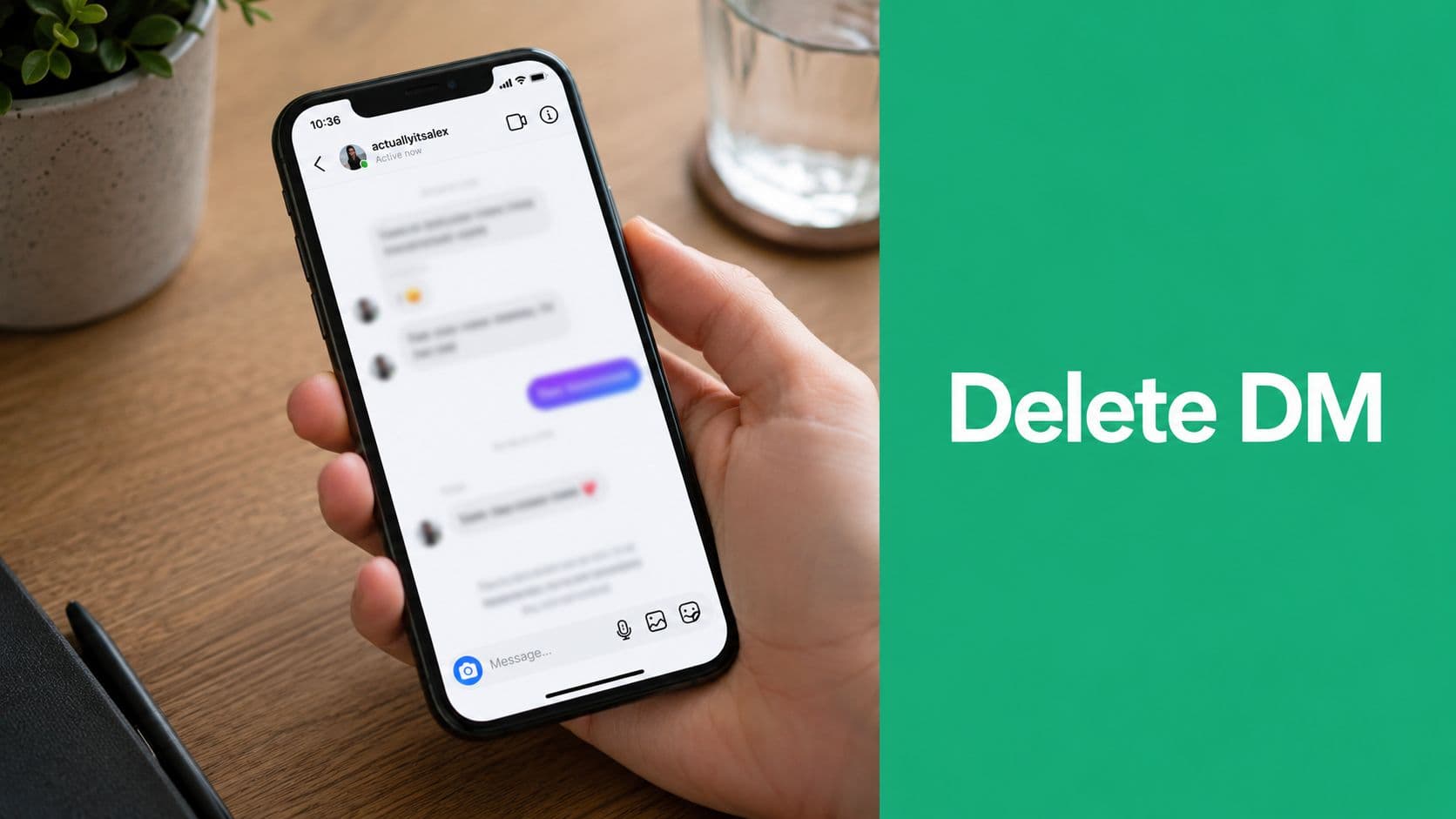
Why Deleting Instagram Messages Is Not So Simple
Instagram’s DM controls look obvious until you need them fast. That’s when people tap the first delete option they see and assume the problem is solved.
The main issue is confusion. Data shows that 68% of users in major markets, including the US, UK, and India, confuse “Delete for You” and “Unsend,” which leads to permanent data loss because Instagram provides no undo for unsent messages, according to this 2025 discussion of Instagram deletion risks.
Why this matters for professional accounts
If you use Instagram for work, your DMs may include:
Campaign details that aren’t public yet
Pricing conversations you may need later
Contact information from clients or collaborators
Creative approvals that affect publishing
Delete the chat when you meant to unsend, and the recipient still has the message. Unsend a message you only meant to hide from your own inbox, and it’s gone with no built-in undo.
Practical rule: Use Unsend to remove a message from the conversation. Use Delete for You only to clean up your inbox.
The risk most guides skip
Most tutorials flatten this into one action. It isn’t. Instagram gives you different controls for different outcomes, and using the wrong one creates either a privacy problem or a record-keeping problem.
How to Unsend an Instagram Message on Any Device
If you want to remove a message from the conversation for everyone, use Unsend. You can only unsend messages you sent. You cannot remove the other person’s messages. Instagram’s native behavior is described in this guide on deleting Instagram messages from both sides.

A good companion read is this explanation of whether you can unsend a message on Instagram, especially if you're trying to sort out what Instagram removes versus what disappears from your own view.
On iPhone
Open Instagram, go to your inbox, open the conversation, then press and hold the message you sent. Tap Unsend.
That removes your message from the thread. It does not remove anything the other person sent.
If you manage brand deals from your phone, double-check the exact message before confirming—especially in long threads with files, links, and voice notes.
On Android
The process is the same: open the inbox, enter the chat, long-press your message, and tap Unsend.
Don’t treat it like routine cleanup. Unsend removes a message from the conversation, not just your view.
If the message contains a file reference, link, or approval note you may still need, save your own copy before removing it.
On desktop web
On desktop, open Instagram in your browser, go to Messages, open the conversation, hover over or select the message you sent, and choose Unsend.
Desktop is often safer for cleanup because you have more screen space and fewer accidental taps.
For a quick visual walkthrough, this short video helps:
What Unsend can't do
Two limits matter:
You can only unsend messages you authored
You can’t remove the other person’s messages
If a brand sent the wrong brief, you can’t fix that from your side. If someone on your team sent the wrong message from your account, you can only remove the messages your account sent, one by one.
Unsend vs Delete Chat: What Actually Happens to Your Messages
This is the distinction that causes the most mistakes.
Unsend removes a specific message you sent from the conversation. Delete Chat removes the thread from your inbox only. If your goal is to prevent the recipient from seeing a message, deleting the conversation won't do that.

A separate but related housekeeping tactic is archiving. If you want to understand when hiding a thread is better than removing it from your inbox, this guide on how to archive Instagram messages is useful.
What the recipient still sees
User reports confirm the practical reality: the only method to delete Instagram messages from both sides is to unsend specific messages, while deleting a chat only removes it from your local inbox and has a 0% success rate for removing the message from the recipient's view, as discussed in this Reddit thread on deleting chats vs recipient visibility.
Delete a conversation for a cleaner inbox. Don’t delete it if you’re trying to contain a mistake.
Unsend a Message vs. Delete a Conversation
Unsend a Message: This removes a specific message that you sent from the conversation. If successful, the message is removed from both your chat history and the recipient’s thread. This is the best option when you’ve sent the wrong file, included an incorrect link, replied to the wrong person, or made another mistake in a message.
Delete a Conversation: This removes the entire conversation from your own inbox only. It does not affect the recipient’s inbox or delete any messages from their chat history. This is best used when you want to clean up your inbox or remove old conversations from your own view without affecting anyone else.
The trade-off brands often miss
Sometimes the message you want gone is also part of your business record.
If it includes a rate quote, shipping instruction, or approval detail, save what you need before you unsend it. If your broader concern is account footprint beyond Instagram itself, it’s worth reviewing practical resources on how to delete your PostPulse data so your data deletion habits stay consistent across tools, not just DMs.
Bottom line: Unsend is for damage control. Delete Chat is for housekeeping.
Cleaning Up Your Inbox by Deleting Full Conversations
Deleting a full conversation has one valid use: inbox management.
If you run a creator account, your DMs can fill with old outreach, expired campaigns, cold pitches, giveaway replies, and one-off customer questions. Removing old threads from your inbox can make daily management easier.

How to delete a conversation from your inbox
On mobile, go to your DM list, find the thread, and use Instagram’s delete option for the conversation. On desktop, open Messages and use the conversation controls to remove the thread from your view.
The exact button placement may vary by app version and device, but the result is the same: you are removing the thread from your inbox, not retracting it from the other participant’s account.
Why this is an organizational tool, not a privacy tool
Even when users delete Instagram messages from their inbox or unsend them, the messages often remain stored on Meta's servers and can appear in the downloadable data archive for legal, security, and service continuity reasons, as shown in this Instagram data archive walkthrough.
You can check this through Instagram’s own data download flow in Settings, then Accounts Center, then Your information and permissions, then Download your information. If you request message data, deleted or unsent items may still appear in what Meta has retained.
Brand-safe mindset: Removing something from the interface is not the same as erasing all traces of it from platform storage.
When deleting a full thread makes sense
Use conversation deletion when the goal is operational clarity:
Old outreach is cluttering your inbox
A campaign ended, and the thread no longer needs to stay visible
You want active clients and current leads easier to find
You’re separating priority conversations from noise
Advanced Deletion Scenarios and Common Pitfalls
The edge cases are where people usually get tripped up.

Restricted accounts and message requests
One important nuance involves restricted users. When a user is restricted, their messages go to Message Requests, and deleting them from the sender's side does not remove them from the recipient's request folder. Users cannot unsend messages from restricted accounts, which means the recipient retains access, based on this discussion of hiding old messages on Instagram.
If you manage a business or creator account, don’t assume restricting someone gives you retroactive control over what was already sent.
General tab and professional account assumptions
Professional accounts often sort conversations into Primary and General. That can create a false sense of control. Deleting a thread from one tab does not remove it for the person on the other end. Folder placement is just inbox organization.
Bulk deletion tools and scripts
Some users turn to third-party tools to clear large DM histories. The trade-off is speed versus risk.
According to the technical notes for InstaPurge on GitHub, browser-console deletion scripts report a 95-99% success rate when used correctly, and they require the user to fully load the chat history before starting deletion. The same source notes a common failure pattern of about 30% of attempts when users stop loading too early, which causes messages to be skipped. It also says some browser extensions typically delete only up to 15 messages per session because of throttling.
That means bulk tools may work, but they still require care, and they don’t change Instagram’s core rules about what gets deleted for everyone versus only for you.
If your team is reviewing data handling practices across software, not just Instagram, a practical reference is this page on AI employee data removal. It's helpful as a reminder that deletion policies vary a lot from tool to tool.
Third-party deletion tools are shortcuts, not guarantees. For high-stakes messages, use Instagram’s native actions.
Privacy expectations need to stay realistic
The same GitHub reference states that Instagram's end-to-end encryption is being removed in 2026, which would mean Meta can monitor DM content more broadly if that projection holds. Even without relying on that claim, the practical takeaway is simple: don’t treat Instagram DMs as a secure vault for confidential brand information.
If you regularly send contracts, addresses, private pricing, or unpublished launch details, review how temporary-message features behave too. This explainer on Vanish Mode on Instagram is worth reading before you rely on temporary-message workflows for anything business-critical.
DM Management Best Practices for Brands and Influencers
Good DM hygiene is about reducing avoidable risk.
For creators, that starts before you send anything. Check the recipient. Check the attachment. Check whether the message belongs in email, a contract tool, or a project manager instead of Instagram.
A practical operating standard
Treat unsend as a correction tool. Use it when you sent the wrong message and need to remove that specific item quickly.
Treat delete chat as inbox maintenance. It helps declutter, not repair mistakes.
Keep records outside Instagram. If a rate, approval, shipping detail, or deadline matters, store it somewhere you control.
Don’t send sensitive information casually. Convenience is not the same as control.
Set team rules if multiple people use the account. One mistaken unsend or delete can create confusion fast.
Use a real social workflow stack when your inbox is tied to campaigns, client communication, and publishing. If you're comparing options beyond Instagram's native tools, this roundup of social media management alternatives from PostClaw is a useful starting point.
The key takeaway is simple: decide what outcome you want first. Hide the thread from your inbox, remove a message from the conversation, or preserve your own record. Instagram handles each outcome differently.
If you're growing an Instagram brand and want better control over engagement, audience quality, and day-to-day account management, Gainsty helps creators and brands build with a more strategic, organic approach.

.png&w=1920&q=75&dpl=dpl_34ZXCf12K5qjjdZjPn9snwDRADrB)





.png&w=750&q=75&dpl=dpl_34ZXCf12K5qjjdZjPn9snwDRADrB)