Choose the Right Control Before You Act
Five controls sit within reach of your Story settings, and each one stops something different. The right pick depends on what the other person must stop doing, not on which option feels least disruptive.
Instagram Story controls compared
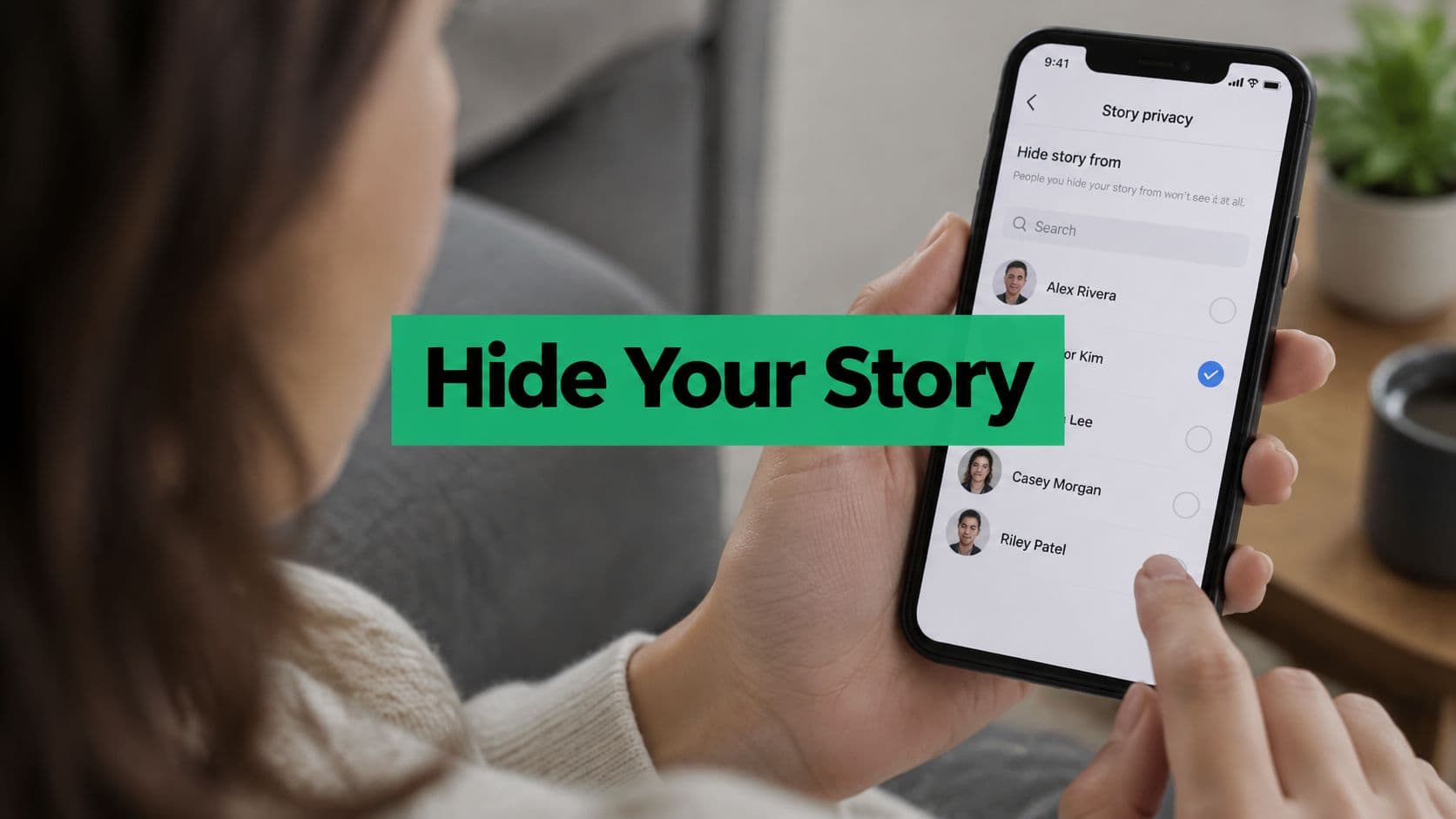
Hide story and live from stops the selected account from seeing your Stories and Live content while leaving your profile visible. The person isn't notified. Choose it when you want them to remain a follower but not see your Stories.
Close Friends limits a particular Story to people on your chosen list. Your profile remains visible to everyone else, and Instagram doesn't disclose who is outside the list. Choose it when you want to publish to a defined audience.
Restrict limits comments and messages but doesn't reliably stop someone from viewing your Stories. Your profile remains visible, and Instagram doesn't disclose the restriction to the person. Choose it when you want less interaction without a visible break.
Mute changes what you see in your feed, not what the other person can see. Your profile remains visible, and Instagram doesn't disclose the mute to them. Choose it when you want their posts and Stories out of your feed.
Block stops the blocked account from finding or viewing your profile and messaging you. It can also cover associated accounts. The person isn't notified. Choose it for harassment, safety concerns or a full cutoff.
Hide for limited Story access. Block when profile discovery and contact must stop. Instagram doesn't always make clear whether the other person is alerted, so assume a change may be noticed.
Choose by what the person must stop doing
Hiding and blocking aren't interchangeable. The Tech Safety BC Instagram safety guide distinguishes targeted Story privacy from the broader account-level cutoff: hiding leaves your profile and regular posts accessible, while blocking prevents the blocked account from finding, viewing or messaging you.
For a creator or small business, that difference matters. You might want a client to keep seeing your portfolio without seeing a personal update. That reasoning falls apart if the person keeps contacting you after you've asked them to stop, because a quiet exclusion only delays the cutoff you already need.
Close Friends works from the other direction. Instead of excluding an account from your usual audience, you choose who gets access to a particular Story. It suits selective announcements, personal updates or content meant for a trusted group, and nothing changes for anyone outside the list.
Don't mistake reduced interaction for privacy
Mute works in the opposite direction from hiding: you stop seeing their content. It doesn't remove them from your audience, so muting a follower you want away from your Stories changes nothing for them.
Restrict manages unwanted interaction rather than reliably excluding viewers. If comments and messages are the actual problem, read up on what restricted means on Instagram before deciding, since it isn't a substitute for a Story visibility setting.
Practical rule: Choose the control by what it stops, not by how discreet its name sounds.
A quiet setting can still be the wrong setting. Hiding suits an ordinary audience boundary; someone repeatedly ignoring that boundary may require a full block.
How to Hide Your Story From One Account
Say you're a freelancer posting that you're open to new work, but you don't want a current client seeing the announcement. You still want the client to follow your account and see your portfolio. Set the exclusion before publishing, rather than posting first and hoping they won't open it.
Set the exclusion and check it saved
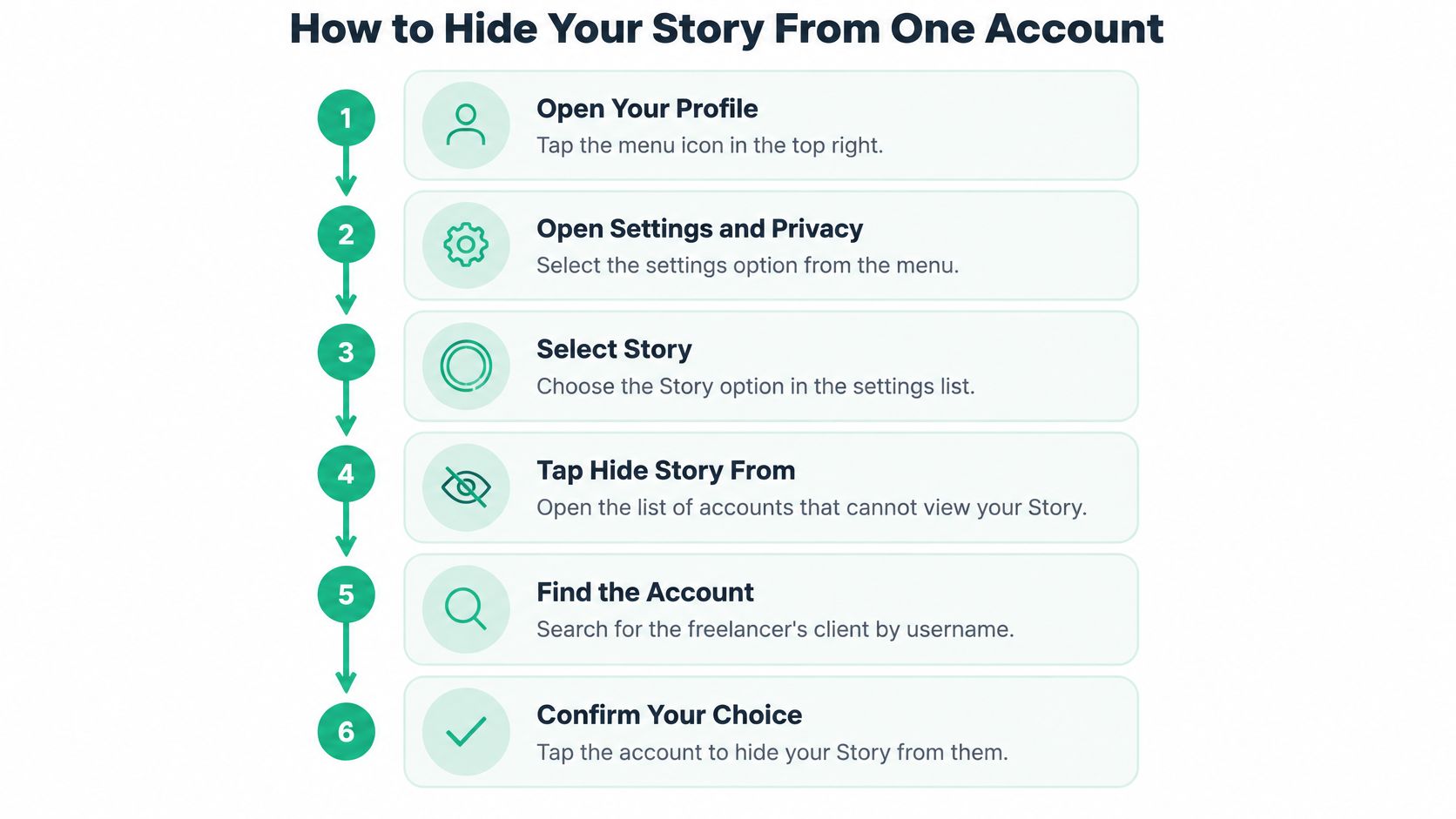
The menu path described in Lilach Bullock's Story privacy guide runs through your profile menu, Story, Live and Location, then Hide story and live from.
Open your profile. Tap your profile picture, then the menu icon in the top right.
Go to Story, Live and Location settings. If your app groups settings differently, use the settings search to find the Story hiding control.
Tap Hide story and live from to open the account selection list.
Search the exact username and select the account. Check the handle and profile picture, because display names can return lookalike profiles.
Confirm the selection using the confirmation control shown in your app.
Reopen the list. Make sure the intended account remains selected before you publish.
Use this visual as a navigation aid, but follow the setting labels shown in your app if the menu layout differs.
The exclusion stays in place for future Stories until you reverse it. You don't need to select the person again each time you publish, but you do need to confirm that you saved the correct account.
The person doesn't receive a notification that you hid your Story. That doesn't guarantee they won't infer it, particularly if someone else mentions a Story they can't see.
Use Close Friends for a selective post
For a one-time announcement, an inclusion list may be easier to manage than an ongoing exclusion. Open your profile menu, choose Close Friends, and add the people who should see the update.
Create your Story, then choose the Close Friends publishing option instead of your regular Story audience. Check that selection before sharing, especially if you're used to tapping through the publishing screen quickly.
This approach works well when the audience is a small, clearly defined group. It's less suitable when you want to share normally with your followers while excluding a particular account from everything you post to Stories.
Close Friends doesn't make the content confidential. Anyone allowed to view it can still describe it, capture it or share a copy elsewhere, so avoid posting information that would cause serious harm if it left that group.
How to Block an Account Completely
A former client keeps messaging after you've ended a contract. An account repeatedly sends hostile Story replies. In those situations, removing Story access alone doesn't address the unwanted contact.
Dealing with repeated messages can be exhausting, so prepare the record you need before changing access.
Save evidence before blocking
For harassment or safety concerns, capture the username, relevant messages, and timestamps. Include enough context to show what happened, rather than saving an isolated sentence that's difficult to interpret later.
Store that record somewhere the other person can't access. Then use Instagram's reporting tools for threatening messages, impersonation, or other abusive behavior. You don't need to keep a conversation open to collect more evidence if doing so puts you at risk.
Apply the full block
Open the account's profile from search, your followers list, or an existing message thread. Check the username before proceeding.
Tap the three-dot menu at the top right.
Select Block. Read the options presented, including any option covering other accounts the person may have or create.
Confirm the block. Don't leave the screen before completing the confirmation.
Instagram's privacy and safety guidance states that the person isn't notified and that blocking can cover their account plus other existing or newly created accounts associated with them.
That broader option is useful, but don't treat it as proof that Instagram will identify every account someone operates. If another account contacts you, assess and block it separately rather than assuming the original action already covered it.
If you selected Mute or Restrict by mistake, return to the target profile and choose Block. Neither action completes an audience cutoff.
This video provides an additional walkthrough of the blocking process.
Blocking reduces future access from the accounts it covers. It can't retract screenshots, copied media or views that happened before the block took effect.
A successful block changes future access. It doesn't erase what someone already saved.
For a business account, also consider who else handles messages. Tell authorized team members not to reopen contact or share content with the blocked person through another company account.
What Stays Visible and How to Fix It
The least disruptive option isn't always the safest one. If someone still appears to see a new Story after you hide it, start with the account selection: the wrong profile may have been selected, or the intended username may not have been saved.
Don't immediately assume the setting failed. Separate a new view from an earlier view, a different account, or a copy someone received outside Instagram.
Match the symptom to a concrete check
Symptoms, likely causes and fixes after hiding or blocking
If someone still sees new Stories after you've hidden them, you may have selected the wrong account or mistyped the username. Reopen Hide story and live from, search the exact username and confirm it appears in the list.
If they saw a Story posted before the change, they may have viewed it before you changed access. Check the viewer list. Past views can't be retracted, but you can delete sensitive content to reduce further exposure.
If they still see Highlights, the account may be missing from the hide list, or they may be using another account. Confirm the hide list first, then check for alternate accounts and block any you identify.
If they contact you through a new account, the existing block may not cover it. Block the new account, record the apparent connection between accounts and report continued unwanted contact.
If tags or mentions remain, the audience change hasn't resolved those older associations. Remove unwanted tags where you control them and review your mention settings.
If message requests keep arriving, remember that accounts outside your followers list can still submit requests. Open the requests and block the sender.
If they can see your posts on a shared device, they may have access to a logged-in device or browser. Review login activity, end accessible sessions and change your password.
If they have Story content from a screenshot or repost, someone made a copy outside your visibility controls. Preserve evidence and report abusive copies. The original privacy setting can't retract them.
The Sled Instagram blocking guide discusses the checks often missed after an audience change, including Highlights and alternate accounts. Hiding covers Stories, Highlights and Live content, but it doesn't hide your profile or ordinary posts.
That makes Highlights a useful follow-up check. Don't remove all your saved content automatically; first confirm which account has access and whether it's really on the exclusion list.
Check what the evidence really tells you
A viewer list can establish that an account viewed a Story, but it doesn't necessarily tell you whether the view happened before or after your settings change. Don't use an earlier entry as proof that a newly saved exclusion isn't working.
Likewise, another person knowing what you posted doesn't prove they viewed it directly. Someone in your allowed audience may have forwarded a screenshot or repeated the contents.
Use an Instagram Story guide to keep publishing and audience checks part of the same workflow. For sensitive updates, decide the audience before adding the content, not after it's already visible.
This checklist is a reminder to review the remaining places where content or contact may persist.
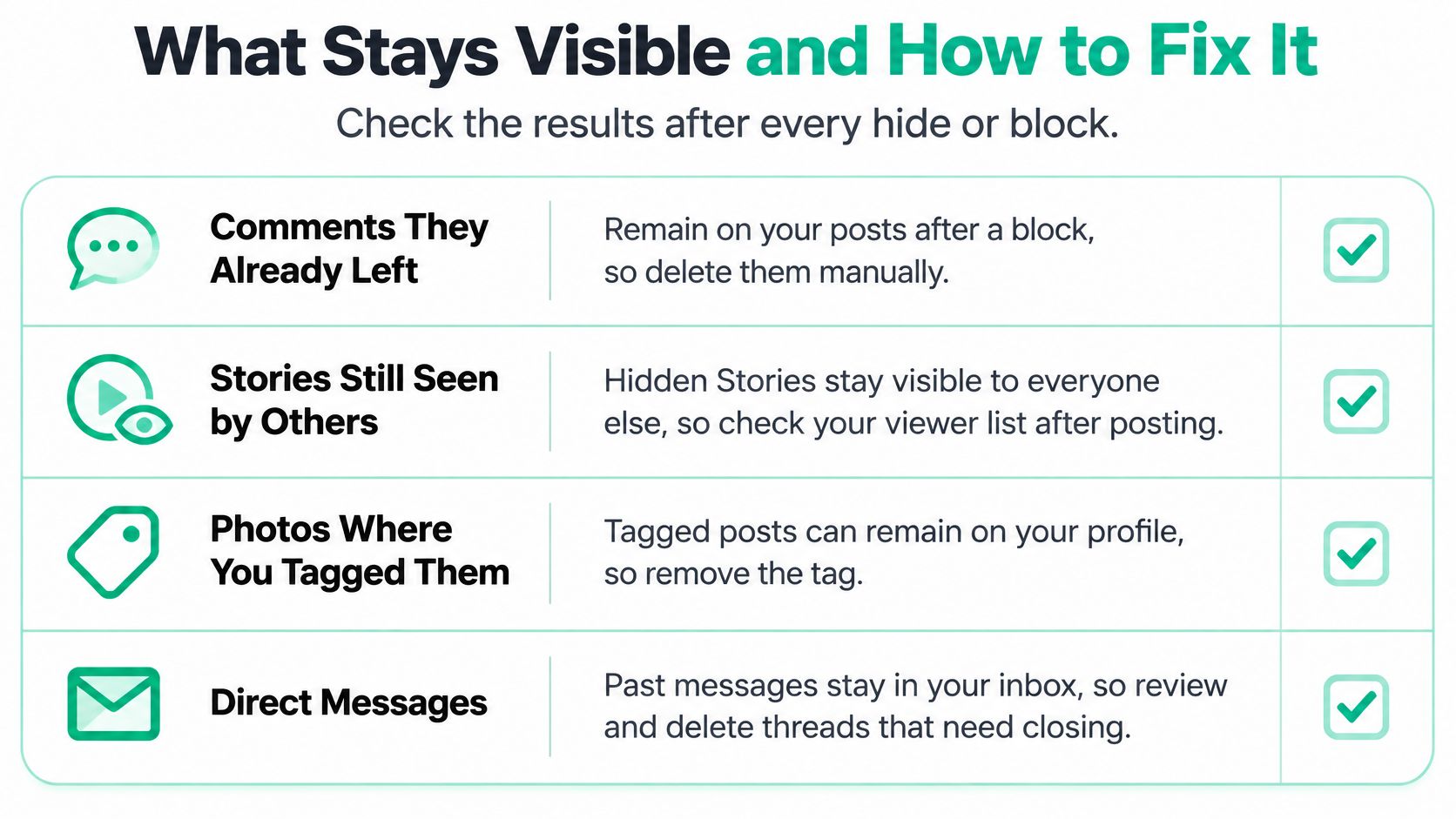
Treat comments, tags, and message history as separate cleanup tasks, not reliable tests of whether Story hiding worked. Don't assume every item shown in a general checklist survives every type of block unchanged.
Escalate when the person keeps finding another route
Repeated contact, several accounts or monitoring of your public posts calls for more than maintaining a longer hide list. Move to blocking, preserve usernames and message timestamps, and report the behavior that prompted the change.
Reopening a list is a quick check you control. Reports of threats or impersonation may take longer and may require help outside Instagram. If you feel unsafe, involve someone you trust; if there's immediate danger, contact local emergency services rather than waiting for a platform response.
Confirm, Reverse and Keep the Control Working
A privacy change is only useful if it's saved on the correct Instagram account. That's easy to overlook when you switch between a personal profile, a creator account, and a business account.
Verify the saved setting
Confirm the exclusion. Open Hide story and live from and check that the intended username is selected.
Confirm the block. Search settings for Blocked or Blocked accounts, then check that the account appears.
Check account access. Review login activity and any alternate accounts you already know about. Complete these checks from your own account, not a shared session someone else controls.
Keep a private note of any accounts involved in persistent unwanted contact. Use exact usernames rather than display names so you can distinguish a renamed profile from a different account.
Reverse only the action you intend
To restore Story access, remove the account from the hide list and confirm the change. To reverse a block, open the blocked accounts list, select the account, and choose Unblock.
The instructions for unblocking someone on Instagram can help you follow that path without changing unrelated settings. If you later want the restriction back, you'll need to add the account to the hide list or block it again.
Recheck the saved lists after publishing a sensitive Story and whenever a new account appears that you believe belongs to the same person. This isn't about monitoring every viewer. It's about confirming that the boundary you chose still matches the accounts and access routes involved.
You can change your mind about access without reopening a conversation or explaining the decision. Keep the setting aligned with your current circumstances, not with pressure to make your account available to everyone.
Hiding is a privacy setting. Blocking is a boundary.
Gainsty helps creators and businesses grow an Instagram audience through targeted organic outreach, with access to Instagram specialists. Once your privacy settings are in place, visit Gainsty to explore audience growth support that fits your account goals.