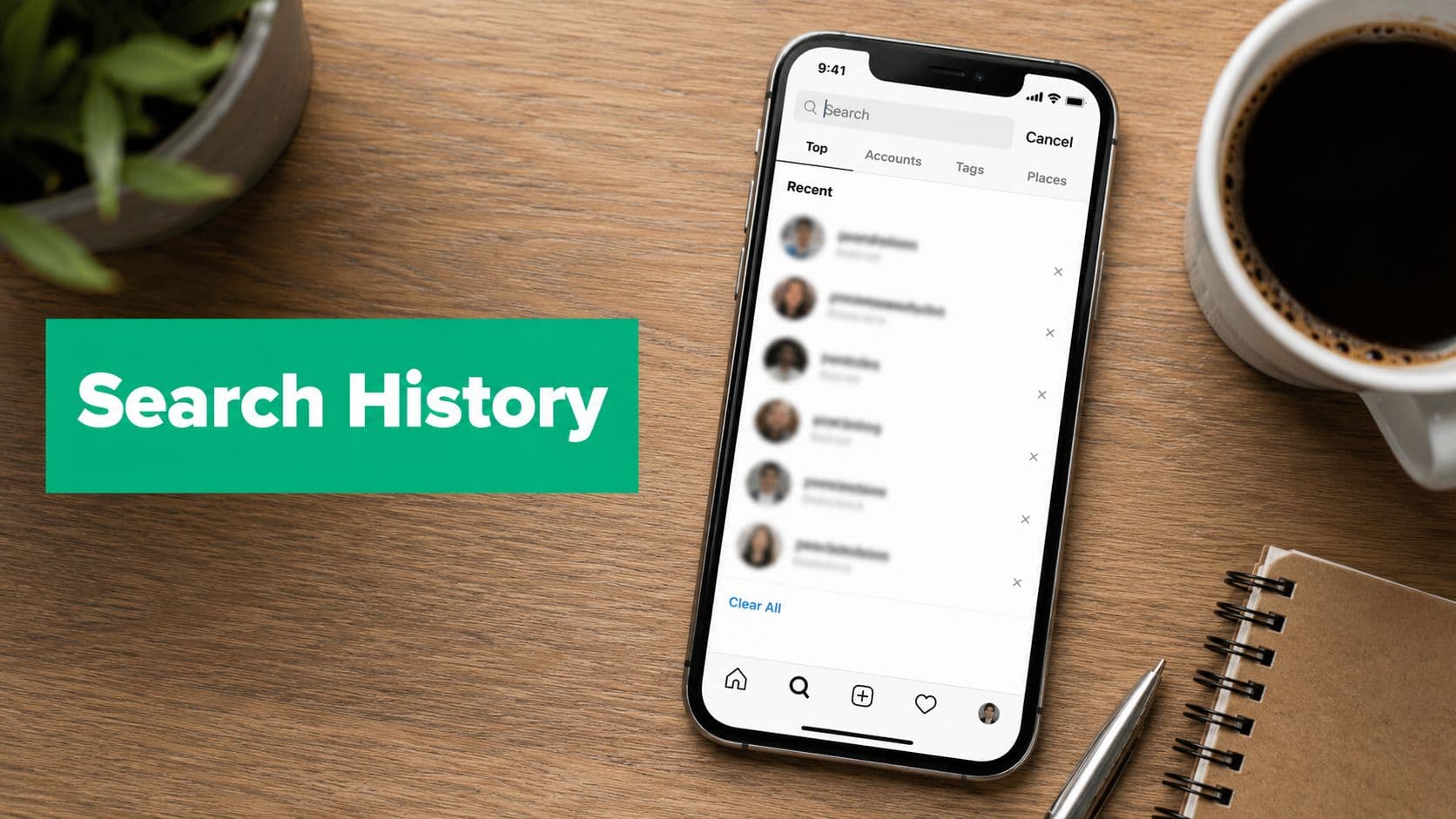
Why Your Search History Matters More Than You Think
A lot of people treat Instagram search like a temporary scratch pad. You type a username, check a reel, move on, and assume the app forgets it the moment you close it. Then one day you open the search tab and see the same creator, niche hashtag, or brand account sitting there like it never left.
That visible list is only the part you can see. Instagram now treats search history as part of a broader account-history system, not just an autocomplete strip, and you can review it through Settings > Your activity > Recent searches or, in some layouts, through Accounts Center > Your information and permissions > Search history. Instagram's own controls and independent safety guidance also point to automatic clearing options and retention windows, which shows this is both a convenience feature and a data-retention tool tied to personalization. The platform's search behavior is closely connected to how suggestions show up later, which is why a clean-up can change what you see next without erasing everything the system already learned.
A simple example makes this easier to picture. A creator researches rival accounts for a new campaign, a small business owner checks local hashtags, and a marketer looks up content ideas for a client. Those searches stay useful for revisiting work, but they also nudge future suggestions in ways that can blur personal browsing and business research.
If you want a broader look at how Instagram search suggestions behave, this guide on Instagram search suggestions is a helpful companion.
Practical rule: if the search bar keeps surfacing the same niche over and over, that's usually a sign Instagram is using your recent searches as one input, not the only input.
Finding Your Search History on iOS and Android
On both iPhone and Android, the starting point is the same. Open Instagram, go to your profile, then look for the menu that leads to Your activity. From there, tap Recent searches if that's what your app version shows, or open Accounts Center and find Search history under Your information and permissions.

The naming shifts a bit across updates, which is why people think the feature disappeared. It usually hasn't, it's just been moved deeper into Instagram's privacy and account-management menus. If you don't see it right away, don't keep tapping the search bar and assuming the history is gone, check the settings path instead.
On some phones, the list appears as usernames, hashtags, and locations you've recently searched. That's normal, and it matches how Instagram's search layer now preserves enough history for you to return to people or topics later. For a second walkthrough that focuses on finding similar account activity, the Instagram reel history guide can help you compare where Instagram hides related activity screens.
If you want to understand the broader recommendation side while you're looking at search behavior, a useful outside resource is Understand Instagram for churches. Even though it's written for a specific audience, the underlying idea is the same, search behavior feeds discovery.
Search history is private to your account, so you're looking at your own activity, not a public log other people can browse.
Clearing Searches and Adjusting Auto-Delete Settings
Once you've found the list, you've got three different controls, and they're easy to mix up. You can remove one search, clear the whole list, or change how long Instagram keeps searches before they auto-clear. Each action does something different.
Remove one item when only one query is the problem
If one account or hashtag is throwing off your suggestions, delete that entry instead of wiping everything. In the app, the list usually lets you remove a single search with a quick tap or long-press, depending on version. That's the cleanest option when you just don't want one awkward client name or personal query hanging around.
Clear everything when you want a fresh list
Use Clear all when the list has become cluttered or when you want to start over for a new project. That removes the visible recent-search list, but it does not magically reset all of Instagram's personalization behavior. Many users get stuck here, because they expect the suggestions that follow to change immediately across the whole app.
Set auto-clear if you prefer routine cleanup
Instagram and some safety guides describe auto-clearing windows that can be set to 3, 7, 14, or 30 days, while some guidance also notes searches may be stored for up to 90 days for personalization (Instagram's search-history guidance). A practical default is a shorter window if you browse a lot for work, or a longer one if you use search to revisit accounts often. The point is to treat this like maintenance, not a panic button.
If you want a separate walkthrough focused on recommendation cleanup, this Instagram suggestions guide is a useful follow-up.
Managing Search History on the Instagram Web Version
Desktop users often get left out of Instagram privacy explainers, but the web version matters for anyone juggling brand work or multiple logins. On a browser, go to Accounts Center, then look for the same account-history area where Search history lives. The layout is usually a little easier to scan on a larger screen, especially if you're comparing accounts or doing routine audits.
The browser path is useful when you don't want to dig through a phone menu during client work. It also helps when you're managing several accounts from one login, because the web view makes it easier to confirm which profile you're adjusting before you clear anything. That matters on team devices, where the wrong account can be open longer than anyone expects.
Some users assume mobile and web behave differently, but Instagram generally syncs account settings across devices because the history is tied to the account, not the screen you use. The interface may look different, but the underlying control is the same. If one device shows an updated list and the other doesn't yet, give the app a moment to refresh before you assume something went wrong.
For people who work across devices, the web route can be the calmer one. There's less tapping, fewer nested menus, and less chance of accidentally clearing the wrong thing while switching accounts.
What Clearing Search History Changes
The easiest mistake is treating Clear all like a full privacy reset. It only removes the visible list of recent searches. Instagram can still use search behavior as part of the signals that shape Explore, Reels, and suggested accounts.

Visible history and hidden personalization are different layers
The visible layer is the list you can open, review, and erase. The hidden layer is the wider recommendation system that keeps using behavior to decide what to show next, more like a memory of patterns than a simple log of searches. Instagram's own search-history guidance makes that split easier to see, because the app can clear what you can inspect while still keeping search behavior in play for personalization (Instagram's search-history guidance).
That difference matters if you are trying to change what appears around the app. Clearing the list can remove obvious clutter, but it does not wipe every trace of what Instagram has already inferred about your interests. If you searched for a competitor, a client, or a niche topic, the search bar may look cleaner while the recommendation layer still has context.
What usually feels cleaner right away
What changes first is usually the surface level. Suggested accounts can look less crowded, accidental topic reveals become less likely, and your next search prompt stops being dominated by whatever you were researching before.
That is helpful after brand monitoring sessions or sensitive market research, especially if you do not want those queries hanging around in plain sight. For a more focused cleanup of prompt behavior, this guide to clearing Instagram suggestions covers the related suggestion controls that sit beside search history. If you also want a wider look at how hidden tracking can persist after a visible cleanup, InsecureWeb Instagram monitoring gives useful context on account hygiene.
Privacy Risks for Creators and Shared Devices
For solo users, search history is mostly a convenience issue. For creators, agencies, and small teams, it can become an accidental paper trail. A shared phone on a client site, a login left open on a backup device, or a VA checking competitor accounts on a brand profile can all leave clues in the search bar.

The risk is often practical, not dramatic
A client doesn't need to see a full report to notice what a team searched. If someone opens the account and sees competitor pages, sensitive research terms, or a string of test searches, that can reveal strategy faster than you'd expect. On team hardware, the problem isn't just privacy, it's accidental exposure.
For readers who want a broader security context, InsecureWeb's Instagram monitoring coverage is worth a look. It's not about search history specifically, but it reminds you that account hygiene matters in a platform where settings and exposure risks can change quickly.
Habits that reduce accidental exposure
Sign out after sensitive research. If you use a personal phone for client work, don't leave the account open longer than needed.
Use a separate research account. That keeps test searches, competitor checks, and niche exploration away from the main brand profile.
Review activity before handing off a device. A quick check prevents someone else from seeing yesterday's workflow in today's search bar.
Keep shared devices on a short leash. The fewer people using the same login, the fewer surprises show up in search suggestions.
If your work depends on discretion, search behavior should be treated like any other audit trail. It's small, but it's revealing.
Best Practices for Keeping Your Search Behavior Clean
The easiest way to manage search history Instagram style is to make it routine instead of reactive. Cleanups work best when they're small and regular, because then the list never gets so messy that you have to spend ten minutes untangling it.

A weekly quick-clear is usually enough for most personal accounts. If you use Instagram for work, pair that with a monthly review of recent searches, then check whether your discovery feed still matches your current goals. For creators and small teams, that keeps yesterday's research from steering tomorrow's recommendations.
A quarterly reset of content preferences can help when your feed starts drifting too far from your niche. That doesn't mean you need to wipe everything constantly. It means you give the app a clearer pattern to work with, so your own browsing habits and your current content strategy stay aligned.
Practical habit: if the same search keeps popping up, decide whether you actually need it in the list, or whether it's just noise from old research.
A few answers usually come up again and again. Other users can't directly see your searches, because search history is private account data, not public content. Clearing everything removes the visible list, but it doesn't guarantee that every recommendation signal disappears right away. The recent-search view is limited, so if you need a longer audit window, don't wait too long to log what matters. And if you clear history on one device, expect the change to follow the account, not stay trapped on that device alone.
For teams that want cleaner workflows, tools like Gainsty can sit alongside good account hygiene by helping with organic Instagram growth and account management routines, while you keep search behavior tidy on the privacy side. The combination is simple, keep the account focused, keep the browsing intentional, and revisit the settings before old research starts steering new recommendations.
If you want a calmer way to manage Instagram without losing track of what matters, visit Gainsty and explore how its Instagram growth tools fit into a cleaner, more intentional account workflow.

.png&w=1920&q=75&dpl=dpl_34ZXCf12K5qjjdZjPn9snwDRADrB)









.png&w=750&q=75&dpl=dpl_34ZXCf12K5qjjdZjPn9snwDRADrB)