Choose the Right Way to Add an Account
Are you creating a brand-new profile, adding one you already own, or accessing a profile someone else manages? Choose based on that situation, not on whether you want a personal, creator, or business account.
Which method to use for each account situation
For a new profile under your current login, choose Create new account from the profile switcher. You'll need a profile name and an email address or phone number.
If you already run the profile elsewhere, choose Add existing account and sign in with its username and password. For a client or brand profile, use an existing-account login only when you have authorized access and a written agreement about who can post. Prefer delegated business access when available.
If a profile is missing from the switcher, sign in to it directly on this device using its username, email address, or phone number and password.
Instagram's official Help Center says you can keep up to 10 accounts logged in at one time, allowing you to switch without logging out and back in. Creating and adding accounts both start from the profile switcher, so you don't need another app.
For client work, keep the brand on its own login where possible. Prefer delegated business access when available; don't ask an owner to send passwords through messages or a shared document.
Choose access before account type
Adding a profile isn't the same as changing its category. If you're unsure which category suits your work, compare the types of Instagram accounts before choosing business features.
If you'll later manage publishing through a tool such as iHatePosting's social media scheduler, establish account ownership and posting responsibility first. A scheduling tool doesn't replace login recovery or permission checks.
Use the phone instructions for a new or existing profile, the desktop route for browser access, and the troubleshooting table if an expected profile is missing.
How to Add an Account on Your Phone
Start inside the official Instagram app rather than a browser window opened from another app. Instagram's account-switching guidance describes adding accounts and selecting them through the username at the top of your profile.
Follow the correct setup branch
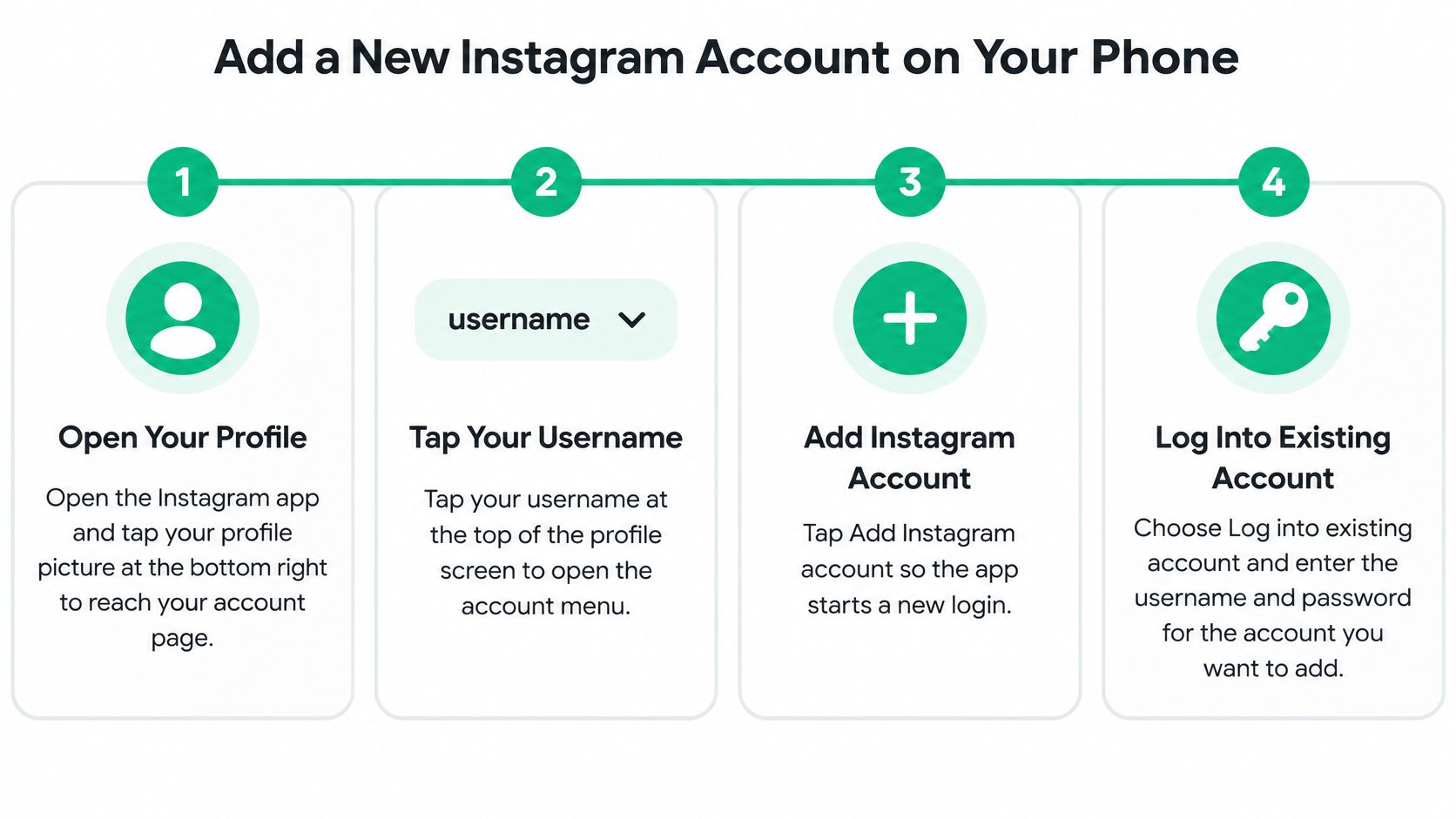
Open your profile. Launch Instagram and tap your profile picture at the bottom right. This takes you to the account page rather than the home feed.
Tap your username at the top. The profile name opens the account switcher, where you can see the profiles available on that device.
Tap Add Instagram account. This opens the choice between creating a profile and signing into an existing one; it doesn't automatically create anything.
For a new profile, choose Create new account. Enter the requested profile name, then follow the prompts through Accounts Center and add an email or phone number; if offered, choose a separate password when independent access matters.
For an existing profile, choose Log into existing account instead. Enter that profile's username, email, or phone number and password, rather than the credentials for the account you started from.
Check the active profile before doing anything else. Read the username at the top, inspect the avatar, and check the bio so you know which identity will publish or send messages.
The visual below follows the existing-account branch after you open the account menu.
Check recovery details before continuing
When Instagram asks for an email address or phone number, use contact information the account owner can access. A business profile tied only to a departing employee's personal inbox can become difficult to recover.
Accounts Center may offer connected login options. Read the confirmation screen instead of assuming that every profile will have an independent password; convenience and separation aren't always the same choice.
Practical rule: Treat the profile shown immediately after setup as unconfirmed until you've checked its identity.
Instagram may leave the newly created or added profile active. That's an easy moment to upload a personal Story to a business account, especially if the avatars look similar.
After setup, tap the username again. Both the original and added profile should appear in the switcher. If the added name isn't listed, don't create another account with a similar name. Confirm that you completed the login, then use the missing-profile fix below.
How to Add an Account on Desktop
Instagram's web version supports signing in and switching accounts, but menu labels can differ by version, and some options are available only in the app. Use the browser for convenient access, not as a workaround for verification or missing account permissions.
Keep access to the account's recovery inbox or phone nearby while working on your computer.

Add an existing profile in your browser
Open the Instagram website and sign into the account you already use. Confirm its username before changing sessions.
Open More in the left sidebar, then choose Switch accounts if available. This opens the browser's account-selection controls.
Select Add account, if shown, and enter the other profile's username and password. Complete any verification prompt before continuing.
Open the added profile and inspect its username, picture, and bio. Don't use the feed's appearance as proof that you selected the right account.
If you want a completely new profile instead, log out and select Sign up on the login screen. Follow the prompts for the new profile details and use recovery information controlled by its owner.
Know when to use the app instead
Creating a profile on the web doesn't remove email or phone verification. Check the destination shown on each prompt, particularly if the browser has saved personal contact details.
If Add account doesn't appear, use the phone app rather than repeatedly signing out and retrying the same browser menu. On a shared computer, avoid saving the password and log out when you finish.
Common Problems and How to Fix Them
A profile missing from the switcher isn't necessarily a lost account. Instagram's business account-switching guidance describes adding an existing profile through its login details; a missing profile may need a direct device login or an Accounts Center connection before it appears where you expect.
The useful distinction is access versus visibility. If the credentials work, you're dealing with a device session or linking issue. If you can't sign in directly, account recovery comes first.
Match the symptom to the first fix
Symptoms, likely causes and fixes when adding an account
If a profile is missing from the switcher, it may not be linked to the same Accounts Center or logged in on this device. Sign in directly with its username and password, then add it again.
A wrong password error may mean the password changed or was mistyped. If needed, reset it using the email address or phone number linked to that profile.
If you don't see Add account, the app may be outdated or the web view may have limited options. Update the app and follow the phone steps.
If you can't add another profile, you may have reached the logged-in account limit. Log out of a profile you use less often, then try again, but first make sure you can sign back in.
A security check after adding an account may be triggered by a new device or location. Enter the code sent to the account's linked email address or phone number and complete the ownership check.
Before resetting a password, check which username appears on the recovery screen. With similar account names and saved credentials, it's easy to reset the wrong profile.
If the failure happens during creation rather than login, use the Instagram sign-up error guide to narrow down the registration problem. Repeatedly creating replacement profiles won't resolve access to the original account.
A profile that isn't listed needs a login check. A profile whose recovery details you can't access needs account recovery.
Don't turn a login issue into a lockout
Avoid repeatedly guessing passwords or requesting fresh codes before checking the destination. Use the latest code Instagram sends, and enter it only in the official app or website.
An outdated menu can be resolved by updating the app. Recovery tied to an inaccessible email address is less predictable, so don't promise a client access by a deadline until ownership verification is complete.
Privacy and Safety Rules for Added Accounts
Adding an account isn't only about faster switching. You're also deciding who can access it, where recovery messages go, and how easily someone using your phone could enter another profile.
Set boundaries before connecting profiles
Keep passwords private. Don't share a password with another person or enter it into an unfamiliar app that asks for it. Use delegated permissions for team access where available.
Separate credentials when possible. Use a different password for each profile where Instagram's prompts allow independent credentials, and store it in a password manager.
Check before publishing. Make account identity part of your posting routine, particularly when personal and business profiles share a device.
For stronger login protection, follow the Instagram account security checklist, including reviewing recovery details and enabling two-factor authentication.
Separate passwords don't make a shared phone that's left open private. Anyone with access to an active Instagram session may be able to switch profiles without entering a password again, so secure the device itself.
Use supervision for teen accounts
A parent's account switcher isn't a substitute for parental supervision. Adding a teenager's profile to a parent's login doesn't establish the same controls or parental visibility as supervision through Family Center.
According to Meta's teen privacy guidance, supervised teens under 16 need parental approval to change an account from private to public, supervised older teens can also require approval for certain settings, and parents can supervise up to five accounts.
Supervision requires the teen's acceptance or request. Use that process rather than exchanging passwords to set up oversight, and review the privacy and contact settings together.
For households with several children, count every profile you intend to supervise against the supervision allowance before starting. Keep that inventory separate from the profiles available for ordinary account switching, because those arrangements serve different purposes.
Switch Accounts and Confirm the Active Profile
For everyday switching on your phone, open your profile, tap the username at the top, and select the account you want. You don't need to log out when that profile already has an active session.
On the web, open More in the left sidebar, choose Switch accounts, and select the intended profile if it's listed. After either action, pause on the destination profile before opening the composer or replying to a message.
Don't confuse switching capacity with ownership
Older guidance describes a smaller quick-switch allowance than the current Help Center. Treat those figures as logged-in account capacity, not proof of how many profiles someone can own; don't use an older convenience threshold as a reason to create replacement accounts.
When your device reaches its supported capacity, signing out of a less-used profile may be necessary. Before doing that, confirm you have its password and recovery access, since a saved session can conceal forgotten credentials.
For an agency, keeping every client logged into a single phone isn't automatically the best arrangement. Separate access, clear posting responsibilities, and recoverable credentials matter more than saving a few taps.
Make each identity easy to recognize
Give each profile a distinct username and a bio that clearly identifies its purpose. Use visibly different avatars where practical, such as a personal portrait for your private account and a recognizable brand mark for a business.
Say you manage a bakery's main profile and a separate catering profile. Similar logos may look nearly identical in a small account menu, so distinguish them through readable usernames and clearly worded bios rather than relying on color alone.
Keep an account inventory in a password manager or other access-controlled record. Record the username, the owner, the recovery email or phone, and the person responsible for publishing; store passwords securely rather than in a shared spreadsheet.
Before you publish: Confirm the destination account, not just whether the post looks ready.
Notifications deserve the same care. A message preview may pull you into a different profile from the one you were using, so check the account identity before answering a customer or sending an attachment.
Run the final profile check
Use this checklist on every profile you've added:
Read the profile name. Confirm the username at the top matches the account you intended to open.
Match the avatar and bio. Check that both describe the correct person, brand, or project.
Verify the recovery destination. Confirm that login alerts and recovery messages go to the email address or phone number you expect.
Identify the login owner. Note which profile belongs to which login and who can authorize account changes.
Inspect the publishing destination. Before sharing a post, Story, Reel, or message, check the visible account indicator in that workflow.
If every profile passes, your setup is ready for use. If a name is missing, a recovery destination is unfamiliar, or the wrong account opens, fix that specific issue before publishing.
Knowing how to add a new account on Instagram is useful. Knowing which identity is active, who controls its recovery, and who has permission to publish is what makes the setup dependable.
We offer a free Instagram analysis tool that requires only a public Instagram username and no login. Once your profiles are clearly separated, visit Gainsty to analyze the public account you want to develop without connecting your other logins.